

Cascade offers three distinct modes, each with a different set of capabilities designed for specific workflows.Documentation Index
Fetch the complete documentation index at: https://docs.windsurf.com/llms.txt
Use this file to discover all available pages before exploring further.
You can switch between different modes using the mode toggle below the Cascade input box, or by using the keyboard shortcut
⌘+. (Mac) or Ctrl+. (Windows/Linux).
Code Mode
Code mode is Windsurf’s default fully agentic mode, designed for making changes to your codebase. In Code mode, Cascade can:- Create, edit, and delete files
- Run terminal commands
- Search and analyze your codebase
- Install dependencies
- Execute multi-step tasks autonomously
Plan Mode
Plan mode helps you think through complex tasks by developing a detailed implementation plan before writing any code. In Plan mode, Cascade will:- Explore your codebase to understand the current state
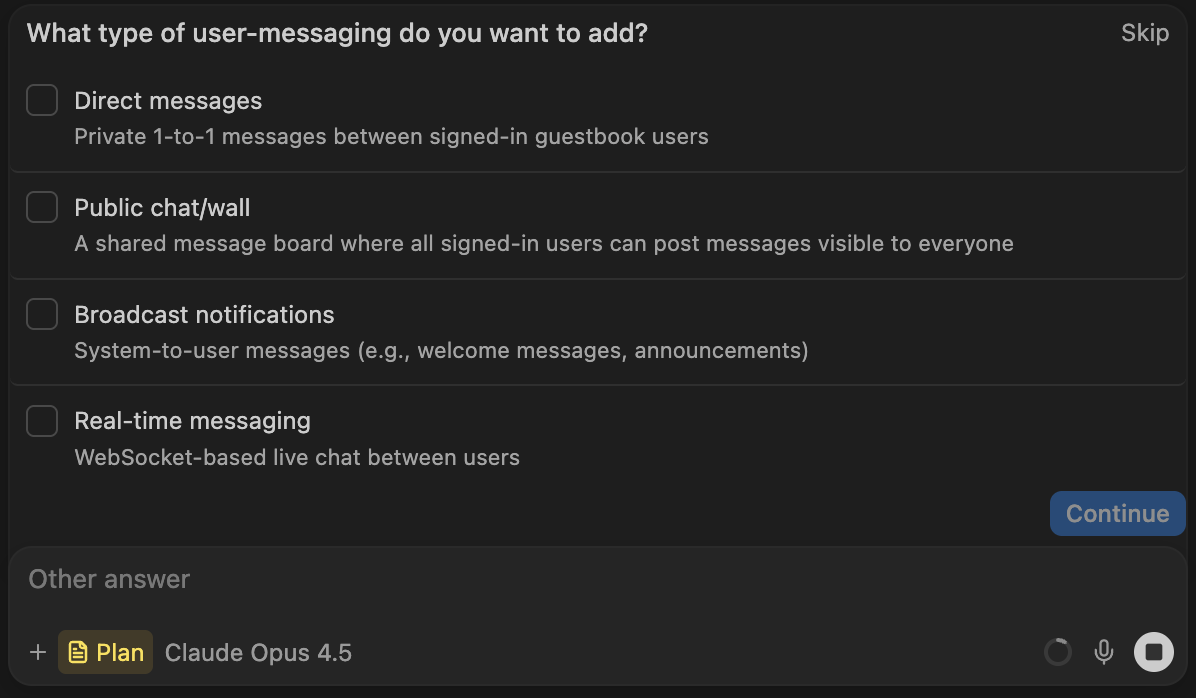
- Ask clarifying questions to ensure the plan aligns with your goals
- Provide multiple options for you to choose from with an interactive interface
- Present a detailed plan, written in an external Markdown file, with implementation steps
Continuing from a plan
The markdown file created in plan mode can be particularly useful for continuing work across multiple sessions. Plans are stored in your~/.windsurf/plans directory and are available in the @mentions menu.
By mentioning a plan file, you can continue implementation with a fresh context.
This can be particularly useful when an initial implementation went awry: just discard the original changes, tweak the plan file, and click “Implement” to attempt implementation again in a new conversation.
Exiting plan mode
There are multiple different ways to move from planning to implementation:- Click the “Implement” button on the plan file
- Change your mode to Code mode in the input box
- Let the agent automatically switch to Code mode when it detects that you’re ready to implement