> ## Documentation Index
> Fetch the complete documentation index at: https://docs.windsurf.com/llms.txt
> Use this file to discover all available pages before exploring further.
# Windsurf 预览
> 在 Windsurf IDE 或浏览器中本地预览你的 Web 应用,支持元素选取、错误捕获,并与 Cascade 深度集成,助你快速迭代。
Windsurf 预览让你可以在 IDE 或浏览器中查看应用的本地部署(针对 Google Chrome、Arc 及其他基于 Chromium 的浏览器进行了优化),并提供监听功能,便于你将页面元素和错误作为上下文轻松发送回 Cascade,从而快速迭代。
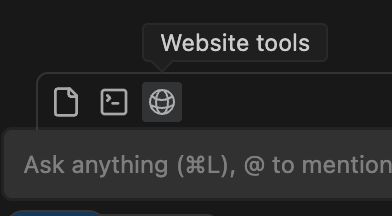
Windsurf 预览通过工具调用打开,你只需让 Cascade 预览你的网站即可开始。或者,你也可以点击 Cascade 工具栏中的 Web 图标,自动将自然语言提示传递到代理入口。
# 将元素发送到 Cascade
在 Preview 中,你可以选择并将元素/组件以及错误直接发送到 Cascade。只需点击右下角的“Send element”按钮,然后选择要发送的元素即可。
所选元素会以 `@mention` 的形式插入到你当前的 Cascade 提示中。你可以在提示中添加任意数量的元素。
# IDE 内预览
Windsurf 可以在编辑器中以新标签页打开预览。这是一个简单的网页视图,便于你在 Cascade 面板旁边查看你的 Web 应用。
由于这些预览在本地托管,你也可以在系统浏览器中打开它们,并完整保留所有监听器,以及选择并发送元素和控制台错误到 Cascade 的能力。
这些监听器,以及发送元素和错误的能力,已针对 Google Chrome、Arc 和基于 Chromium 的浏览器进行了优化。
# 如何禁用
你可以在 Windsurf 的 Settings 菜单中禁用 Windsurf Previews。这将阻止 Cascade 发起对此工具的调用。