> ## Documentation Index
> Fetch the complete documentation index at: https://docs.windsurf.com/llms.txt
> Use this file to discover all available pages before exploring further.

# 欢迎使用 Windsurf

> 在 Mac、Windows 或 Linux 上下载并安装 Windsurf IDE。导入 VS Code 或 Cursor 设置，配置主题，并开始在 AI 驱动的辅助下进行编码。

面向明日的编辑器，今日即享。

Windsurf 是新一代 AI IDE，旨在让你始终保持高效流畅。在本页，你将了解如何在电脑上安装 Windsurf、完成上手引导，并开启你的第一个 AI 驱动项目。

<Card
  title="Cascade"
  icon={
<svg
width="25"
height="25"
viewBox="0 0 1292 1292"
fill="none"
xmlns="http://www.w3.org/2000/svg"
>
<path
  d="M1195 599C1195 848.08 993.08 1050 744 1050C494.92 1050 293 848.08 293 599C293 349.92 494.92 148 744 148C993.08 148 1195 349.92 1195 599ZM411.5 599C411.5 782.635 560.365 931.5 744 931.5C927.635 931.5 1076.5 782.635 1076.5 599C1076.5 415.365 927.635 266.5 744 266.5C560.365 266.5 411.5 415.365 411.5 599Z"
  fill="#34E8BB"
/>
<path
  d="M1096.19 1053.62C1116.8 1078.03 1113.86 1114.77 1087.65 1133.04C1002.41 1192.46 903.441 1229.92 799.584 1241.61C676.505 1255.46 552.082 1232.51 442.049 1175.65C332.016 1118.79 241.314 1030.58 181.415 922.172C130.87 830.693 104.172 728.301 103.33 624.396C103.071 592.449 131.338 568.79 163.173 571.479C195.007 574.168 218.29 602.208 219.218 634.143C221.573 715.175 243.206 794.78 282.679 866.22C331.512 954.6 405.457 1026.51 495.161 1072.87C584.866 1119.22 686.302 1137.94 786.643 1126.64C867.75 1117.51 945.198 1089.11 1012.66 1044.15C1039.24 1026.44 1075.58 1029.21 1096.19 1053.62Z"
  fill="#34E8BB"
/>
<path
  d="M177.334 450.08C146.261 442.514 126.947 411.072 137.349 380.829C160.687 312.983 195.56 249.512 240.566 193.267C285.571 137.023 339.851 89.0802 400.928 51.4326C428.153 34.6511 463.065 46.5999 477.261 75.2582C491.457 103.917 479.508 138.389 452.641 155.738C406.542 185.506 365.436 222.584 330.994 265.627C296.552 308.67 269.39 356.906 250.456 408.411C239.421 438.428 208.408 457.646 177.334 450.08Z"
  fill="#34E8BB"
/>
</svg>
}
  href="/zh/windsurf/cascade"
>
  你的智能代理聊天助手，前所未有地与你协作。
</Card>

<CardGroup cols={2}>
  <Card title="Usage" icon="bars-progress" href="/zh/windsurf/accounts/usage">
    用量与额度。
  </Card>

  <Card title="Terminal" icon="terminal" href="/zh/windsurf/terminal">
    全新升级的终端体验。
  </Card>
</CardGroup>

<CardGroup cols={2}>
  <Card title="MCP" icon="hammer" href="/zh/windsurf/cascade/mcp">
    MCP (模型上下文协议，Model Context Protocol) 服务器可扩展代理的功能。
  </Card>

  <Card title="Memories" icon="cloud-word" href="/zh/windsurf/cascade/memories">
    Memories 与规则有助于定制行为。
  </Card>

  <Card title="Context Awareness" icon="brain" href="/zh/context-awareness/overview">
    即刻理解你的代码库。
  </Card>

  <Card title="Advanced" icon="gears" href="/zh/windsurf/advanced">
    高级配置选项。
  </Card>
</CardGroup>

<CardGroup cols={2}>
  <Card title="Workflows" icon="list" href="/zh/windsurf/cascade/workflows">
    自动化重复性的工作流程。
  </Card>

  <Card title="App Deploys" icon="rocket" href="/zh/windsurf/cascade/app-deploys">
    一键部署应用。
  </Card>
</CardGroup>

<Tip> 查看 Windsurf 的最新动态，请参阅我们的 [changelog](https://windsurf.com/changelog)！ </Tip>

<div id="set-up">
  ## 设置
</div>

开始之前，请确保你的设备符合要求，点击下载链接，并按照说明安装并运行 Windsurf。

如果你想了解如何更新 Windsurf，请[点击此处](#update-windsurf)。

<Tabs>
  <Tab title="Mac">
    最低系统版本：OS X Yosemite

    <a href="https://windsurf.com/windsurf/download_mac" target="_blank" rel="noopener noreferrer">
      <button style={{width: '170px', backgroundColor: '#34E8BB', color: 'white', padding: '5px 10px', border: 'none', borderRadius: '5px', cursor: 'pointer', fontSize: '0.8rem', display: 'flex', justifyContent: 'center'}}>下载 Mac 版</button>
    </a>
  </Tab>

  <Tab title="Windows">
    最低系统版本：Windows 10

    <a href="https://windsurf.com/windsurf/download" target="_blank" rel="noopener noreferrer">
      <button style={{width: '170px', backgroundColor: '#34E8BB', color: 'white', padding: '5px 10px', border: 'none', borderRadius: '5px', cursor: 'pointer', fontSize: '0.8rem', display: 'flex', justifyContent: 'center'}}>下载 Windows 版</button>
    </a>
  </Tab>

  <Tab title="Ubuntu">
    最低系统版本：>= 20.04 (或 glibc >= 2.31，glibcxx >= 3.4.26)

    <a href="https://windsurf.com/windsurf/download_linux" target="_blank" rel="noopener noreferrer">
      <button style={{width: '170px', backgroundColor: '#34E8BB', color: 'white', padding: '5px 10px', border: 'none', borderRadius: '5px', cursor: 'pointer', fontSize: '0.8rem', display: 'flex', justifyContent: 'center'}}>下载 Ubuntu 版</button>
    </a>
  </Tab>

  <Tab title="Other Linux distributions">
    最低系统版本：glibc >= 2.28，glibcxx >= 3.4.25

    <a href="https://windsurf.com/windsurf/download_linux" target="_blank" rel="noopener noreferrer">
      <button style={{width: '170px', backgroundColor: '#34E8BB', color: 'white', padding: '5px 10px', border: 'none', borderRadius: '5px', cursor: 'pointer', fontSize: '0.8rem', display: 'flex', justifyContent: 'center'}}>下载 Linux 版</button>
    </a>
  </Tab>
</Tabs>

<div id="onboarding">
  ## 入门
</div>

启动 Windsurf 后，你会看到下方的页面。让我们开始吧！请注意，你随时可以通过使用 “Reset Onboarding” Command 重新开始此入门流程。
<Frame>
  <img src="https://mintcdn.com/codeium/bVGscI7v3lPUsThV/assets/windsurf/onboarding/welcome.png?fit=max&auto=format&n=bVGscI7v3lPUsThV&q=85&s=f8eae97bf290f1badc7b21e0d9566f89" width="2344" height="1464" data-path="assets/windsurf/onboarding/welcome.png" />
</Frame>

<div id="1-select-setup-flow">
  ### 1. 选择设置流程
</div>

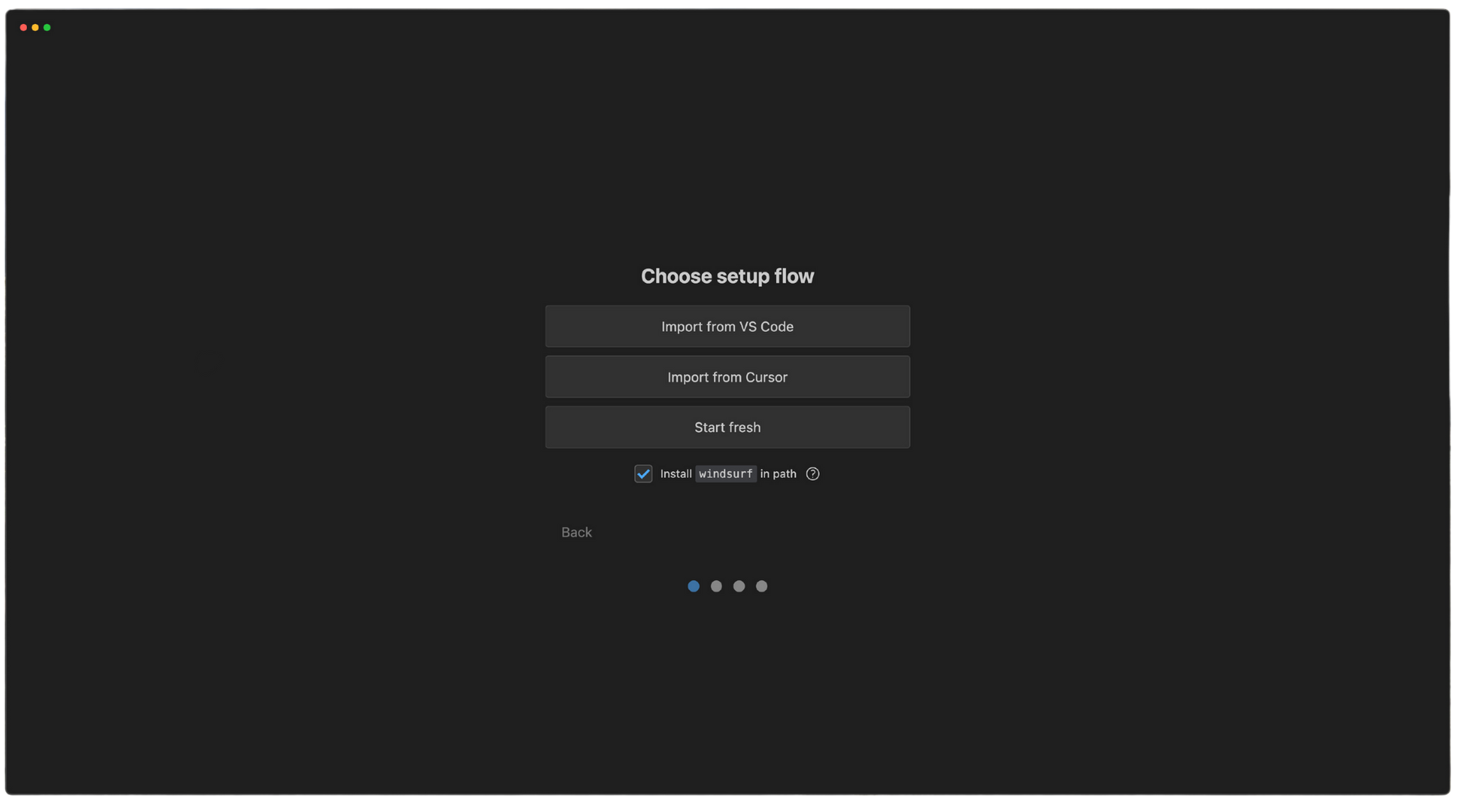
如果你从 VS Code 或 Cursor 迁移过来，可以轻松导入现有配置。否则请选择“Start fresh”。你还可以选择将 `windsurf` 安装到 PATH 中，这样就能在命令行直接运行 `windsurf`。

<Frame>
  <img src="https://mintcdn.com/codeium/bVGscI7v3lPUsThV/assets/windsurf/onboarding/setup.png?fit=max&auto=format&n=bVGscI7v3lPUsThV&q=85&s=5696da6d3a63cd10ddcac4575dbf89fd" width="2064" height="1145" data-path="assets/windsurf/onboarding/setup.png" />
</Frame>

<Tabs>
  <Tab title="Start fresh">
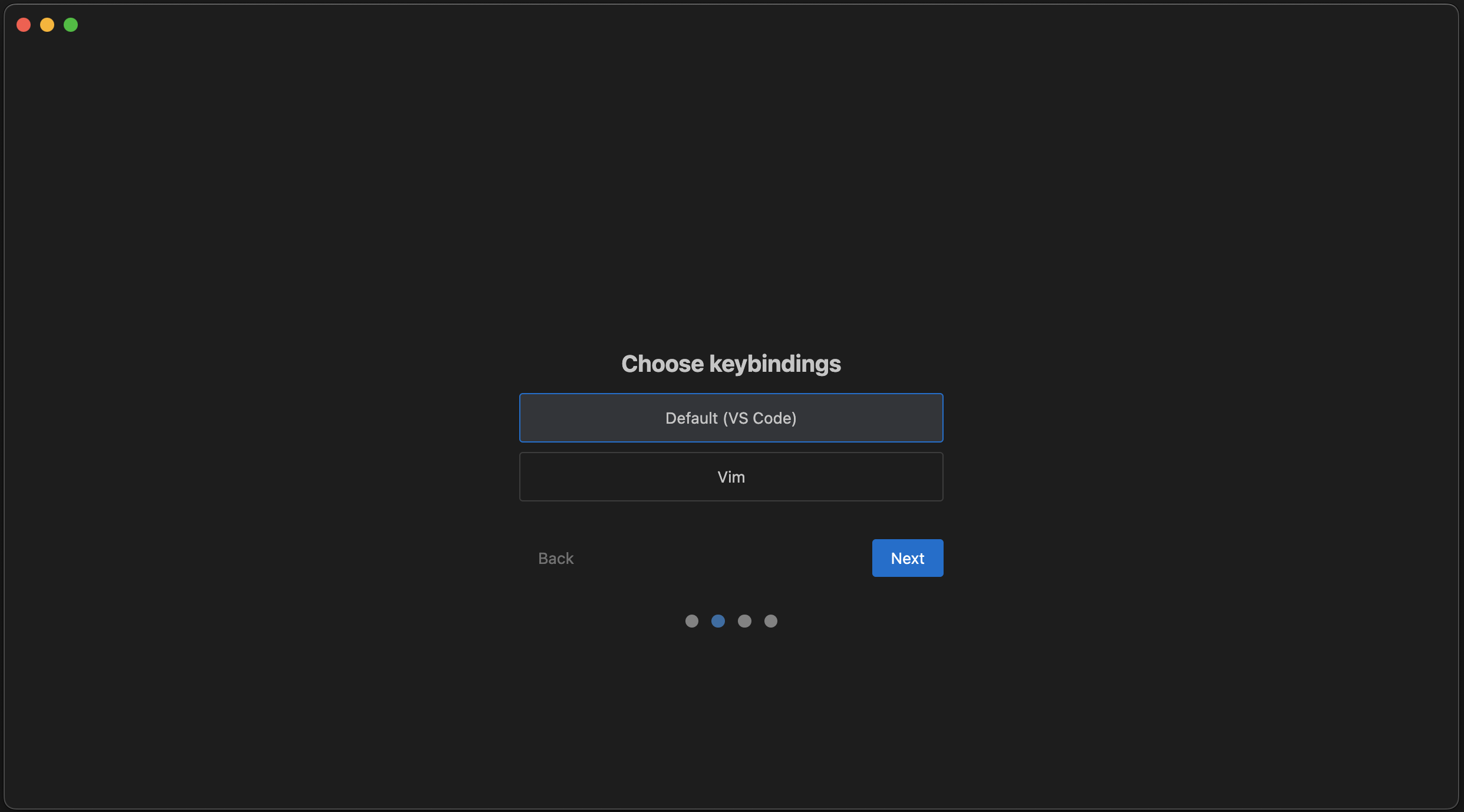
    在这里选择你的按键映射：可使用 VS Code 默认映射或 Vim 映射。

    <Frame>
      <img src="https://mintcdn.com/codeium/bVGscI7v3lPUsThV/assets/windsurf/onboarding/keybind.png?fit=max&auto=format&n=bVGscI7v3lPUsThV&q=85&s=14c9adde7dd5bb1073108c510934f3cb" width="2484" height="1378" data-path="assets/windsurf/onboarding/keybind.png" />
    </Frame>
  </Tab>

  <Tab title="Import from VS Code">
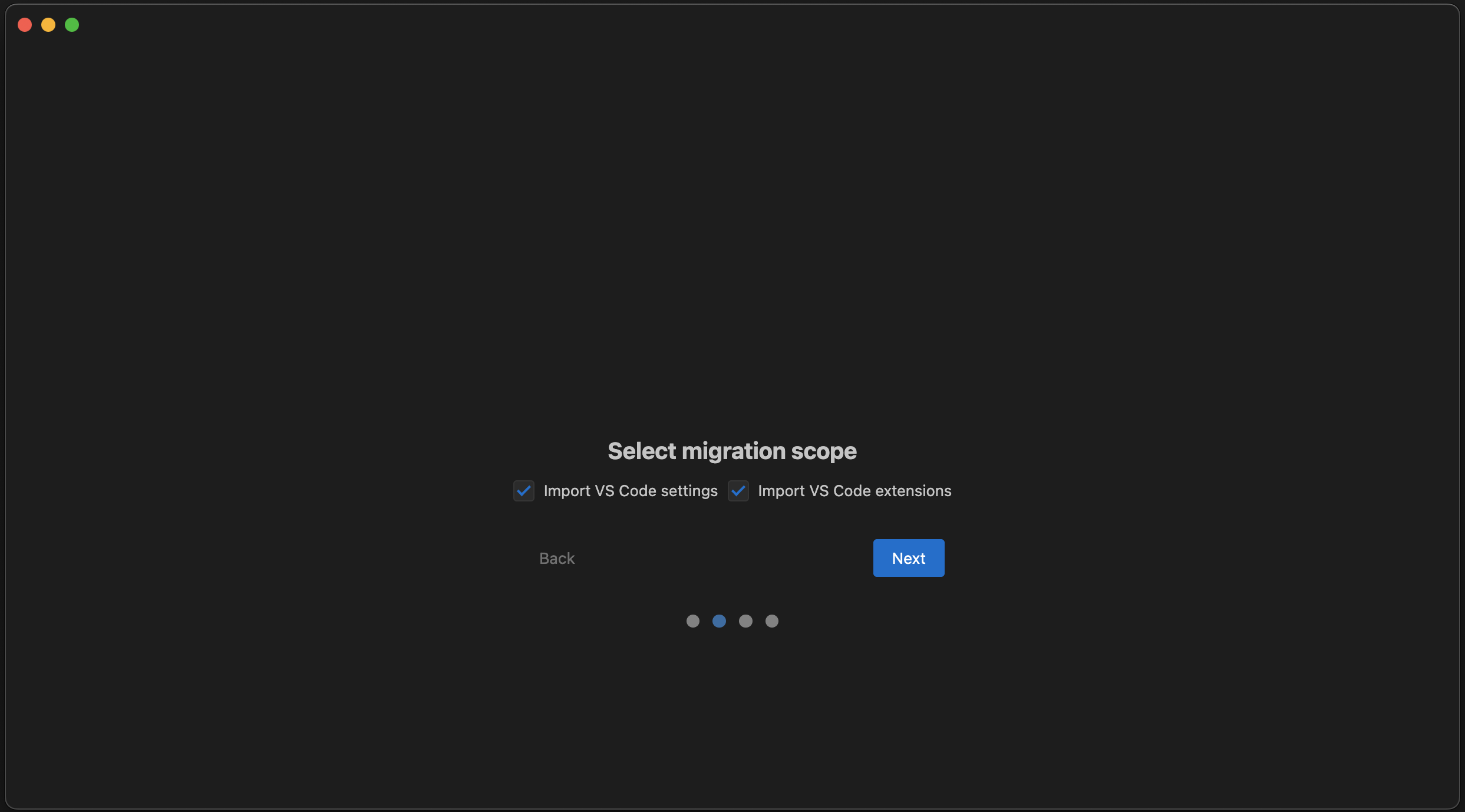
    你可以在这里迁移设置、扩展，或两者一起迁移。

    <Frame>
      <img src="https://mintcdn.com/codeium/bVGscI7v3lPUsThV/assets/windsurf/onboarding/vscode_migration.png?fit=max&auto=format&n=bVGscI7v3lPUsThV&q=85&s=cf14f085ccba168dd02c791f381507b7" width="2486" height="1378" data-path="assets/windsurf/onboarding/vscode_migration.png" />
    </Frame>
  </Tab>

  <Tab title="Import from Cursor">
    你可以在这里迁移设置、扩展，或两者一起迁移。

    <Frame>
      <img src="https://mintcdn.com/codeium/bVGscI7v3lPUsThV/assets/windsurf/onboarding/vscode_migration.png?fit=max&auto=format&n=bVGscI7v3lPUsThV&q=85&s=cf14f085ccba168dd02c791f381507b7" width="2486" height="1378" data-path="assets/windsurf/onboarding/vscode_migration.png" />
    </Frame>
  </Tab>
</Tabs>

<div id="2-choose-editor-theme">
  ### 2. 选择编辑器主题
</div>

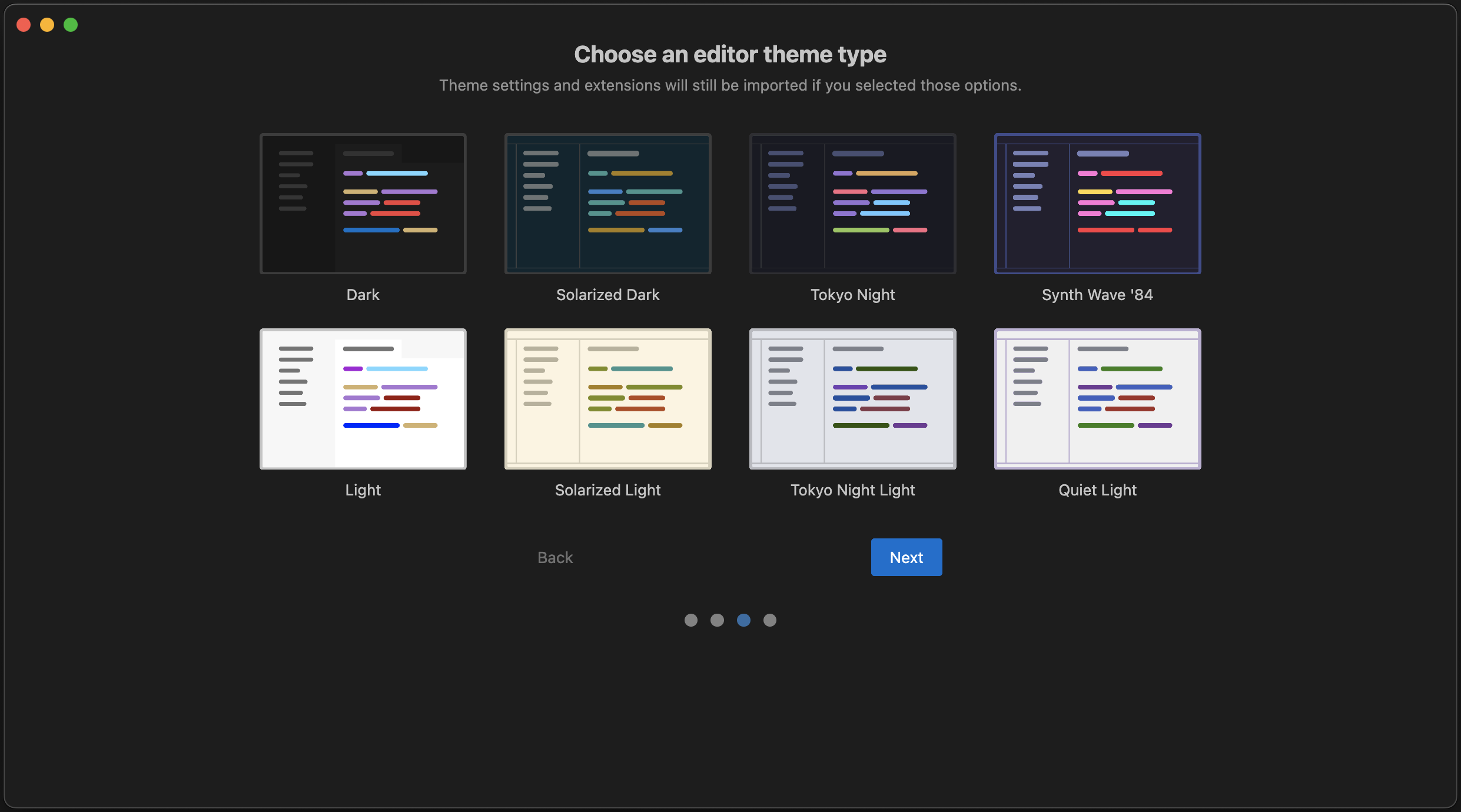
从以下默认选项中挑选你喜欢的配色主题吧！别担心，之后随时可以更改。注意：如果你从 VS Code 导入，导入的主题将覆盖此设置。

<Frame>
  <img src="https://mintcdn.com/codeium/bVGscI7v3lPUsThV/assets/windsurf/onboarding/theme.png?fit=max&auto=format&n=bVGscI7v3lPUsThV&q=85&s=7bd1ce64f97063988605a7e6bcf3f734" width="2482" height="1380" data-path="assets/windsurf/onboarding/theme.png" />
</Frame>

<div id="3-sign-up-log-in">
  ### 3. 注册 / 登录
</div>

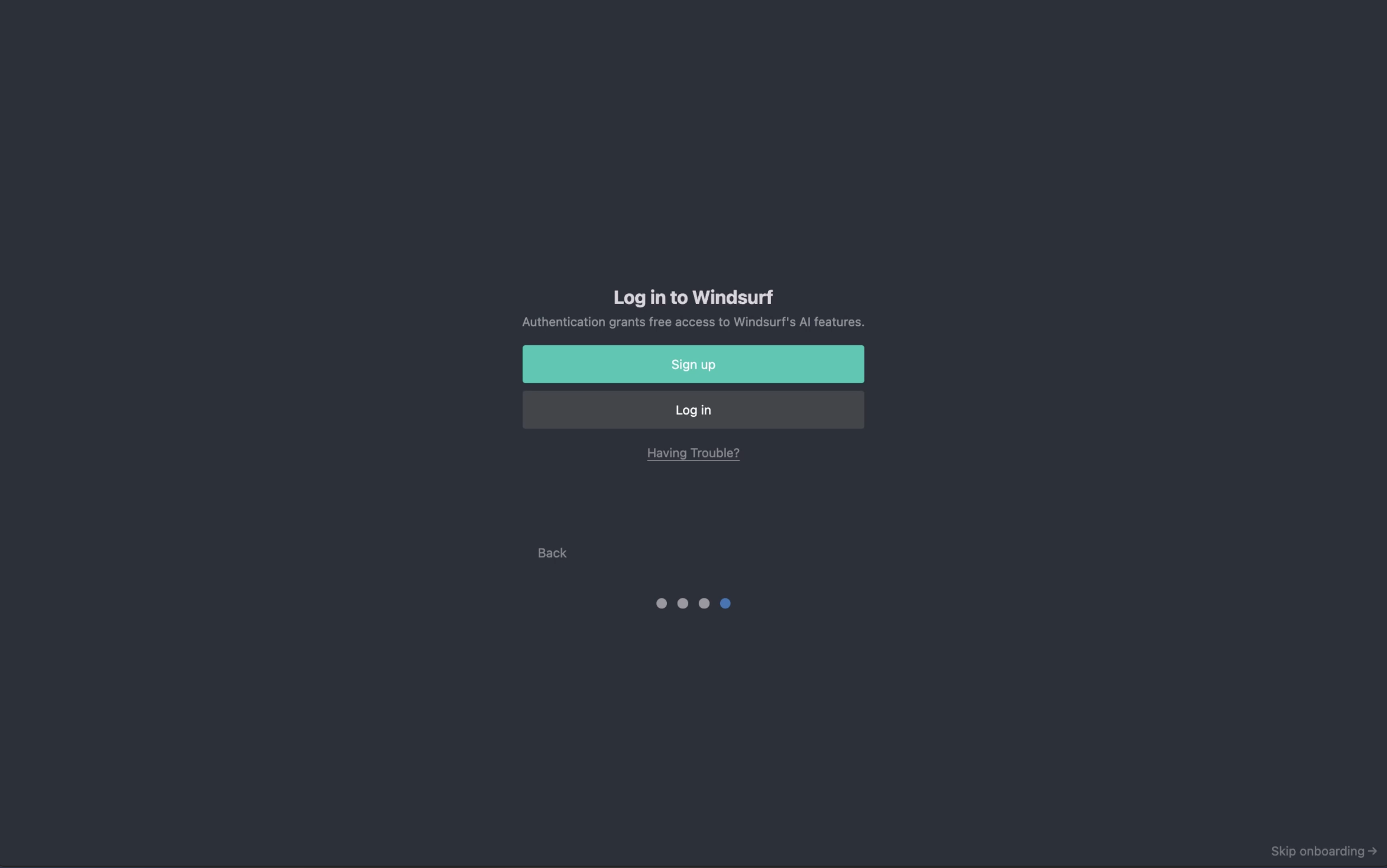
要使用 Windsurf，你需要使用你的 Windsurf 账号；如果还没有，请先创建一个。注册完全免费！

<Frame>
  <img src="https://mintcdn.com/codeium/bVGscI7v3lPUsThV/assets/windsurf/onboarding/auth.png?fit=max&auto=format&n=bVGscI7v3lPUsThV&q=85&s=e92373636e9415e67b79e5eaeff399be" width="2346" height="1468" data-path="assets/windsurf/onboarding/auth.png" />
</Frame>

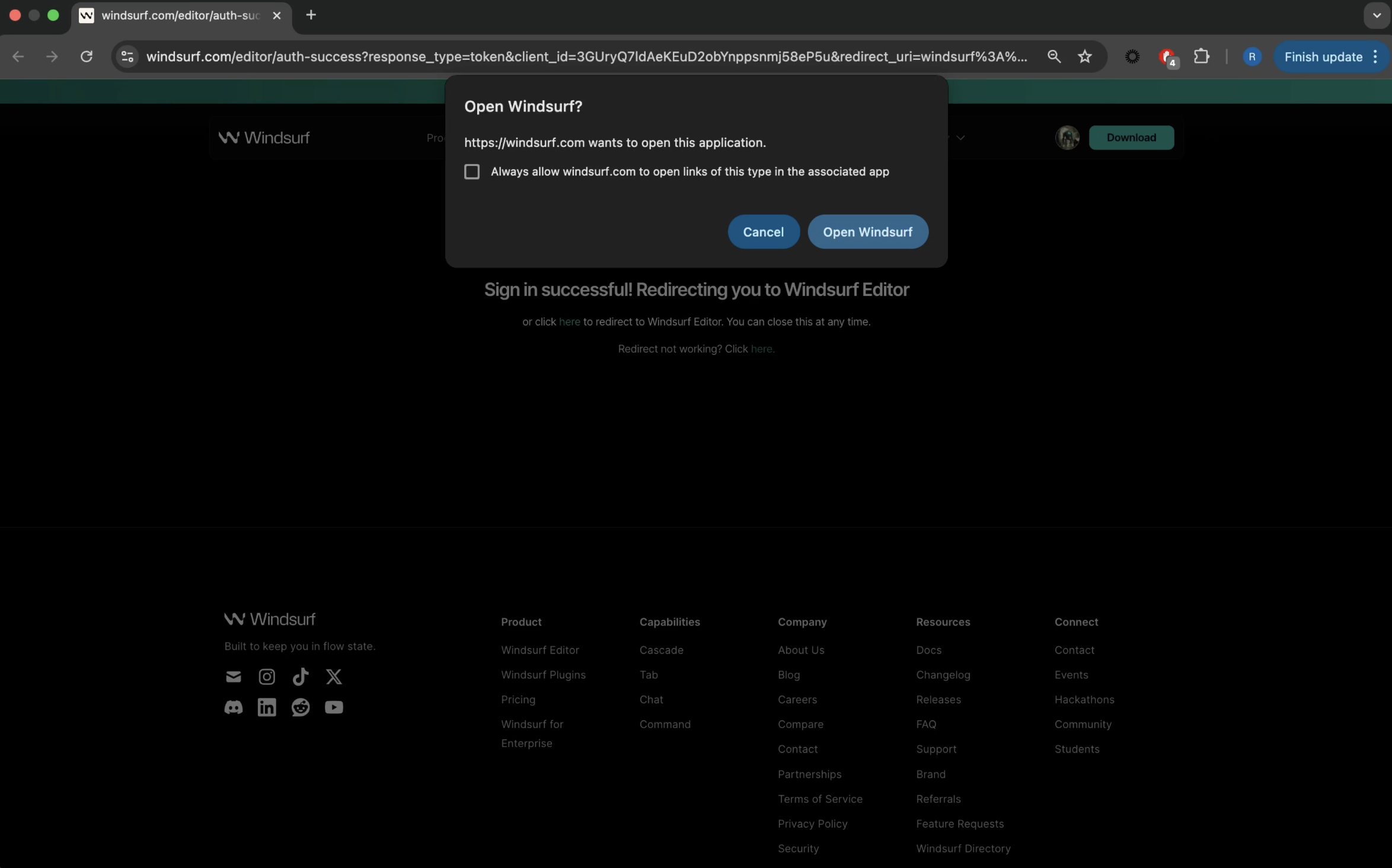
完成身份验证后，你会看到此页面。点击“Open Windsurf”，即可开始使用！

<Frame>
  <img src="https://mintcdn.com/codeium/bVGscI7v3lPUsThV/assets/windsurf/onboarding/authenticated.png?fit=max&auto=format&n=bVGscI7v3lPUsThV&q=85&s=8d8091bca31c571afe1ef5caf9b03459" width="2348" height="1464" data-path="assets/windsurf/onboarding/authenticated.png" />
</Frame>

<div id="having-trouble">
  #### 遇到问题？
</div>

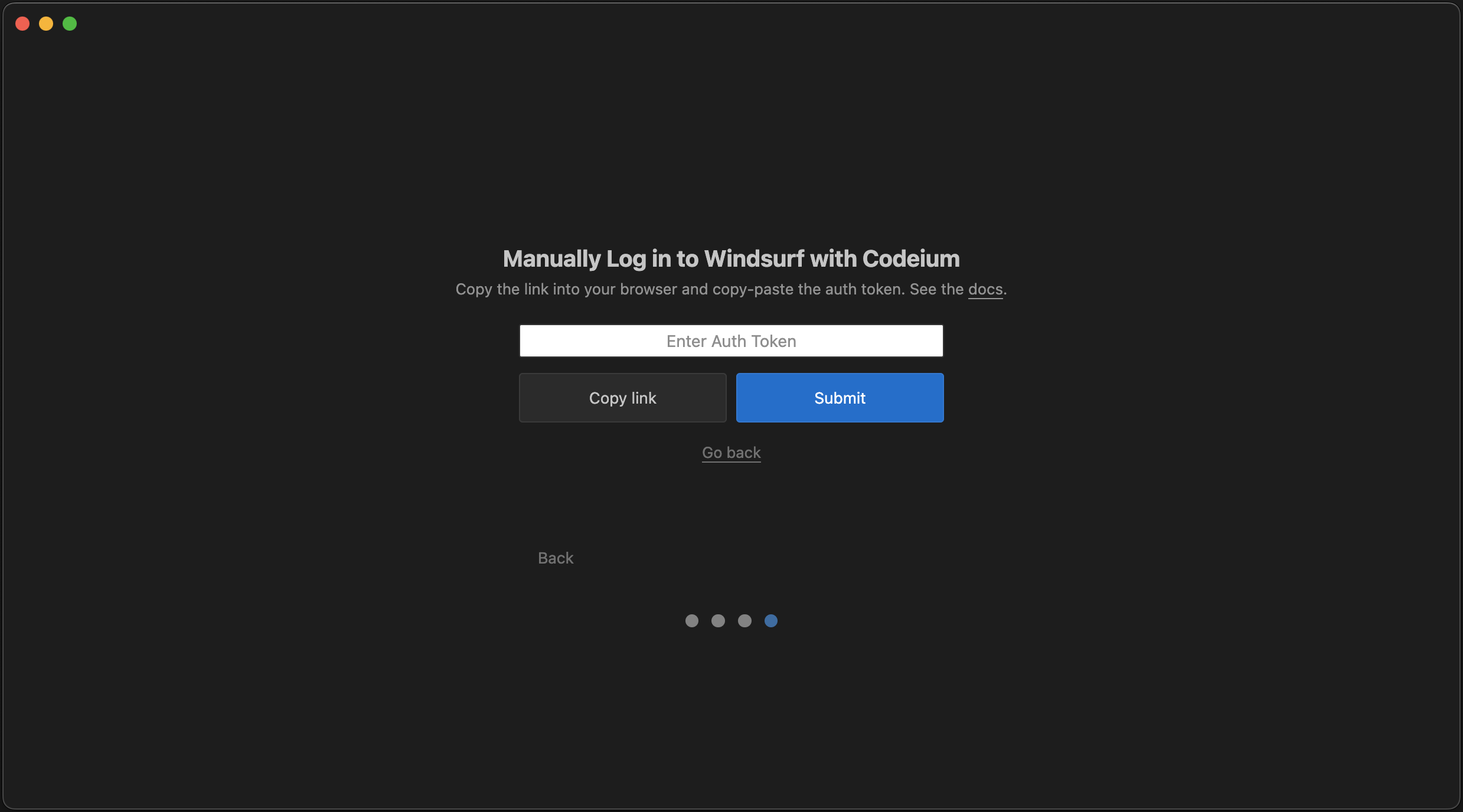
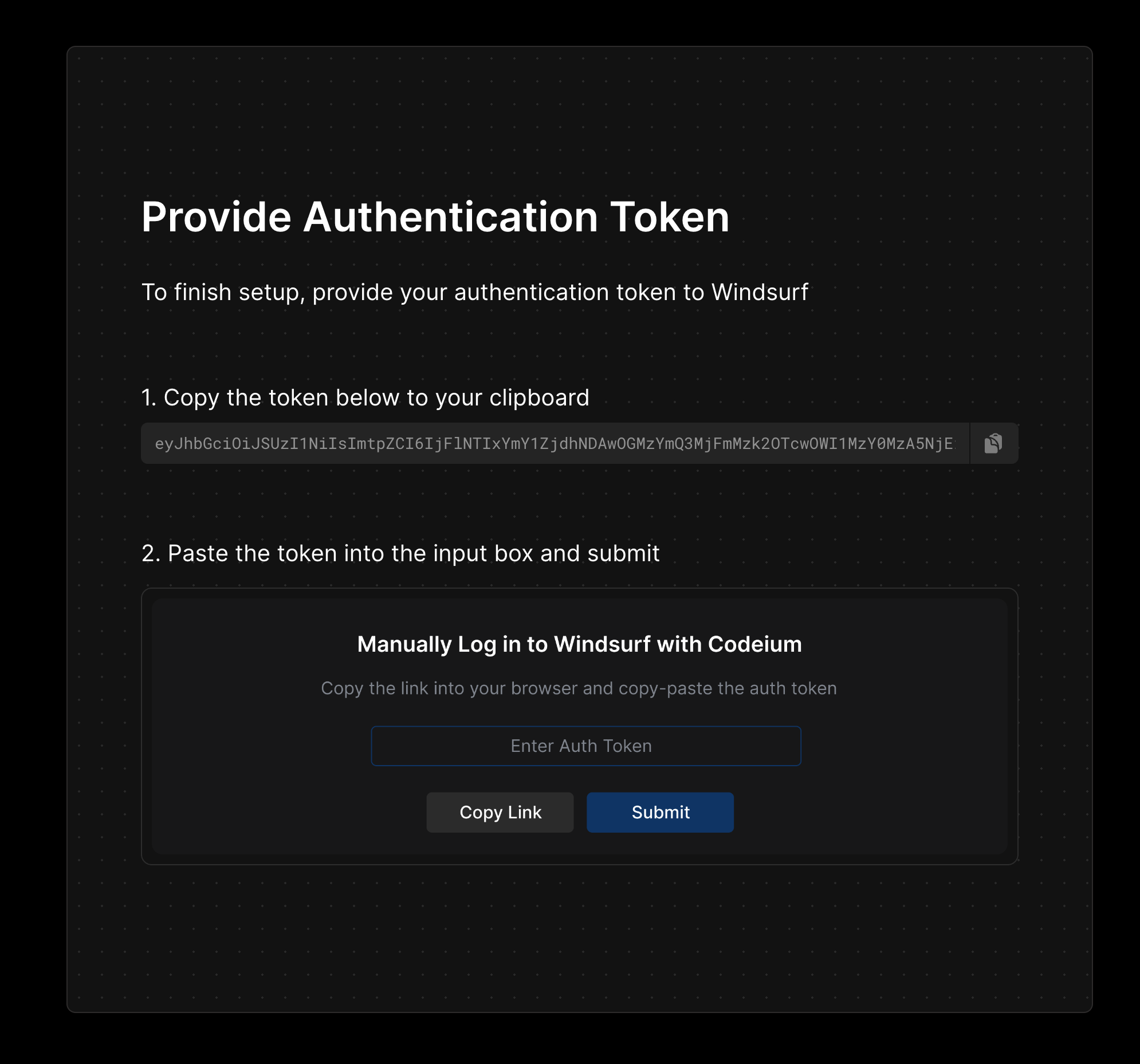
如果你在此身份验证流程中遇到问题，也可以先登录，然后手动向 Windsurf 提交一个身份验证代码。

<Tabs>
  <Tab title="1. 选择「遇到问题？」">
    点击“复制链接”按钮，将身份验证链接复制到剪贴板，并在浏览器中打开该链接。

    <Frame>
      <img src="https://mintcdn.com/codeium/bVGscI7v3lPUsThV/assets/windsurf/onboarding/manual_auth.png?fit=max&auto=format&n=bVGscI7v3lPUsThV&q=85&s=c4aabe6e213b964e315fbc6940f0c5b0" width="2478" height="1376" data-path="assets/windsurf/onboarding/manual_auth.png" />
    </Frame>
  </Tab>

  <Tab title="2. 输入身份验证代码">
    复制该链接中显示的身份验证代码，并将其输入到 Windsurf。

    <Frame>
      <img src="https://mintcdn.com/codeium/bVGscI7v3lPUsThV/assets/windsurf/onboarding/manual_auth_onboarding.png?fit=max&auto=format&n=bVGscI7v3lPUsThV&q=85&s=5911333c632d5ded717d685c3ff77cac" width="1990" height="1858" data-path="assets/windsurf/onboarding/manual_auth_onboarding.png" />
    </Frame>
  </Tab>
</Tabs>

<div id="4-lets-surf">
  ### 4. 开始冲浪吧！
</div>

<Frame>
  <video autoPlay muted loop playsInline src="https://mintcdn.com/codeium/bVGscI7v3lPUsThV/assets/windsurf/onboarding/lets_surf.mp4?fit=max&auto=format&n=bVGscI7v3lPUsThV&q=85&s=8f26c1a8770b94a299752d7401149cff" data-path="assets/windsurf/onboarding/lets_surf.mp4" />
</Frame>

<Card title="推荐插件" icon="puzzle-piece" href="/zh/windsurf/recommended-plugins">
  浏览我们推荐的插件，充分释放 Windsurf 的潜力！
</Card>

<div id="update-windsurf">
  ## 更新 Windsurf
</div>

要更新 Windsurf，您可以点击菜单栏右上角的“Restart to Update ->”按钮。

<Frame>
  <img src="https://mintcdn.com/codeium/bVGscI7v3lPUsThV/assets/windsurf/update-windsurf.png?fit=max&auto=format&n=bVGscI7v3lPUsThV&q=85&s=254e39b2e81a7746d82b36387dae2504" width="600" height="66" data-path="assets/windsurf/update-windsurf.png" />
</Frame>

如果您没有看到该按钮，可以：

1. 点击个人资料图标下拉菜单 > Check for Updates

2. 在命令面板 (`Cmd/Ctrl+Shift+P`) 中 > “Check for Updates”

<div id="things-to-try">
  ## 可尝试的内容
</div>

既然你已经成功打开 Windsurf，来试试一些功能吧！这些都可以在起始页面便捷访问。:)

<AccordionGroup>
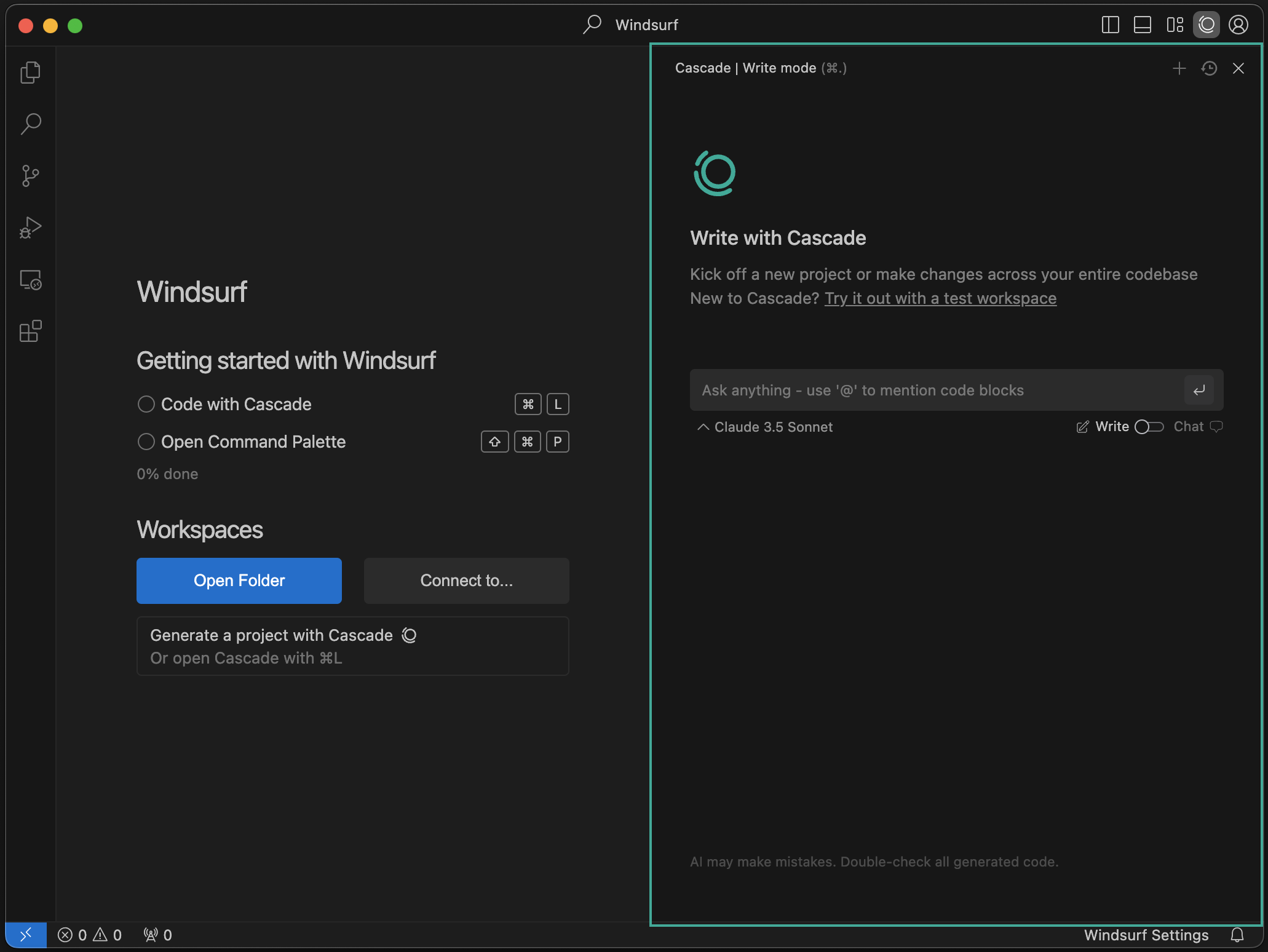
  <Accordion title="使用 Cascade 编写">
    <Frame>
      <img src="https://mintcdn.com/codeium/qJj_RRojefb93yIg/assets/windsurf/cascade.png?fit=max&auto=format&n=qJj_RRojefb93yIg&q=85&s=1e48173bc3499c03f11be933a6b45596" width="2062" height="1548" data-path="assets/windsurf/cascade.png" />
    </Frame>

    在 IDE 右侧，你会看到一个名为“Cascade”的新面板。这是你的 AI 驱动代码助手！你可以在 Cascade 中进行 Chat、编写代码和运行代码！在[此处](/zh/windsurf/cascade)了解其工作方式。
  </Accordion>

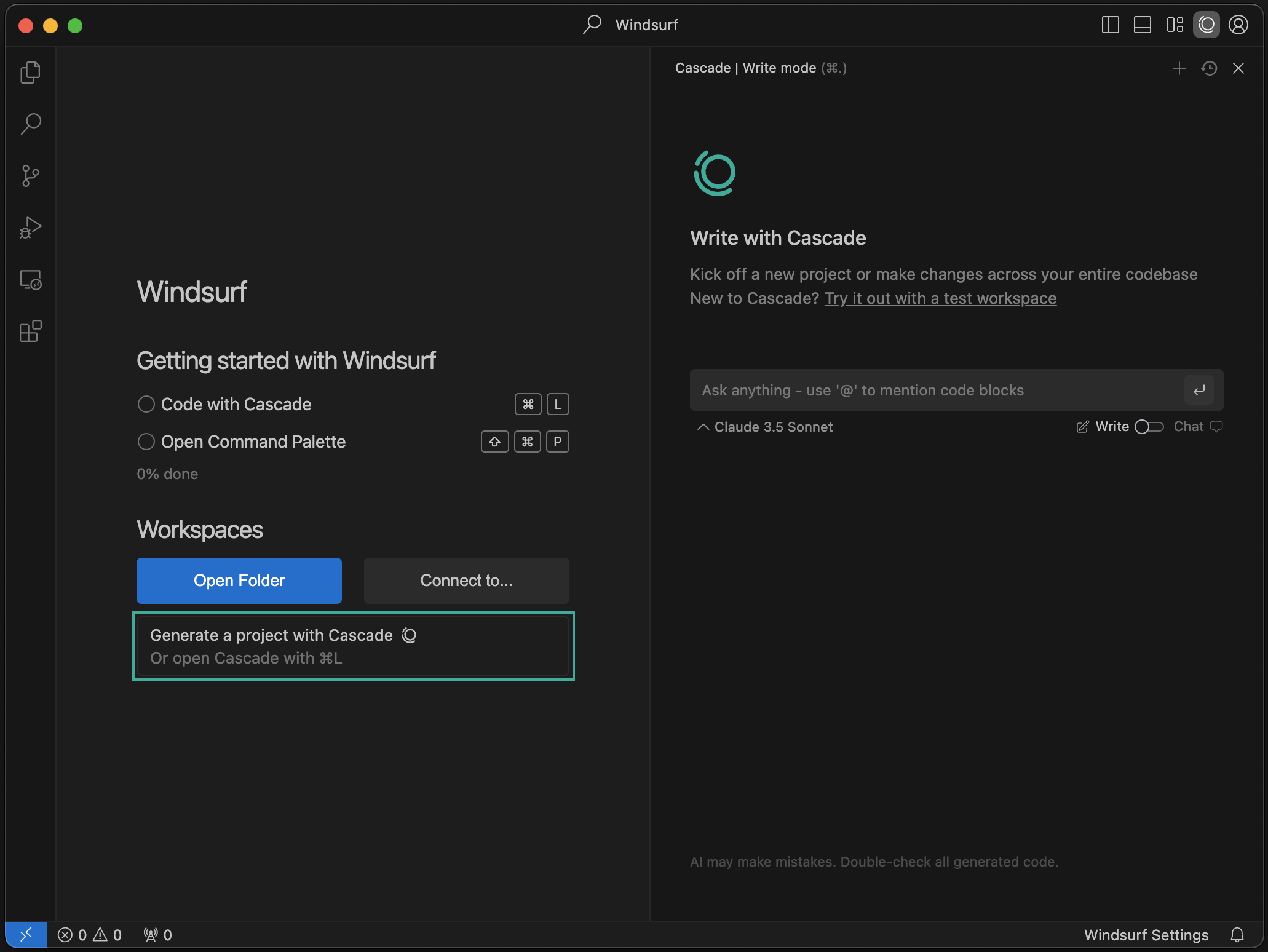
  <Accordion title="使用 Cascade 生成项目">
    <Frame>
      <img src="https://mintcdn.com/codeium/qJj_RRojefb93yIg/assets/windsurf/cascade_generate.png?fit=max&auto=format&n=qJj_RRojefb93yIg&q=85&s=876d94d833f7156fb19ced5da29ac3f9" width="2062" height="1548" data-path="assets/windsurf/cascade_generate.png" />
    </Frame>

    你可以使用 Cascade 创建全新项目！点击“New Project”按钮开始。
  </Accordion>

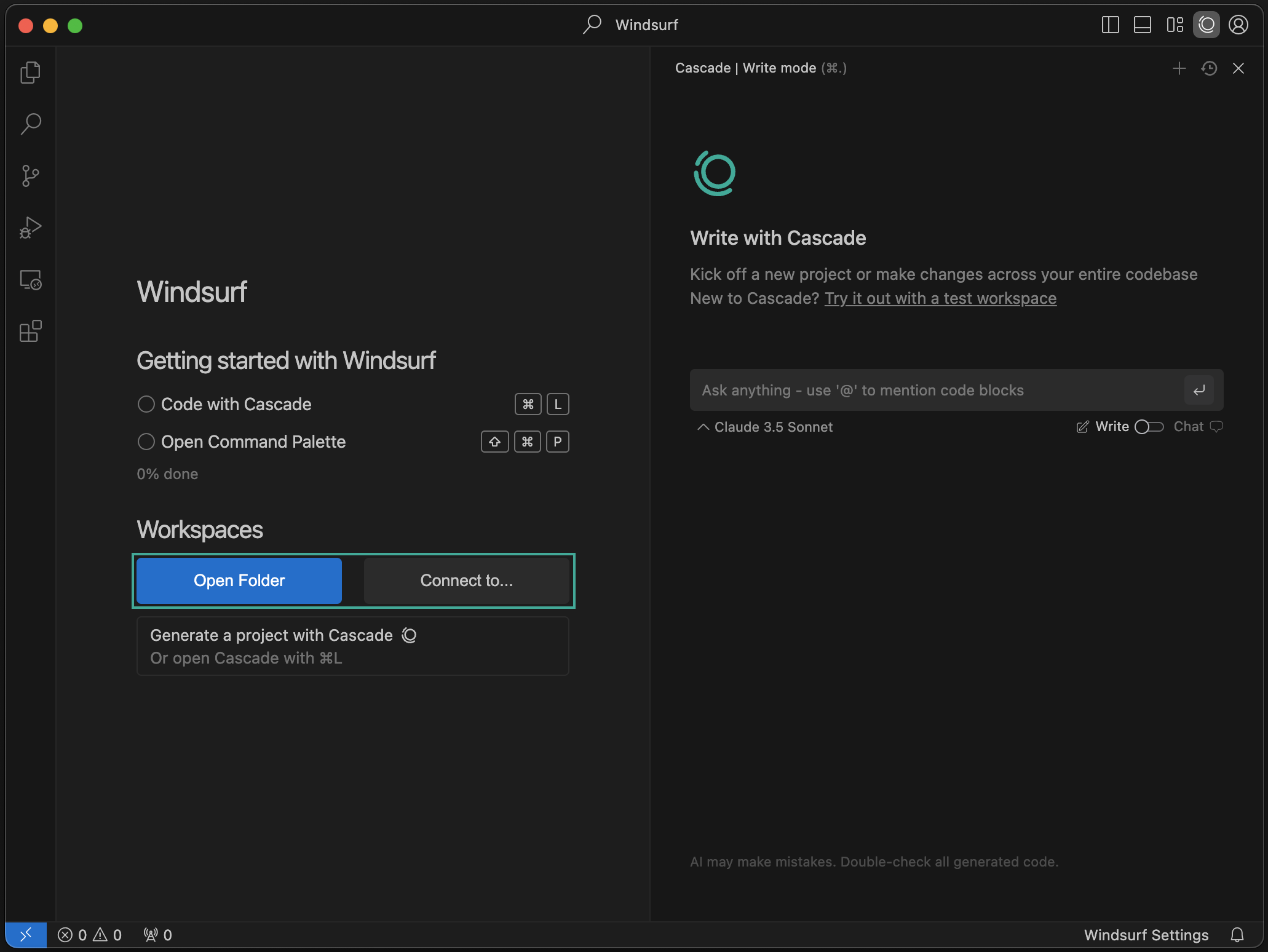
  <Accordion title="打开文件夹 / 连接到远程服务器">
    <Frame>
      <img src="https://mintcdn.com/codeium/bVGscI7v3lPUsThV/assets/windsurf/open_workspace.png?fit=max&auto=format&n=bVGscI7v3lPUsThV&q=85&s=23af27c11317a2d69cb04f092e1da13f" width="2062" height="1548" data-path="assets/windsurf/open_workspace.png" />
    </Frame>

    你可以通过 SSH 或本地开发容器打开文件夹，或连接到远程服务器。了解更多[信息](/zh/windsurf/advanced)。
  </Accordion>

  <Accordion title="配置 Windsurf 设置">
    <Frame>
      <img style={{width: '50%', display: 'block', margin: 'auto'}} src="https://mintcdn.com/codeium/bVGscI7v3lPUsThV/assets/windsurf/windsurf-settings-panel.png?fit=max&auto=format&n=bVGscI7v3lPUsThV&q=85&s=4f123cb41fe4557a31249af717324652" width="754" height="986" data-path="assets/windsurf/windsurf-settings-panel.png" />
    </Frame>

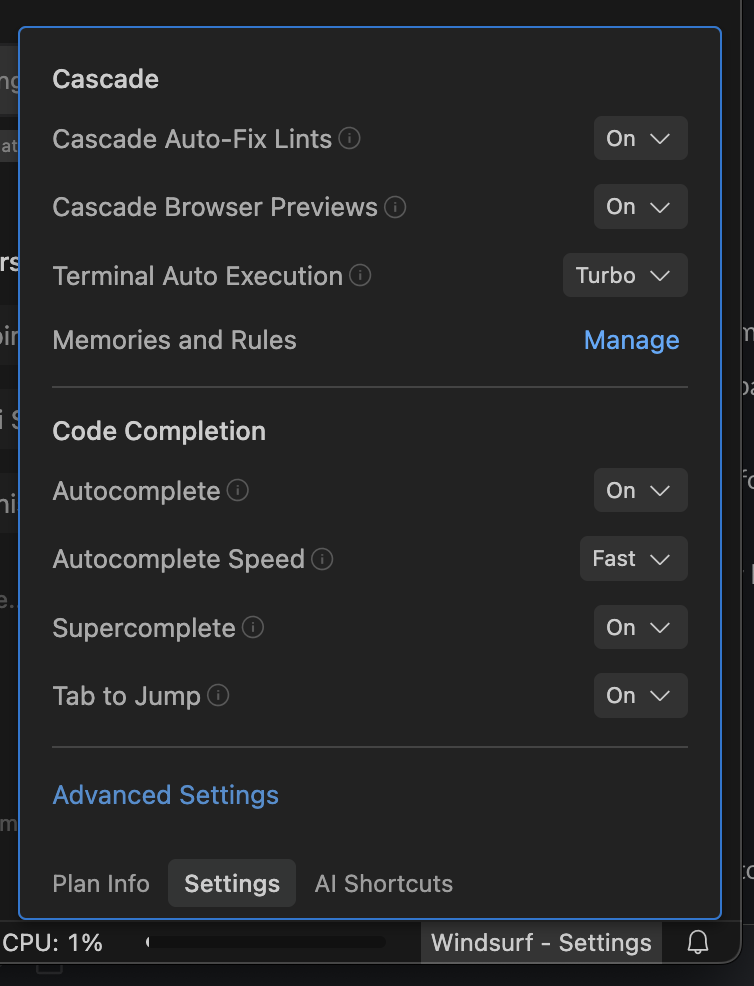
    点击右下角的“Windsurf - Settings”按钮以打开设置面板。要访问高级设置，可在该面板中点击相应按钮，或在右上角个人资料下拉菜单中选择“Windsurf Settings”。
  </Accordion>

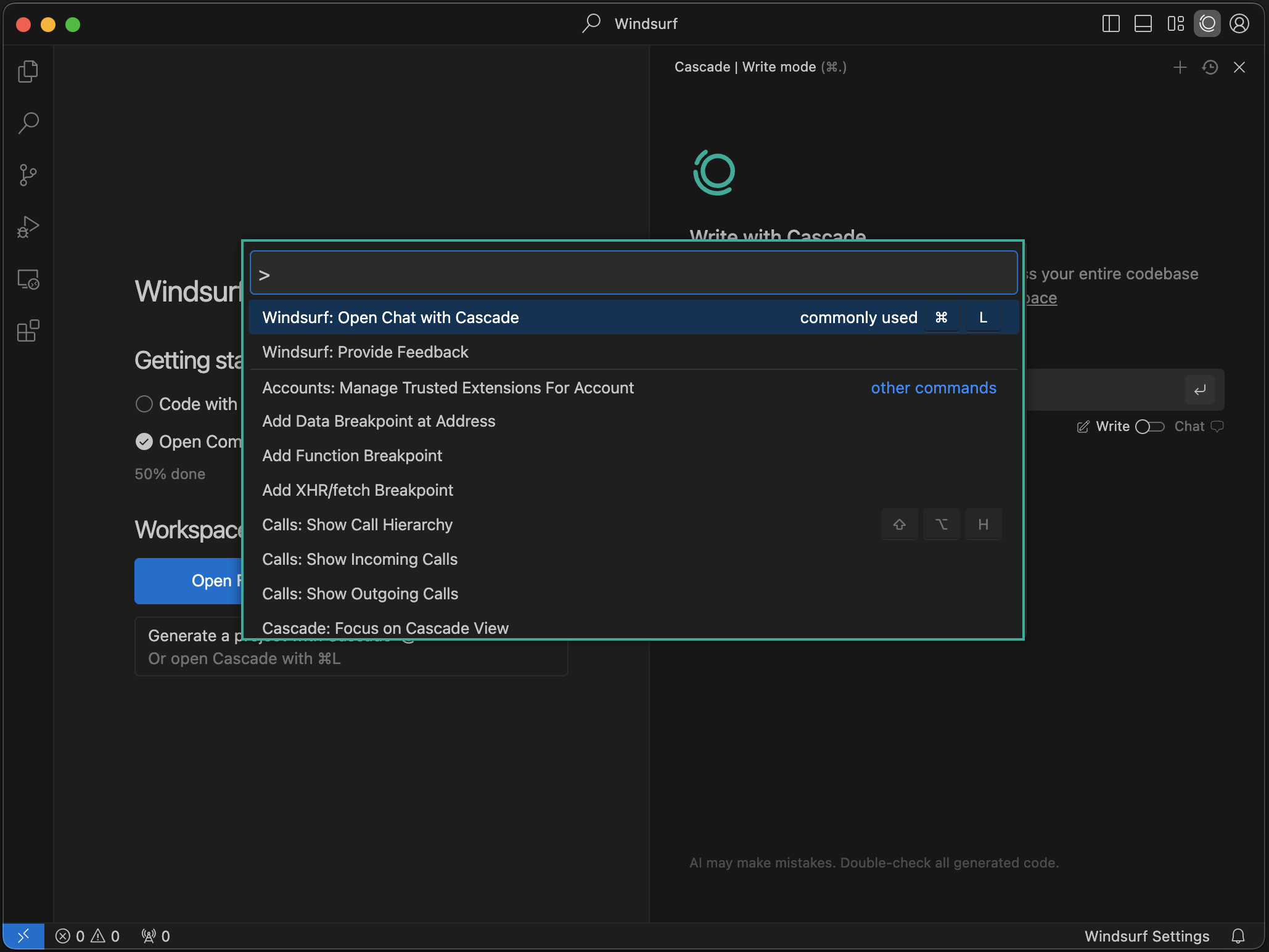
  <Accordion title="打开命令面板">
    <Frame>
      <img src="https://mintcdn.com/codeium/qJj_RRojefb93yIg/assets/windsurf/command_palette.png?fit=max&auto=format&n=qJj_RRojefb93yIg&q=85&s=8fb19cd757b7daa72bf441aa71d30a7f" width="2058" height="1544" data-path="assets/windsurf/command_palette.png" />
    </Frame>

    你可以使用快捷键 `⌘+⇧+P` (Mac) 或 `Ctrl+Shift+P` (Windows/Linux) 打开命令面板。来探索可用命令吧！
  </Accordion>
</AccordionGroup>

<div id="forgot-to-import-vs-code-configurations">
  ## 忘了导入 VS Code 配置？
</div>

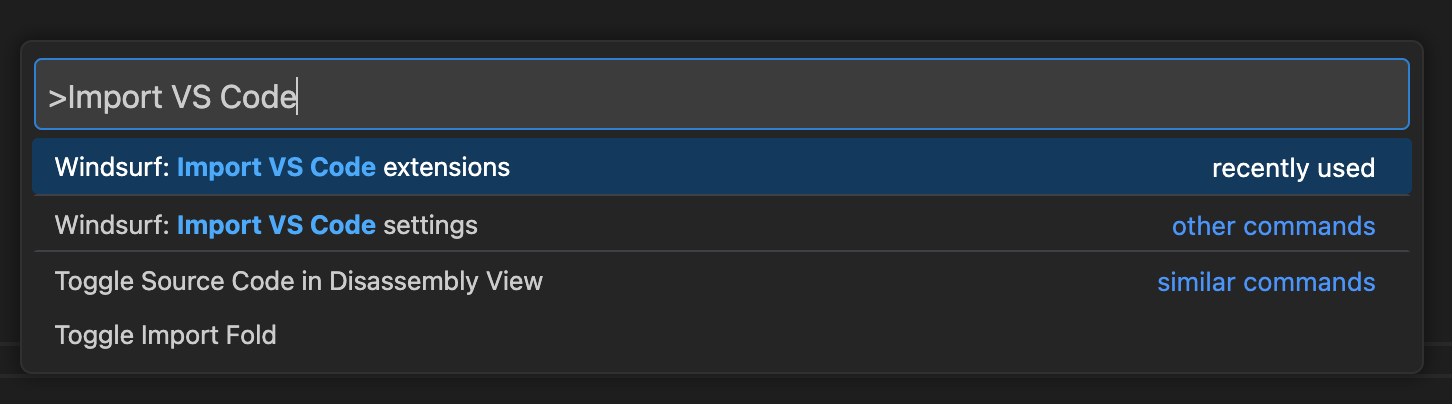
如果你在完成上手流程后才决定导入，也可以轻松将 VS Code/Cursor 的配置导入到 Windsurf。

打开命令面板 (Mac: `⌘+⇧+P`，Windows/Linux: `Ctrl+Shift+P`) ，然后输入以下内容：

<Tabs>
  <Tab title="VS Code">
    <Frame>
      <img src="https://mintcdn.com/codeium/d8O4q6w3H2CjrirL/assets/import-vscode.png?fit=max&auto=format&n=d8O4q6w3H2CjrirL&q=85&s=ad0b864c3db087628f26d86241d23616" width="1452" height="404" data-path="assets/import-vscode.png" />
    </Frame>
  </Tab>

  <Tab title="Cursor">
    <Frame>
      <img src="https://mintcdn.com/codeium/bVGscI7v3lPUsThV/assets/windsurf/import-cursor.png?fit=max&auto=format&n=bVGscI7v3lPUsThV&q=85&s=a96df0b3235675e3713d0bf306170130" width="1454" height="272" data-path="assets/windsurf/import-cursor.png" />
    </Frame>
  </Tab>
</Tabs>

<div id="incompatible-extensions">
  ## 不兼容的扩展
</div>

有一些扩展与 Windsurf 不兼容，其中包括其他 AI 代码补全扩展以及专有扩展。你无法通过任何市场在 Windsurf 中安装扩展。

<div id="custom-app-icons-beta">
  ## 自定义应用图标 (测试版)
</div>

对于 Windsurf 的付费用户，您可以在停靠栏中为 Windsurf 选择不同的应用图标。目前此功能仅适用于 macOS，其他操作系统即将支持。

要更改应用图标，只需点击编辑器右上角的个人资料/设置图标，然后选择“Customize App Icon”。

<div id="windsurf-next">
  ## Windsurf Next
</div>

Windsurf Next 是 Windsurf 的预发布版本。用户可以自愿加入，尽早体验最新功能与特性，即使这些功能尚未完全打磨。新功能通常会先在 Windsurf Next 上推出，随后不久进入稳定版。

你可以通过[在此下载](https://windsurf.com/editor/download-next)轻松加入 Windsurf Next。

<div id="uninstall-windsurf">
  ## 卸载 Windsurf
</div>

要从系统中卸载 Windsurf，请按以下步骤操作：

<Steps>
  <Step title="关闭 Windsurf">
    在继续卸载前，请确保 Windsurf 未在运行。
  </Step>

  <Step title="删除 Windsurf 应用程序">
    <Tabs>
      <Tab title="Mac">
        将“应用程序”文件夹中的 Windsurf 拖到“废纸篓”。
      </Tab>

      <Tab title="Windows">
        应用程序通常位于以下路径之一：

        * `C:\Program Files\Windsurf`
        * `C:\Users\[YourUsername]\AppData\Local\Programs\Windsurf`

        从相应位置删除 Windsurf 文件夹。
      </Tab>

      <Tab title="Linux">
        从安装位置删除 Windsurf 文件夹。
      </Tab>
    </Tabs>
  </Step>

  <Step title="移除配置文件">
    <Tabs>
      <Tab title="Mac/Linux">
        删除 Windsurf 配置文件夹：

        ```bash theme={null}
        rm -rf ~/.codeium/windsurf
        ```
      </Tab>

      <Tab title="Windows">
        删除 Windsurf 配置文件夹：

        ```
        C:\Users\[YourUsername]\.codeium\windsurf
        ```
      </Tab>
    </Tabs>
  </Step>

  <Step title="其他清理">
    <ul>
      <li>如果你已将 Windsurf 添加到 PATH，请从系统的 PATH 环境变量中移除它。</li>
      <li>如果你通过系统的包管理器或控制面板安装了 Windsurf，也可使用相同方式卸载。</li>
      <li>清空“废纸篓”或“回收站”以完成卸载。</li>
    </ul>
  </Step>
</Steps>