> ## Documentation Index
> Fetch the complete documentation index at: https://docs.windsurf.com/llms.txt
> Use this file to discover all available pages before exploring further.
# 高级配置
> Windsurf 的高级配置,包括 SSH 支持、Dev Containers、WSL、扩展市场设置,以及为 Cascade 提供的 gitignore 访问权限。
所有高级配置都位于 Windsurf Settings。可通过右上角的下拉菜单 → Windsurf Settings,或通过命令面板 (Ctrl/⌘+Shift+P) → Open Windsurf Settings Page 进入。
# 启用 Cascade 访问 .gitignore 文件
若要让 Cascade 访问与你的项目 .gitignore 中模式匹配的文件,请前往 Windsurf 设置并进入“Cascade Gitignore Access”。默认情况下该选项为关闭。要授予访问权限,点击开关将其开启。
# SSH 支持
VSCode 中常见的 SSH 功能由 Microsoft 授权,因此我们为 Windsurf 单独实现了自有方案。它需要你已安装 [OpenSSH](https://www.openssh.com/),但除此之外几乎没有依赖,并且应该像你习惯的一样“开箱即用”。你可以在命令面板的 `Remote-SSH` 下使用 SSH,或通过左下角的 `Open a Remote Window` 按钮进入。
该扩展在我们的内部开发中表现稳定,但存在一些已知注意事项和问题:
* 目前仅支持通过 SSH 连接到基于 Linux 的远程主机。
* Microsoft 的常规 "Remote - SSH" 扩展(以及 [open-remote-ssh](https://github.com/jeanp413/open-remote-ssh) 扩展)将无法使用——请不要安装它们,因为会与我们的支持冲突。
* 我们暂时并未覆盖 Microsoft SSH 扩展的全部功能。目前重点支持最关键的能力:连接到主机。如有功能需求,欢迎反馈!
* 要在通过 SSH 连接后访问远程主机上的 devcontainer,请使用命令面板 (Ctrl/Cmd+Shift+P),然后选择如下任一选项:
 * SSH 代理转发默认开启,并会复用 Windsurf 到该主机的最新连接。如果遇到问题,尝试重新加载窗口以刷新连接。
* 在 Windows 上,当提示输入密码时你会看到一些 `cmd.exe` 窗口。这是预期行为——我们很快会去除它们。
* 如果遇到问题,请先确保你可以在终端中使用常规的 `ssh` 成功登录到远程主机;若问题仍然存在,请在错误报告中附上 `Output > Remote SSH (Windsurf)` 选项卡中的输出!
* SSH 代理转发默认开启,并会复用 Windsurf 到该主机的最新连接。如果遇到问题,尝试重新加载窗口以刷新连接。
* 在 Windows 上,当提示输入密码时你会看到一些 `cmd.exe` 窗口。这是预期行为——我们很快会去除它们。
* 如果遇到问题,请先确保你可以在终端中使用常规的 `ssh` 成功登录到远程主机;若问题仍然存在,请在错误报告中附上 `Output > Remote SSH (Windsurf)` 选项卡中的输出!
# Dev Containers
Windsurf 在 Mac、Windows 和 Linux 上支持 Development Containers,适用于本地和远程(通过 SSH)的工作流。
前提条件:
* 本地:必须在你的机器上安装 Docker,并可从 Windsurf 终端访问。
* 通过 SSH 的远程:使用 Windsurf Remote-SSH 连接到远程主机。必须在远程主机上安装 Docker,并可从远程 shell 访问。你的项目应包含 `devcontainer.json` 或等效配置。
可用命令(本地和远程窗口均可用):
1. `Dev Containers: Open Folder in Container`
* 使用指定的 `devcontainer.json` 打开新的工作区。
2. `Dev Containers: Reopen in Container`
* 在由你的 `devcontainer.json` 定义的新容器中重新打开当前工作区。
3. `Dev Containers: Attach to Running Container`
* 附加到现有的 Docker 容器,并将你当前的工作区连接到该容器。如果该容器未遵循 [Development Container Specification](https://containers.dev/implementors/spec/),Windsurf 将尽力识别远程用户和环境。
4. `Dev Containers: Reopen Folder Locally`
* 当连接到开发容器时,断开连接并在本地文件系统上重新打开工作区。
5. `Dev Containers: Show Windsurf Dev Containers Log`
* 打开 Dev Containers 日志输出以进行故障排查。
这些命令可从命令面板调用,在你点击左下角的 `Open a Remote Window` 按钮时也会出现(包括通过 SSH 连接到远程主机时)。
相关:
* `Remote Explorer: Focus on Dev Containers (Windsurf) View` — 快速打开 Dev Containers 视图。
# WSL(测试版)
自 1.1.0 版本起,Windsurf 开始对 Windows Subsystem for Linux 提供测试版支持。你需要先在 Windows 设备上完成 WSL 的安装与配置。
你可以点击左下角的 `Open a Remote Window` 按钮,或在命令面板的 `Remote-WSL` 中进入 WSL。
# 扩展市场
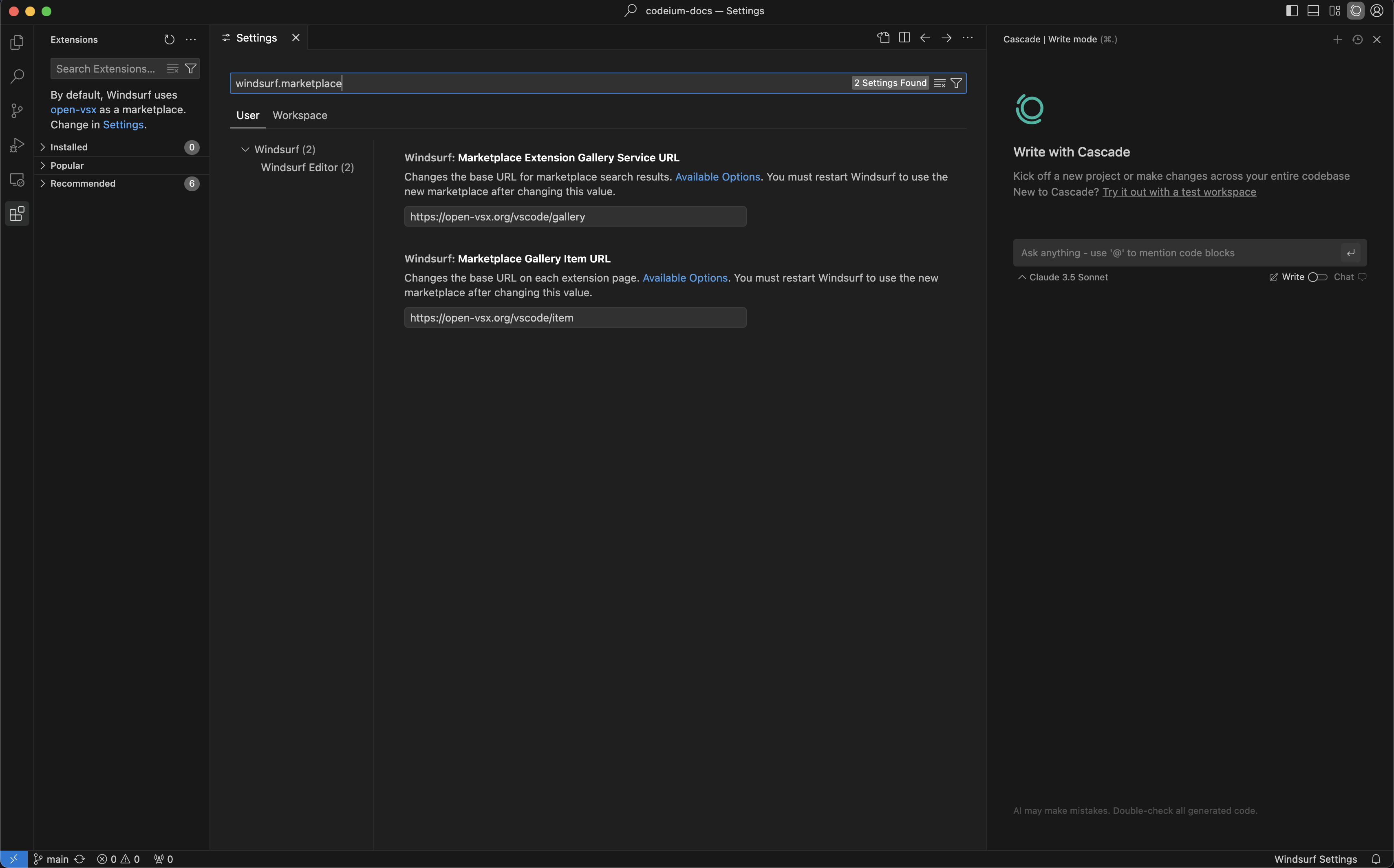
你可以更改用于下载扩展的市场来源。操作方法:前往 `Windsurf Settings`,在 `General` 部分修改 Marketplace URL 设置。
## Windsurf Plugins
在扩展搜索栏中搜索“Windsurf Pyright”,或粘贴 `@id:codeium.windsurfPyright`。