> ## Documentation Index
> Fetch the complete documentation index at: https://docs.windsurf.com/llms.txt
> Use this file to discover all available pages before exploring further.
# 在 JetBrains IDE 中为 Windsurf 配置代理
> 在 JetBrains IDE 中为 Windsurf 插件配置 HTTP/HTTPS 代理设置,包括远程开发和 Gateway 环境。
一些企业网络会通过 HTTP/HTTPS 代理转发流量。JetBrains IDE 中的 Windsurf 插件需要连接外部 Windsurf 服务(用于登录和 AI 功能),因此在稳定使用之前,你可能需要先配置代理。
## 何时可能需要配置代理
在以下情况下可能需要配置代理:
* 你在 Windsurf 中看到“Failed to connect”或类似的网络错误
* IDE 中的 Windsurf 面板始终空白且无法加载
* Cascade 或其他 Windsurf 功能无法连接或出现超时
本指南包括:
* 检查你的网络是否使用代理
* 配置 IDE 的代理
* 启用 Windsurf 的代理检测
* 为 JetBrains Remote 配置代理设置
## 检查你的网络是否使用代理
在更改任何设置之前:
请咨询你的 IT / 基础设施 / 网络团队:
* 我们的出站流量是否使用 HTTP/HTTPS 代理?
* 如果使用,是通过系统设置 / PAC 文件 / 设备管理自动配置,还是需要我在应用程序中手动配置?
如果你的组织不使用代理,通常无需更改这些设置。
如果你的组织使用代理,请收集代理信息(地址、端口以及任何凭证)。你可以把 JetBrains 的 HTTP Proxy 和 Windsurf 设置页面的截图发给他们,以便他们明确告知需要填写的内容。
## 配置 JetBrains IDE 代理
首先,请确保 IDE 本身可以通过你的代理访问互联网——尤其要确认能访问 `windsurf.com`。
1. 在 JetBrains IDE 中打开 Settings / Preferences。例如:File → Settings…(Windows/Linux)或 ⌘, → Settings…(macOS)。
2. 前往 Appearance & Behavior → System Settings → HTTP Proxy。
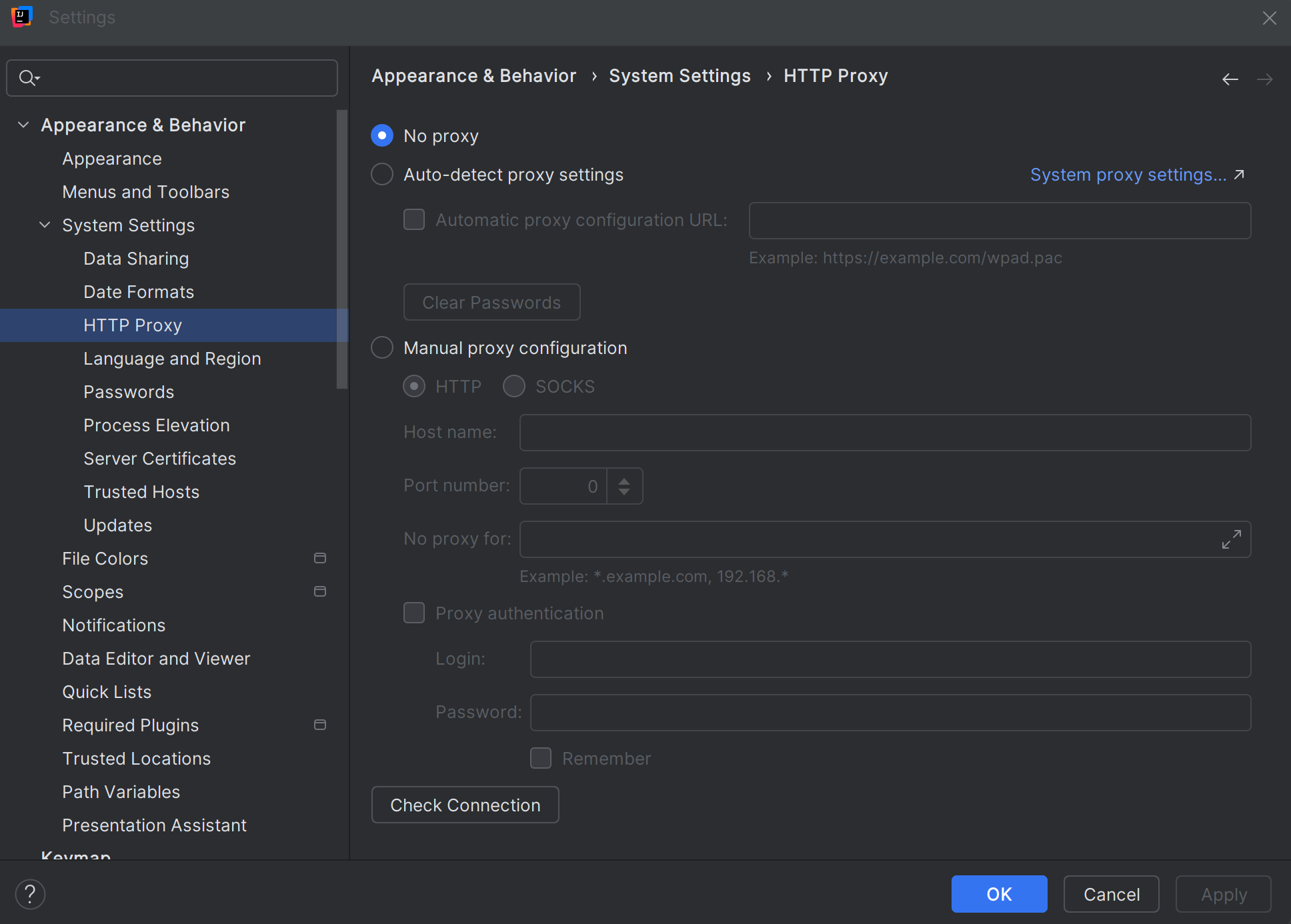 3. 根据你们 IT 团队的指引选择合适的选项:
* **No proxy** —— 如果你的网络不使用代理。
* **Auto-detect proxy settings** 或 **Use system proxy settings** —— 如果代理在你的机器上是全局配置的。
* **Manual proxy configuration** —— 如果 IT 提供了特定的代理主机/端口(以及可选的用户名/密码)需要在此填写。
4. 使用 Check connection…(如可用)验证配置——最好在此对话框中测试与 `https://windsurf.com` 的连通性。
5. 应用更改,如有提示请重启 IDE。
如果 IDE 本身无法连接网络(例如插件市场、更新或内置 Web 功能无法使用,或你无法在 IDE 内访问 `https://windsurf.com`),请先在此处排查并修复。Windsurf 依赖这一路径的连通性。
3. 根据你们 IT 团队的指引选择合适的选项:
* **No proxy** —— 如果你的网络不使用代理。
* **Auto-detect proxy settings** 或 **Use system proxy settings** —— 如果代理在你的机器上是全局配置的。
* **Manual proxy configuration** —— 如果 IT 提供了特定的代理主机/端口(以及可选的用户名/密码)需要在此填写。
4. 使用 Check connection…(如可用)验证配置——最好在此对话框中测试与 `https://windsurf.com` 的连通性。
5. 应用更改,如有提示请重启 IDE。
如果 IDE 本身无法连接网络(例如插件市场、更新或内置 Web 功能无法使用,或你无法在 IDE 内访问 `https://windsurf.com`),请先在此处排查并修复。Windsurf 依赖这一路径的连通性。
## 在 JetBrains 中启用 Windsurf 代理检测
在设置(或确认不需要)IDE 级代理后,配置 Windsurf 如何使用这些设置。
Windsurf 插件在其设置中提供独立的 Detect proxy(检测代理)选项:
1. 在 JetBrains IDE 中,打开 Settings / Preferences。
2. 前往 Tools → Windsurf Settings。
3. 找到 Detect proxy 开关。
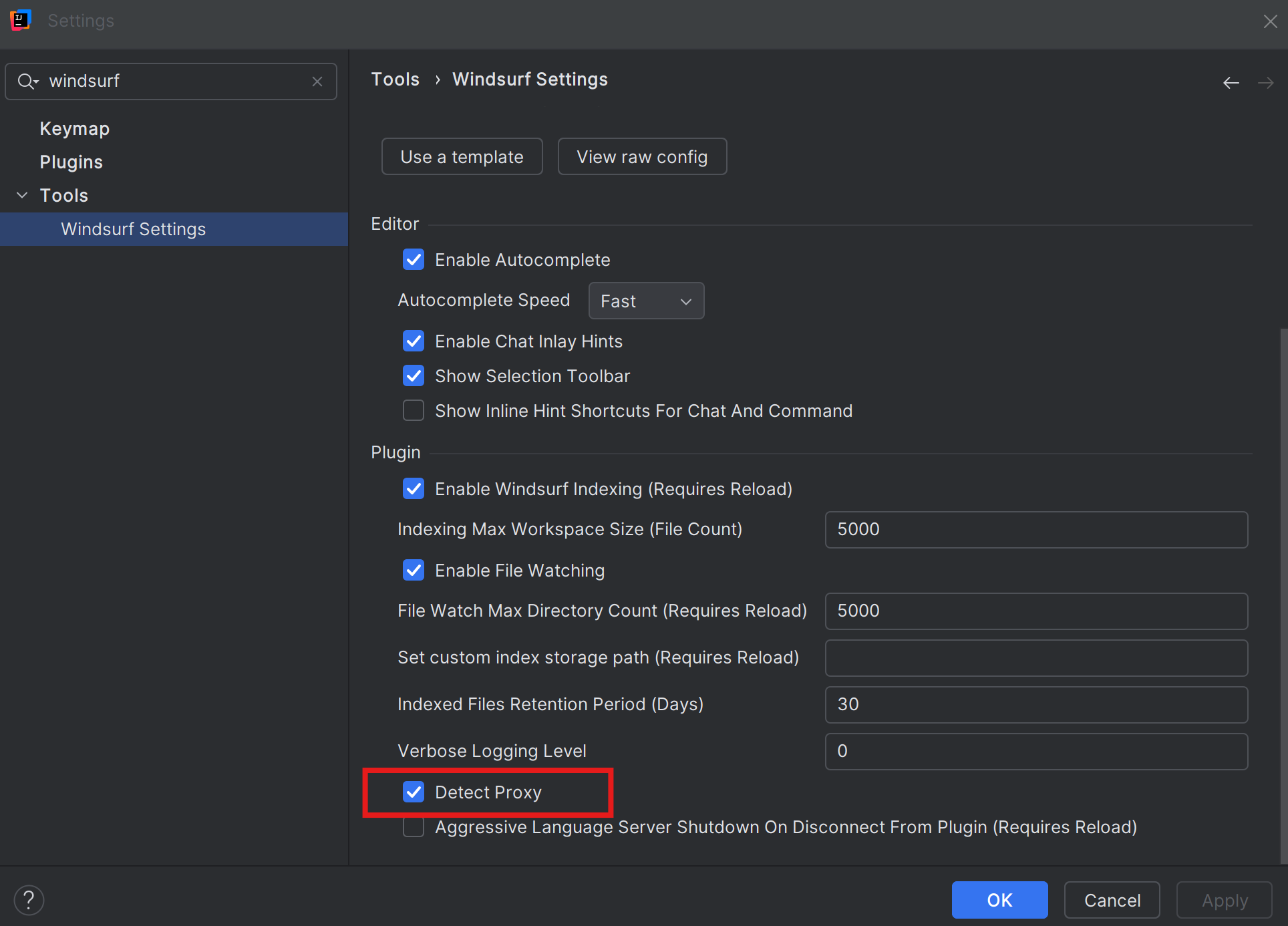 4. 在以下情况下将 Detect proxy 打开(ON):
* 你的代理已在操作系统或 IDE 层面配置,且
* IT 期望应用能“自动沿用”这些设置。
5. 视需要点击 Apply 和 OK,然后重启 IDE。
6. 再次尝试使用 Windsurf:
* 从 IDE 侧边栏打开 Windsurf 面板
* 运行 Cascade,或重试此前出现“Failed to connect”或空白屏幕的操作
如果在启用 Detect proxy 后出现新的连接问题,你可以:
* 将 Detect proxy 重新关闭(OFF),
* 重新检查 IDE 的 HTTP Proxy 配置(包括是否可访问 `https://windsurf.com`),以及
* 与 IT 确认是否需要额外的手动配置。
4. 在以下情况下将 Detect proxy 打开(ON):
* 你的代理已在操作系统或 IDE 层面配置,且
* IT 期望应用能“自动沿用”这些设置。
5. 视需要点击 Apply 和 OK,然后重启 IDE。
6. 再次尝试使用 Windsurf:
* 从 IDE 侧边栏打开 Windsurf 面板
* 运行 Cascade,或重试此前出现“Failed to connect”或空白屏幕的操作
如果在启用 Detect proxy 后出现新的连接问题,你可以:
* 将 Detect proxy 重新关闭(OFF),
* 重新检查 IDE 的 HTTP Proxy 配置(包括是否可访问 `https://windsurf.com`),以及
* 与 IT 确认是否需要额外的手动配置。
## 在 JetBrains Remote 中配置代理
如果你使用 JetBrains 远程开发(例如通过 JetBrains Gateway、远程后端或云端开发环境),实际上有两个位置的代理设置会生效:
* 你的本地计算机,运行轻量客户端。
* 远程计算机,实际的 IDE 后端(以及 Windsurf)在其上运行。
当你通过 JetBrains Remote 连接时,Windsurf 的网络请求来自远程计算机,而不是你的本地笔记本。这意味着:
* 远程 IDE 上的代理设置会影响 Windsurf 连接到 Windsurf 服务的方式。
* 即使你的本地计算机已正确配置,远程计算机也可能需要单独配置代理。
对于 JetBrains 远程开发,你必须使用专用的“Windsurf (Remote Development)”插件,而不是标准的 Windsurf 插件。请确保你已按照 Windsurf JetBrains 入门指南中“远程开发”部分的说明安装 Windsurf (Remote Development)。
### 为远程环境配置代理
1. 使用 JetBrains Remote / Gateway 连接到远程后端。
2. 在远程 IDE 会话中打开 Settings / Preferences(这将打开运行在远程机器上的 IDE 设置)。
3. 为远程 IDE 配置代理:
* 在远程 IDE 中前往 Appearance & Behavior → System Settings → HTTP Proxy。
* 按照 IT 团队的指示设置代理(No proxy / Auto-detect / Use system proxy / Manual)。
* 如果 IDE 提供 Check connection… 按钮,使用它从远程机器测试到 `https://windsurf.com` 的连通性。
4. 在远程 IDE 中配置 Windsurf:
* 前往 Tools → Windsurf Settings(仍在远程会话中)。
* 如果 IT 团队要求远程主机上的应用使用系统/IDE 代理设置,请启用 Detect proxy。
5. 应用更改,然后重启远程 IDE 后端,或断开并重新连接远程会话。
6. 在远程 IDE 中重新打开 Windsurf 面板,并重试之前失败的操作。
在企业环境中,本地机器和远程机器通常各自有独立的代理规则。请分别遵循两端的 IT 指导;如果远程主机本身在没有其自身代理配置时无法访问互联网(包括 `https://windsurf.com`),仅修复本地代理也无济于事。
## 何时更改哪些内容
### 仅更改本地 IDE 的 HTTP 代理
如果:
* 你未使用 JetBrains Remote,且
* 其他 JetBrains 功能在完成该设置后已正常工作,且
* Windsurf 在不修改其自身设置的情况下可正常工作,且
* IDE 能够访问 `https://windsurf.com`。
### 启用 Windsurf“检测代理”(Detect Proxy)
(本地或远程)在以下情况下启用:
* 该机器已在操作系统或 IDE 层面配置了代理,并且
* 只有 Windsurf 无法连接,或 Windsurf 面板为空白。
### 在远程 IDE 上配置代理
如果:
* 你使用 JetBrains Remote,
* 已在该环境中安装 Windsurf(Remote Development)插件,并且
* 只有在连接到远程后端时才会出现错误,或
* IT 表示远程服务器访问互联网(包括 `https://windsurf.com`)也必须通过代理。
### 与 IT / 基础设施团队沟通
如果:
* 你不确定你的环境是否使用代理,或
* 你已配置 HTTP 代理和 Windsurf Detect 代理(本地和/或远程),并已验证可连接到 `https://windsurf.com`,但仍然看到 Windsurf 面板为空或出现连接失败。
你的 IT / 基础设施团队是最终权威来源——他们可以确认你是否需要在本地、远程或两端都使用代理,说明在 JetBrains 中应如何配置,以及你的环境中是否需要启用 Windsurf Detect 代理设置。