> ## Documentation Index
> Fetch the complete documentation index at: https://docs.windsurf.com/llms.txt
> Use this file to discover all available pages before exploring further.
# Terminal
> Use Windsurf's enhanced terminal with Command mode, Cascade integration, Turbo mode for auto-execution, and allow/deny lists for command control.
# Command in the terminal
Use our [Command](/command/windsurf-overview) modality in the terminal (`Cmd/Ctrl+I`) to generate the proper CLI syntax from prompts in natural language.
 # Send terminal selection to Cascade
Highlight a portion of the stack trace and press `Cmd/Ctrl+L` to send it to Cascade, where you can reference this selection in your next prompt.
# Send terminal selection to Cascade
Highlight a portion of the stack trace and press `Cmd/Ctrl+L` to send it to Cascade, where you can reference this selection in your next prompt.
 # @-mention your terminal
Chat with Cascade about your active terminals.
# Auto-executed Cascade commands
Cascade has the ability to run terminal commands on its own with user permission. You can configure how Cascade handles command execution through four distinct auto-execution levels, and certain terminal commands can be accepted or rejected automatically through the Allow and Deny lists.
## Auto-Execution Levels
Windsurf provides four levels of command auto-execution, giving you control over how Cascade runs terminal commands:
| Level | Description |
| ------------------ | --------------------------------------------------------------------------------------------------------------------------------------------------------------------------------------------------------------------------- |
| **Disabled** | Auto-execution is completely disabled. All commands require manual approval before execution. |
| **Allowlist Only** | Only commands that match entries in your allow list can be auto-executed. All other commands require manual approval. |
| **Auto** | Cascade uses its judgment to determine whether a command is safe to auto-execute. Commands deemed potentially risky will still require your approval. This feature is only available for messages sent with premium models. |
| **Turbo** | All commands are auto-executed immediately, except those in your deny list. |
You can select your preferred auto-execution level via the Windsurf Settings panel in the bottom right corner of the editor.
# @-mention your terminal
Chat with Cascade about your active terminals.
# Auto-executed Cascade commands
Cascade has the ability to run terminal commands on its own with user permission. You can configure how Cascade handles command execution through four distinct auto-execution levels, and certain terminal commands can be accepted or rejected automatically through the Allow and Deny lists.
## Auto-Execution Levels
Windsurf provides four levels of command auto-execution, giving you control over how Cascade runs terminal commands:
| Level | Description |
| ------------------ | --------------------------------------------------------------------------------------------------------------------------------------------------------------------------------------------------------------------------- |
| **Disabled** | Auto-execution is completely disabled. All commands require manual approval before execution. |
| **Allowlist Only** | Only commands that match entries in your allow list can be auto-executed. All other commands require manual approval. |
| **Auto** | Cascade uses its judgment to determine whether a command is safe to auto-execute. Commands deemed potentially risky will still require your approval. This feature is only available for messages sent with premium models. |
| **Turbo** | All commands are auto-executed immediately, except those in your deny list. |
You can select your preferred auto-execution level via the Windsurf Settings panel in the bottom right corner of the editor.
 ### Admin-Controlled Maximum Level (Teams & Enterprise)
For Teams and Enterprise users, administrators can set a maximum allowed auto-execution level for their organization. This setting restricts which levels are available to team members, allowing admins to enforce security policies while still giving users flexibility within those bounds.
When an admin sets a maximum level, users can select any level up to and including that maximum. For example, if an admin sets the maximum to "Auto", users can choose between Disabled, Allowlist Only, or Auto, but cannot enable Turbo mode.
Administrators can configure this setting in the Admin Portal under Team Settings.
### Team-Wide Command Lists (Teams & Enterprise)
Administrators can configure **team-wide allowlist and denylist** for terminal commands that apply to all team members. These lists work in addition to individual user allow/deny lists.
| List Type | Behavior |
| ------------- | ------------------------------------------------------------------------------------------------------------------------------------- |
| **Allowlist** | Commands matching entries in this list will be auto-executed without user confirmation (when auto-execution is enabled for the user). |
| **Denylist** | Commands matching entries in this list will always require user approval before execution, regardless of user settings. |
**Key behaviors:**
* **Team and user configs are merged**: Team-level lists are combined with individual user allow/deny lists configured in Windsurf settings. A command matching either the team or user allowlist will be auto-executed (unless blocked by a denylist).
* The **denylist takes precedence** over the allowlist—if a command matches both lists (at either team or user level), it will require approval
To configure team-wide command lists, go to the Admin Portal → Team Settings → Terminal Commands → **Manage Lists**.
### Allow list
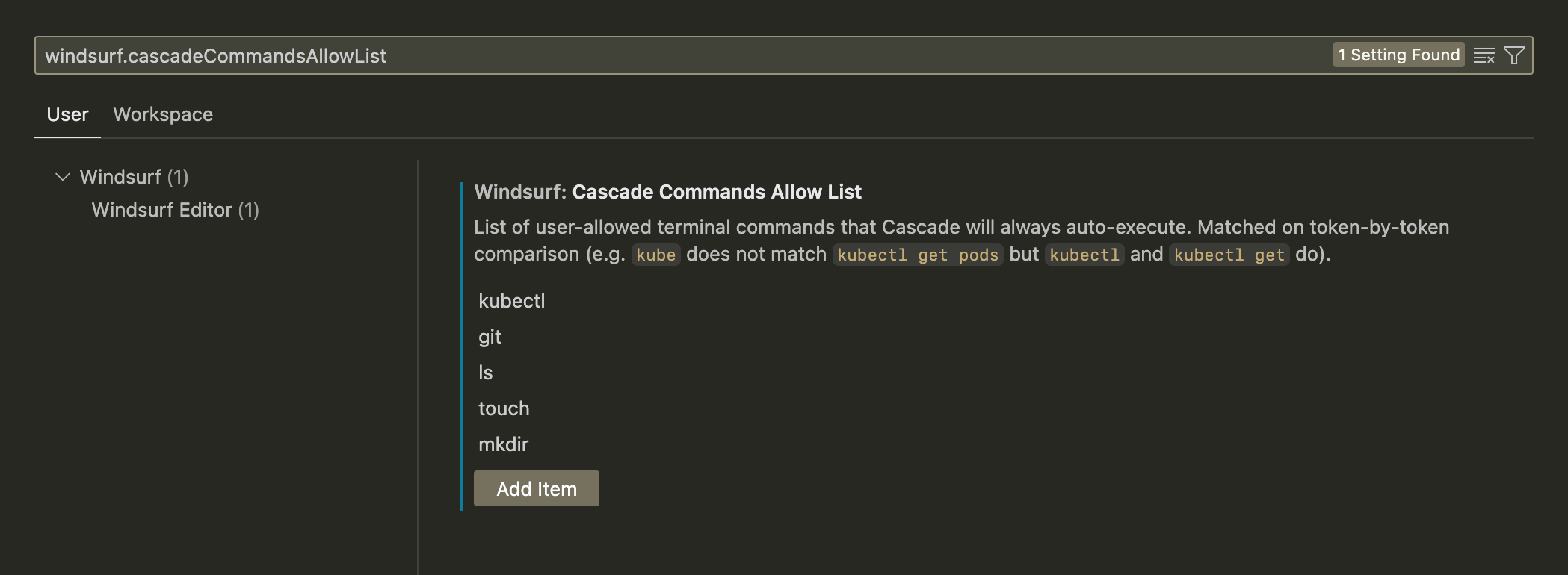
An allow list defines a set of terminal commands that will always auto-execute. For example, if you add `git`, then Cascade will always accept `git add -A`.
The setting can be via Command Palette → Open Settings (UI) → Search for `windsurf.cascadeCommandsAllowList`.
### Admin-Controlled Maximum Level (Teams & Enterprise)
For Teams and Enterprise users, administrators can set a maximum allowed auto-execution level for their organization. This setting restricts which levels are available to team members, allowing admins to enforce security policies while still giving users flexibility within those bounds.
When an admin sets a maximum level, users can select any level up to and including that maximum. For example, if an admin sets the maximum to "Auto", users can choose between Disabled, Allowlist Only, or Auto, but cannot enable Turbo mode.
Administrators can configure this setting in the Admin Portal under Team Settings.
### Team-Wide Command Lists (Teams & Enterprise)
Administrators can configure **team-wide allowlist and denylist** for terminal commands that apply to all team members. These lists work in addition to individual user allow/deny lists.
| List Type | Behavior |
| ------------- | ------------------------------------------------------------------------------------------------------------------------------------- |
| **Allowlist** | Commands matching entries in this list will be auto-executed without user confirmation (when auto-execution is enabled for the user). |
| **Denylist** | Commands matching entries in this list will always require user approval before execution, regardless of user settings. |
**Key behaviors:**
* **Team and user configs are merged**: Team-level lists are combined with individual user allow/deny lists configured in Windsurf settings. A command matching either the team or user allowlist will be auto-executed (unless blocked by a denylist).
* The **denylist takes precedence** over the allowlist—if a command matches both lists (at either team or user level), it will require approval
To configure team-wide command lists, go to the Admin Portal → Team Settings → Terminal Commands → **Manage Lists**.
### Allow list
An allow list defines a set of terminal commands that will always auto-execute. For example, if you add `git`, then Cascade will always accept `git add -A`.
The setting can be via Command Palette → Open Settings (UI) → Search for `windsurf.cascadeCommandsAllowList`.
 ### Deny list
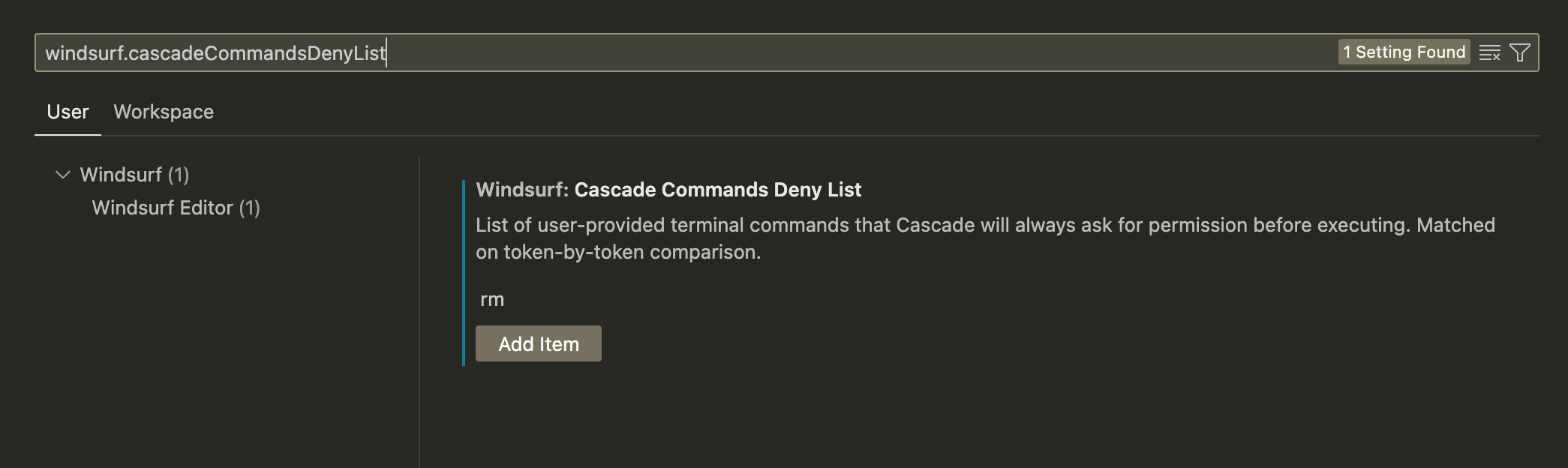
A deny list defines a set of terminal commands that will never auto-execute. For example, if you add `rm`, then Cascade will always ask for permission to run `rm index.py`.
The setting can be via Command Palette → Open Settings (UI) → Search for `windsurf.cascadeCommandsDenyList`.
### Deny list
A deny list defines a set of terminal commands that will never auto-execute. For example, if you add `rm`, then Cascade will always ask for permission to run `rm index.py`.
The setting can be via Command Palette → Open Settings (UI) → Search for `windsurf.cascadeCommandsDenyList`.
 # Dedicated terminal
Starting in Wave 13, Windsurf introduced a dedicated terminal for Cascade to use for running commands on macOS.
This dedicated terminal is separate from your default terminal and *always* uses `zsh` as the shell.
# Dedicated terminal
Starting in Wave 13, Windsurf introduced a dedicated terminal for Cascade to use for running commands on macOS.
This dedicated terminal is separate from your default terminal and *always* uses `zsh` as the shell.
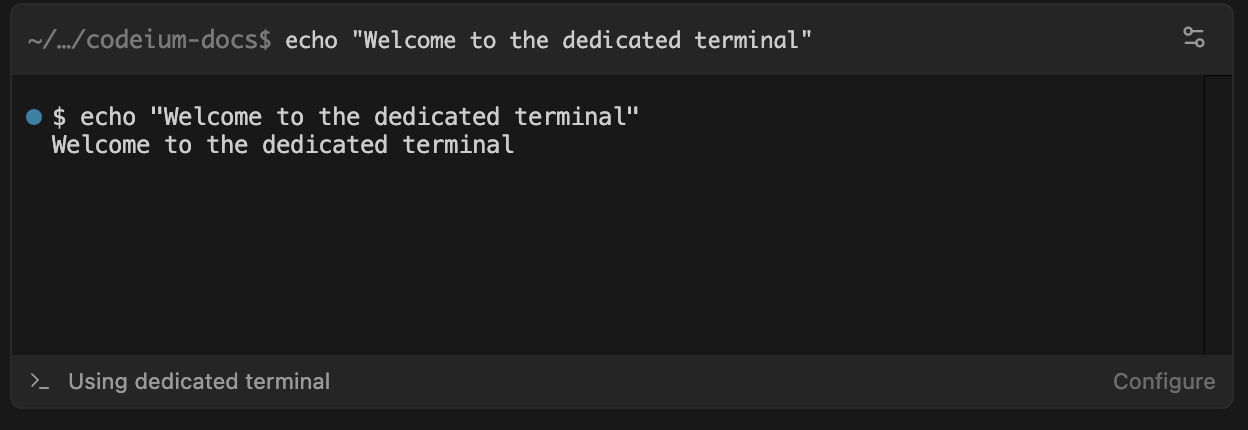 The dedicated terminal *will* use your zsh configuration, so aliases and environment variables will be available from `.zshrc` and other zsh-specific files.
If you use a different shell instead of `zsh`, and want Windsurf to use shared environment variables, we recommend creating a shared configuration file that both shells can source.
### Troubleshooting
If you have issues with the dedicated terminal, you can revert to the legacy terminal by enabling the Legacy Terminal Profile option in Windsurf settings.
The dedicated terminal *will* use your zsh configuration, so aliases and environment variables will be available from `.zshrc` and other zsh-specific files.
If you use a different shell instead of `zsh`, and want Windsurf to use shared environment variables, we recommend creating a shared configuration file that both shells can source.
### Troubleshooting
If you have issues with the dedicated terminal, you can revert to the legacy terminal by enabling the Legacy Terminal Profile option in Windsurf settings.