> ## Documentation Index
> Fetch the complete documentation index at: https://docs.windsurf.com/llms.txt
> Use this file to discover all available pages before exploring further.
# Welcome to Windsurf
> Download and install Windsurf IDE for Mac, Windows, or Linux. Import VS Code or Cursor settings, configure themes, and start coding with AI-powered assistance.
Tomorrow's editor, today.
Windsurf is a next-generation AI IDE built to keep you in the flow. On this page, you'll find instructions on how to install Windsurf on your computer, navigate the onboarding flow, and get started with your first AI-powered project.
}
href="/windsurf/cascade"
>
Your agentic chatbot that can collaborate with you like never before.
Credits and usage.
An upgraded Terminal experience.
MCP servers extend the agent's capabilities.
Memories and rules help customize behavior.
Instantly understands your codebase.
Advanced configuration options.
Automate repetitive trajectories.
Deploy applications in one click.
See what's new with Windsurf in our [changelog](https://windsurf.com/changelog)!
In some cases Windsurf may not function exactly as referenced, or documentation may be out of date.
## Set Up
To get started, please ensure that your device meets the requirements, click the download link, and follow the instructions to install and run Windsurf.
[Click here](#update-windsurf) if you're looking for how to update Windsurf.
Minimum OS Version: OS X Yosemite
Minimum OS Version: Windows 10
Minimum OS Version: >= 20.04 (or glibc >= 2.31, glibcxx >= 3.4.26)
Minimum OS Version: glibc >= 2.28, glibcxx >= 3.4.25
## Onboarding
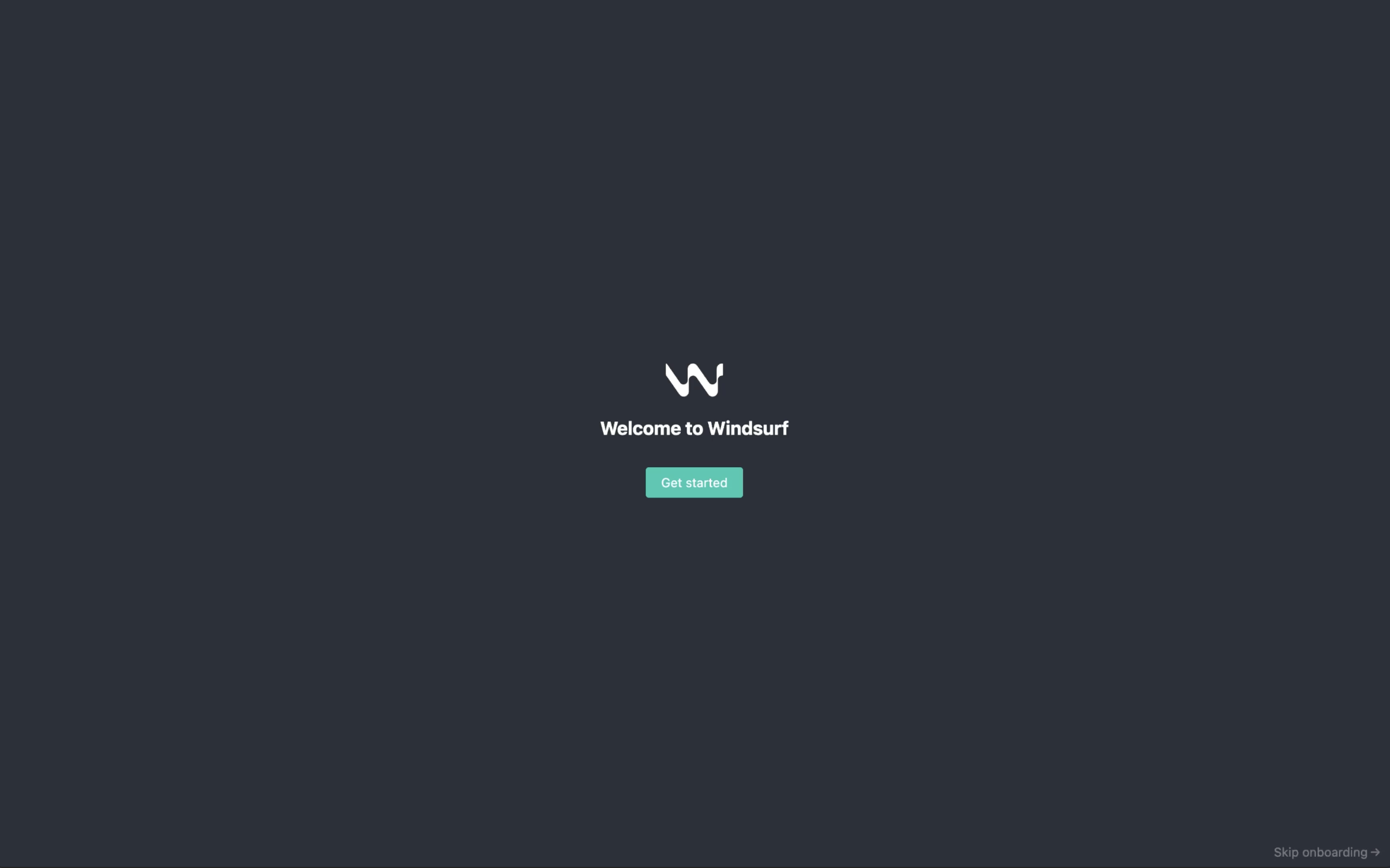
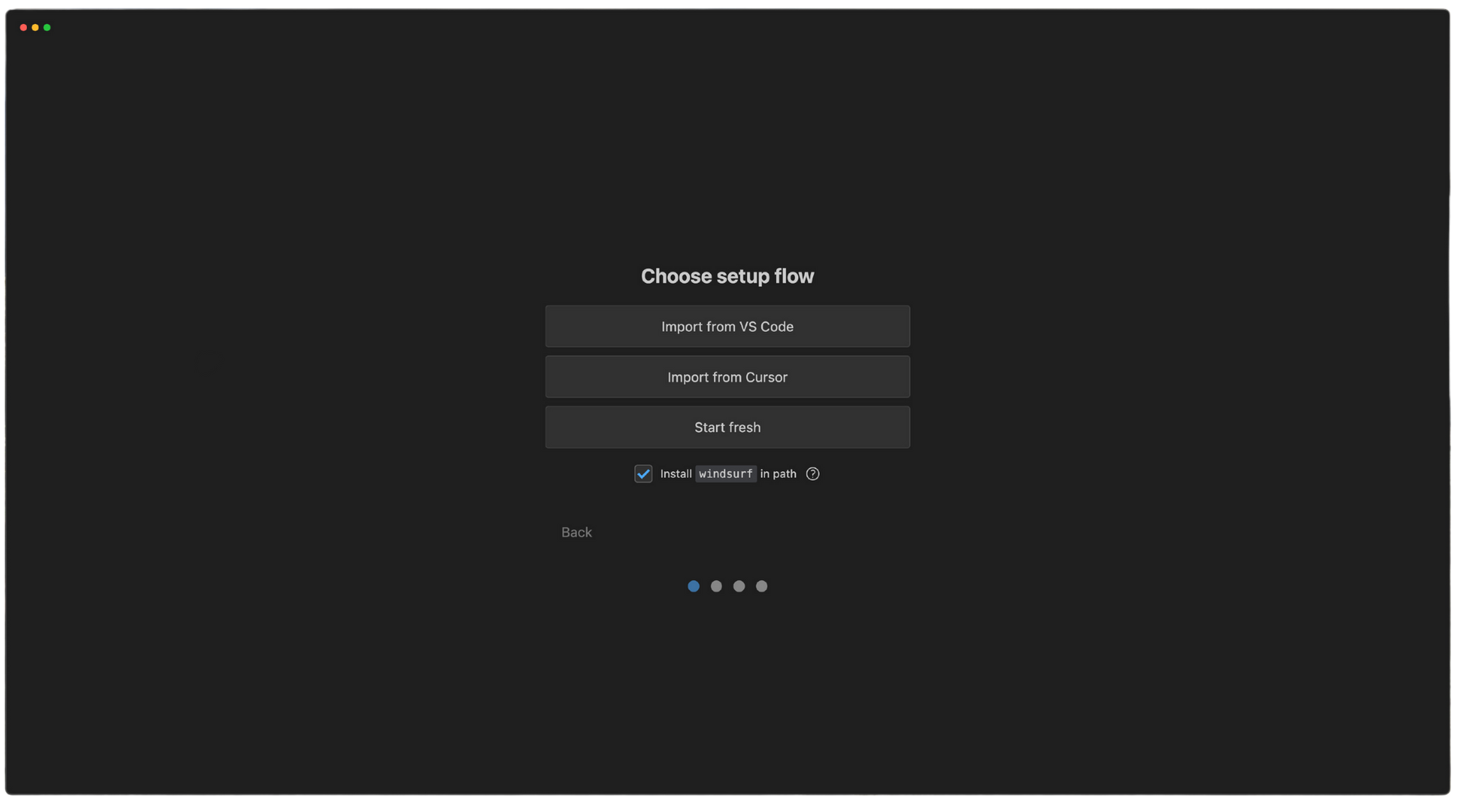
Once you have Windsurf running, you will see the page below. Let's get started! Note that you can always restart this onboarding flow with the "Reset Onboarding" command.
### 1. Select setup flow
If you're coming from VS Code or Cursor, you can easily import your configurations. Otherwise, select "Start fresh". You can also optionally install `windsurf` in PATH such that you can run `windsurf` from your command line.
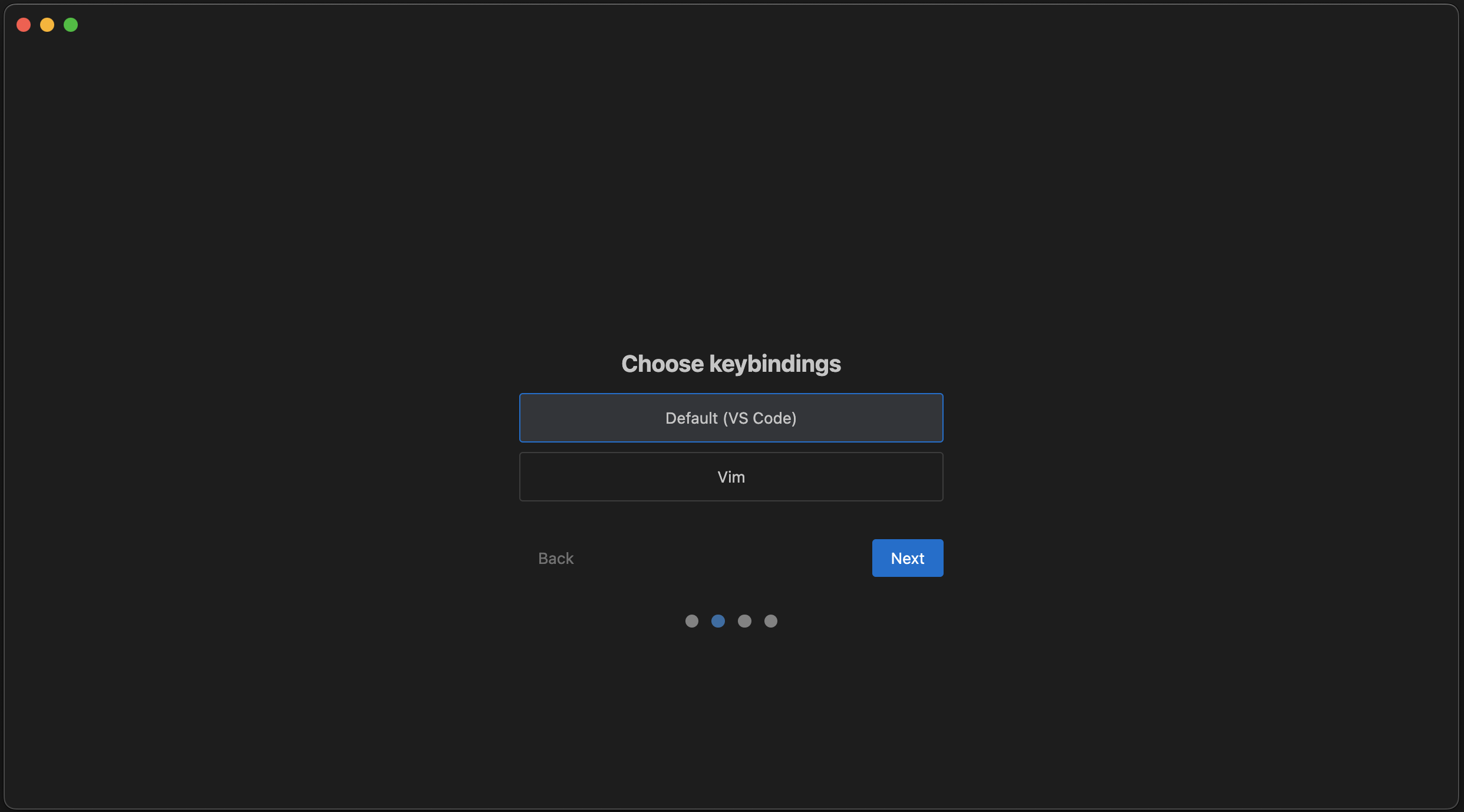
Choose your keybindings here, either default VS Code bindings or Vim bindings.
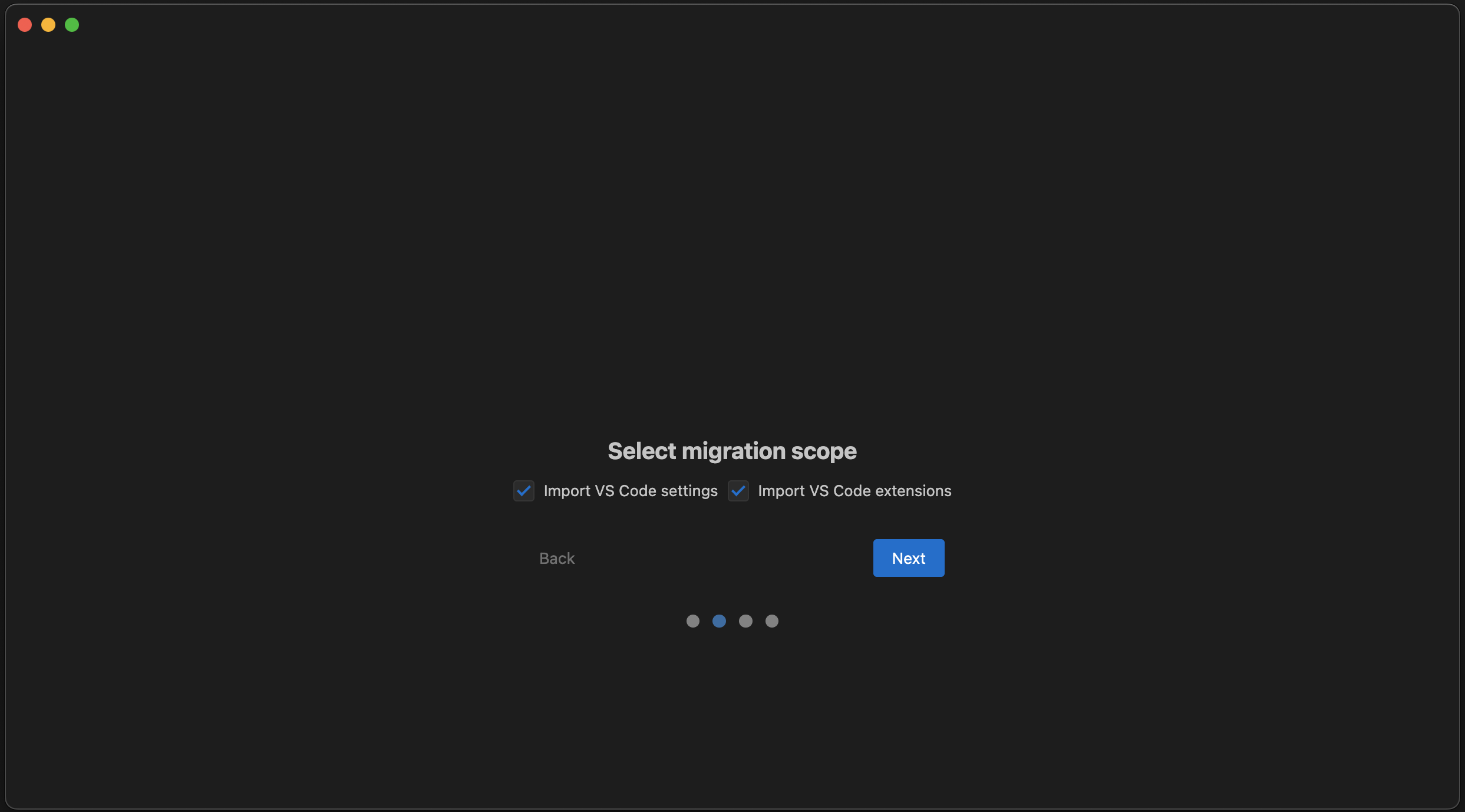
You can migrate your settings, extensions, or both here.
You can migrate your settings, extensions, or both here.
### 2. Choose editor theme
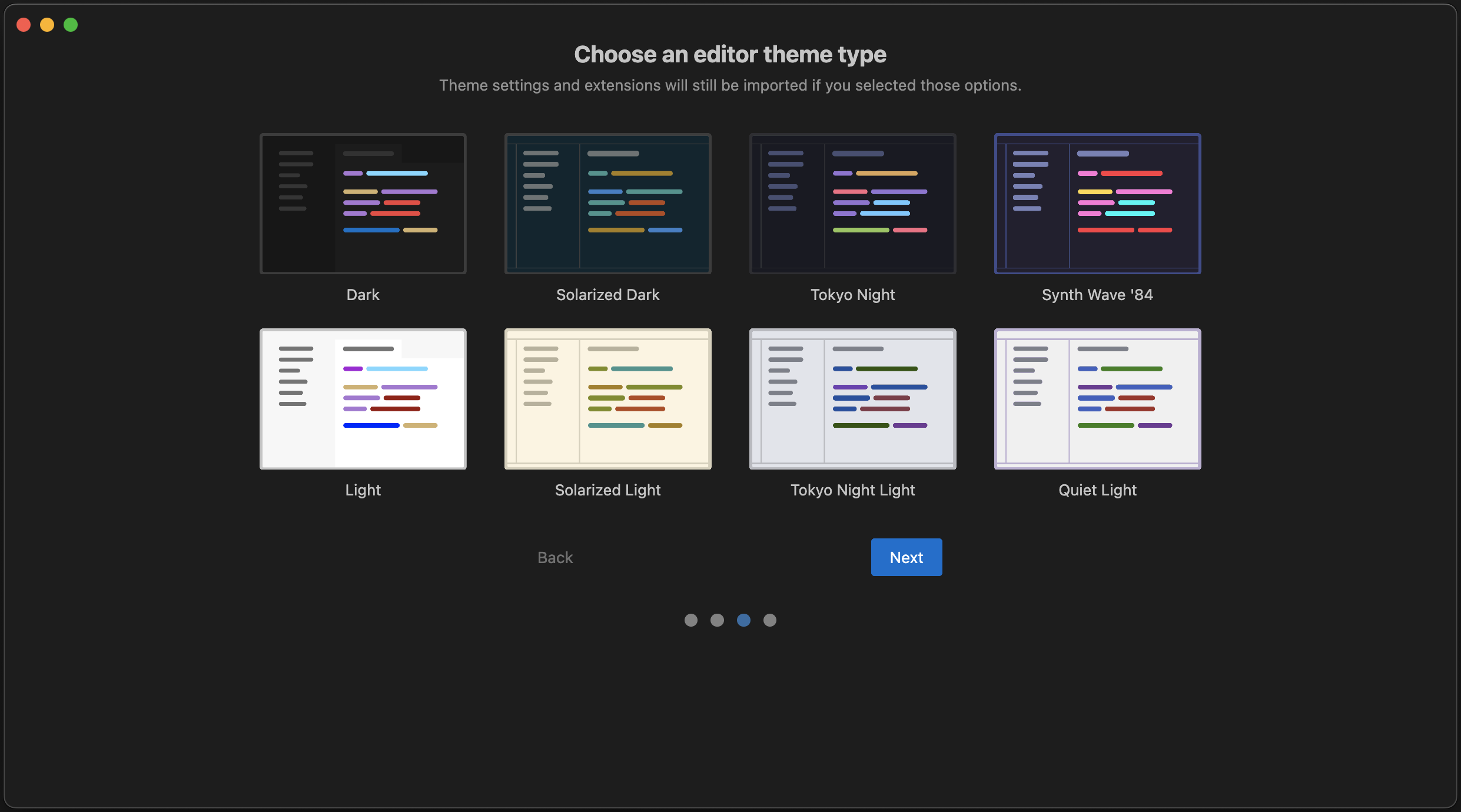
Choose your favorite color theme from these defaults! Don't worry, you can always change this later. Note that if you imported from VS Code, your imported theme will override this.
### 3. Sign up / Log in
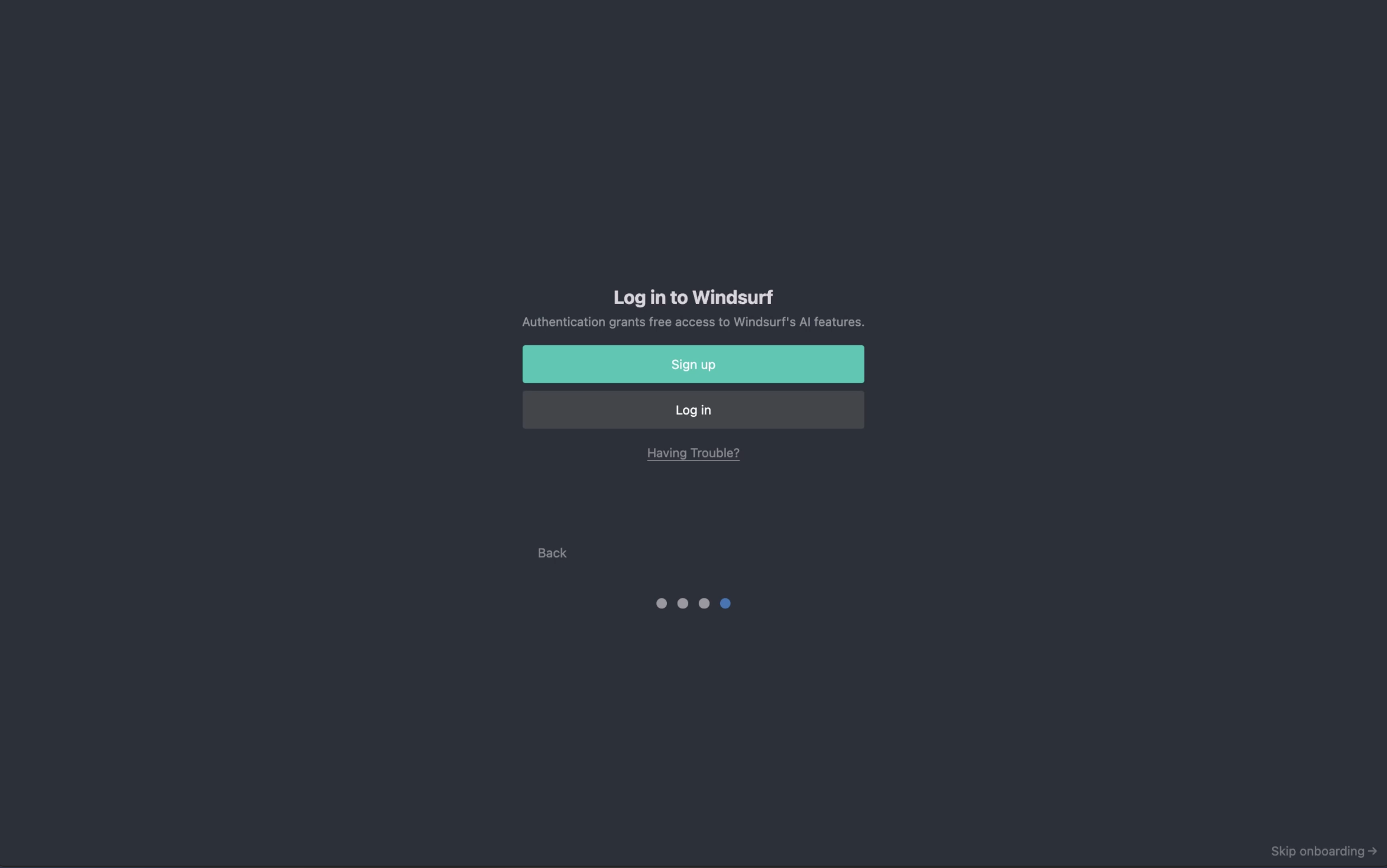
To use Windsurf, you need to use your Windsurf account or create one if you don't have one. Signing up is completely free!
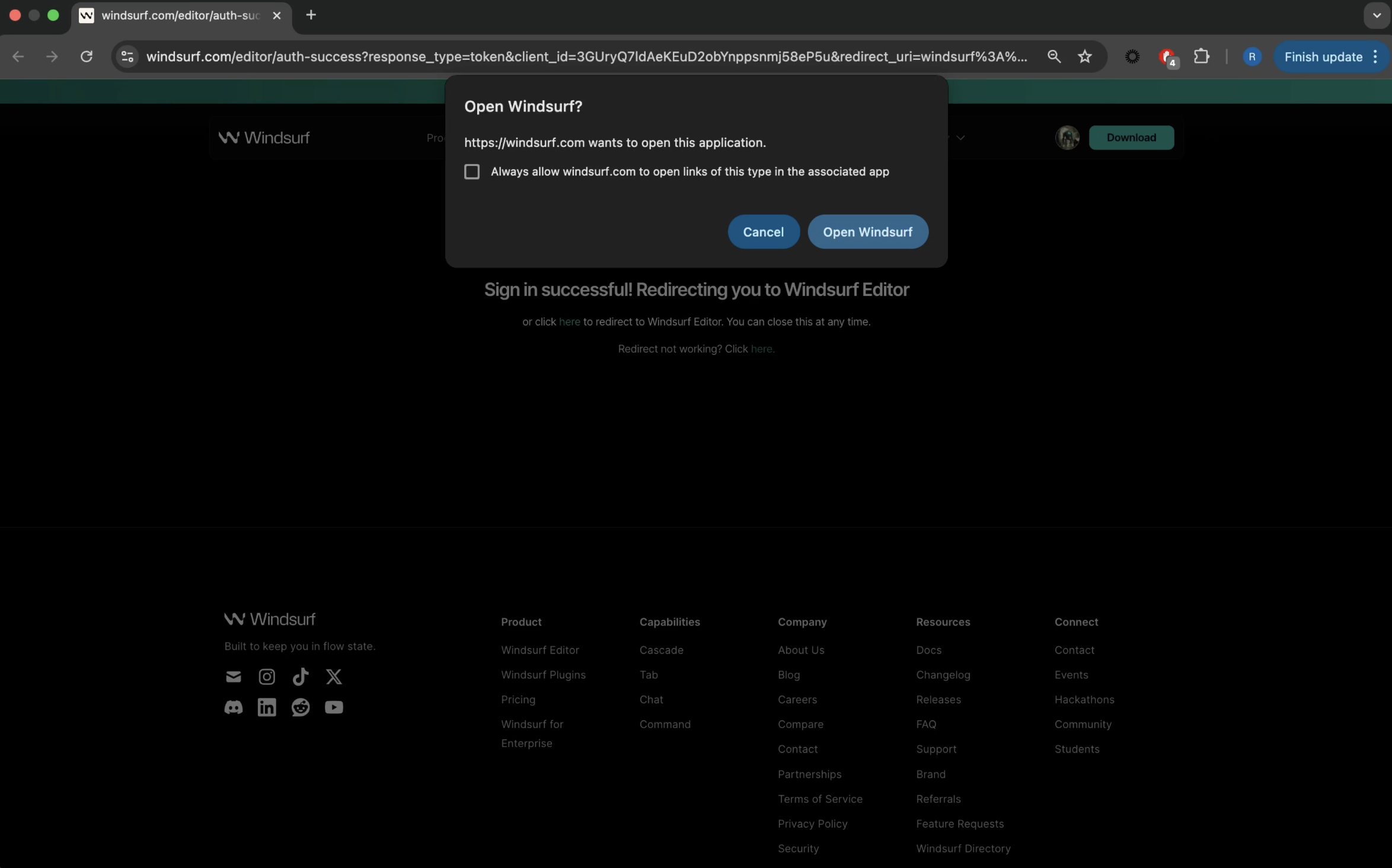
Once you've authenticated correctly, you should see this page. Hit "Open Windsurf" and you're good to go!
#### Having Trouble?
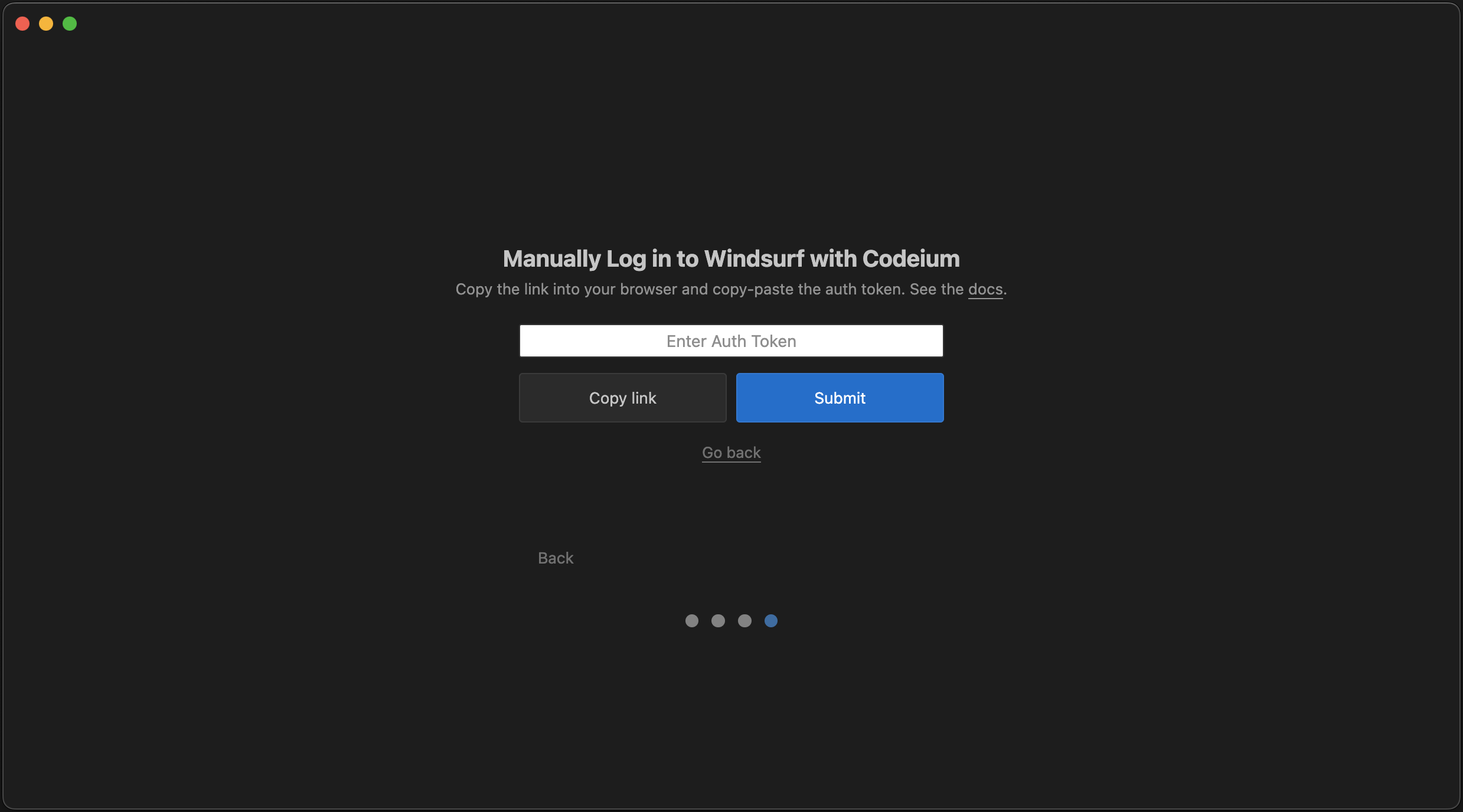
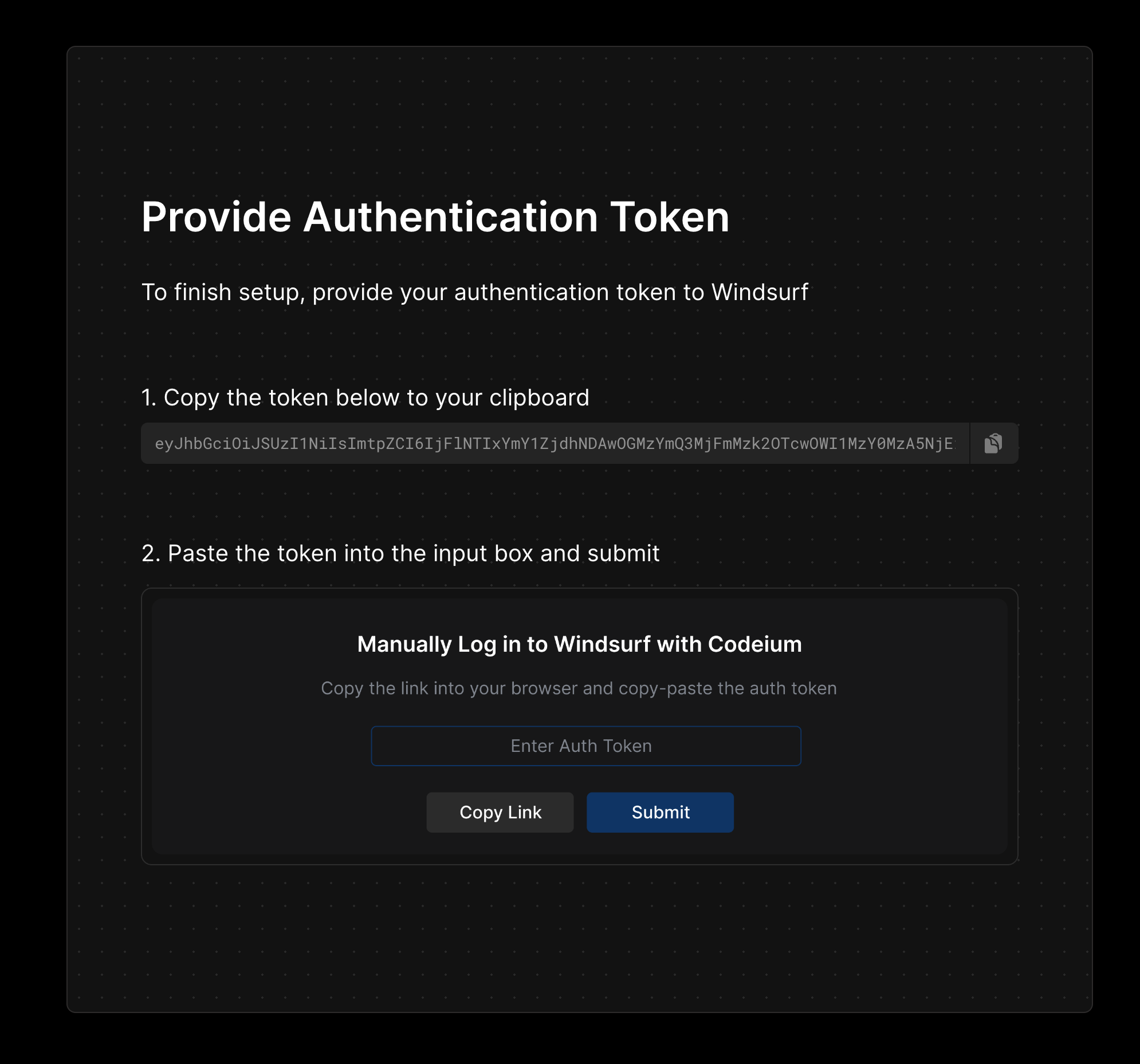
If you're having trouble with this authentication flow, you can also log in and manually provide Windsurf with an authentication code.
Click the "Copy link" button to copy an authentication link to your clipboard and enter this link into your browser.
Copy the authentication code displayed in the link and enter it into Windsurf.
### 4. Let's Surf!
Explore some of our recommended plugins to get the most out of Windsurf!
## Update Windsurf
To update Windsurf, you can click on the "Restart to Update ->" button in the top right corner of the menu bar.
If you are not seeing this button, you can:
1. Click on your Profile icon dropdown > Check for Updates
2. In the Command Palette (`Cmd/Ctrl+Shift+P`) > "Check for Updates"
## Things to Try
Now that you've successfully opened Windsurf, let's try out some of the features! These are all conveniently accessible from the starting page. :)
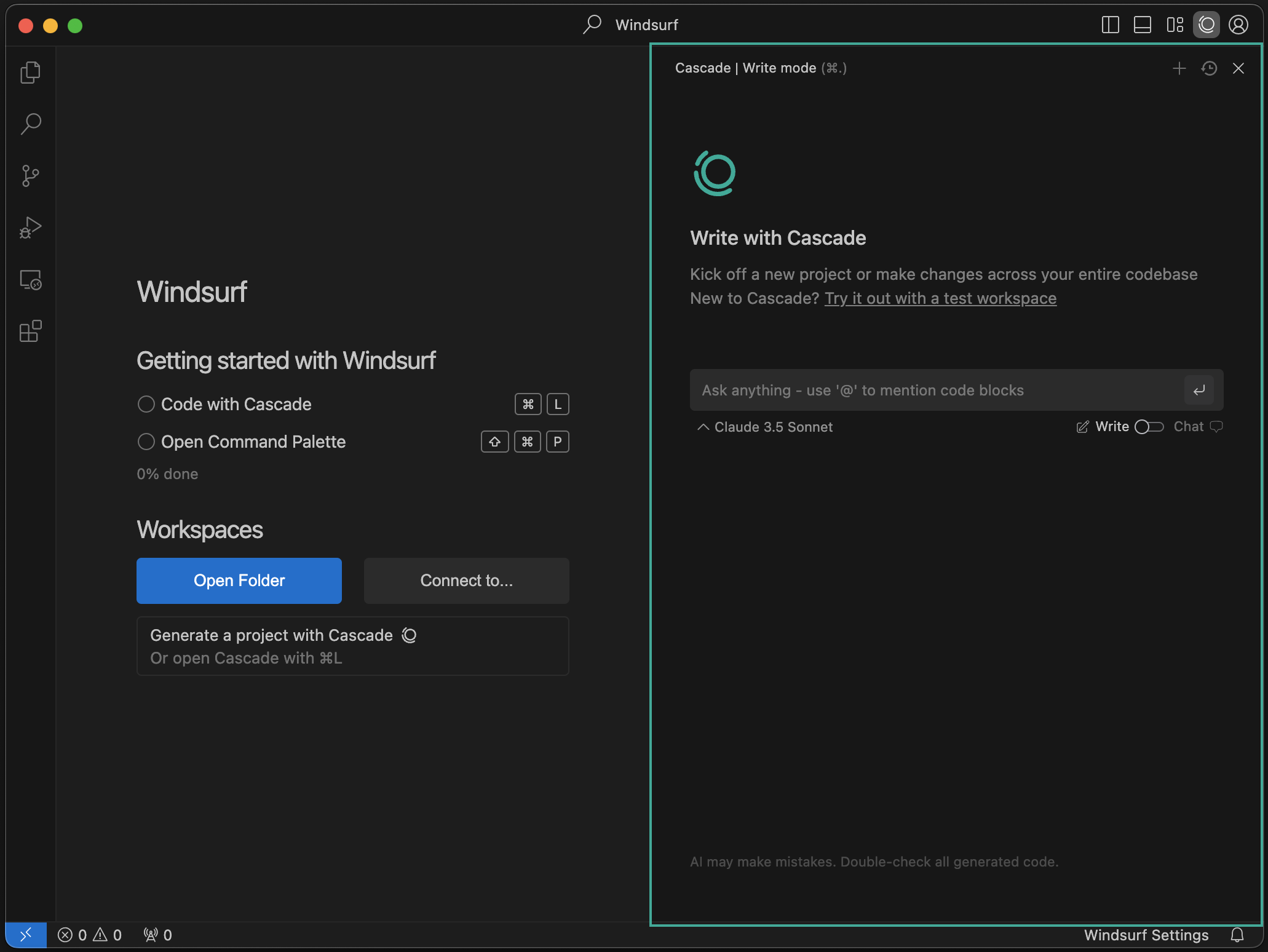
On the right side of the IDE, you'll notice a new panel called "Cascade". This is your AI-powered code assistant! You can chat, write code, and run code with Cascade! Learn more about how it works [here](/windsurf/cascade).
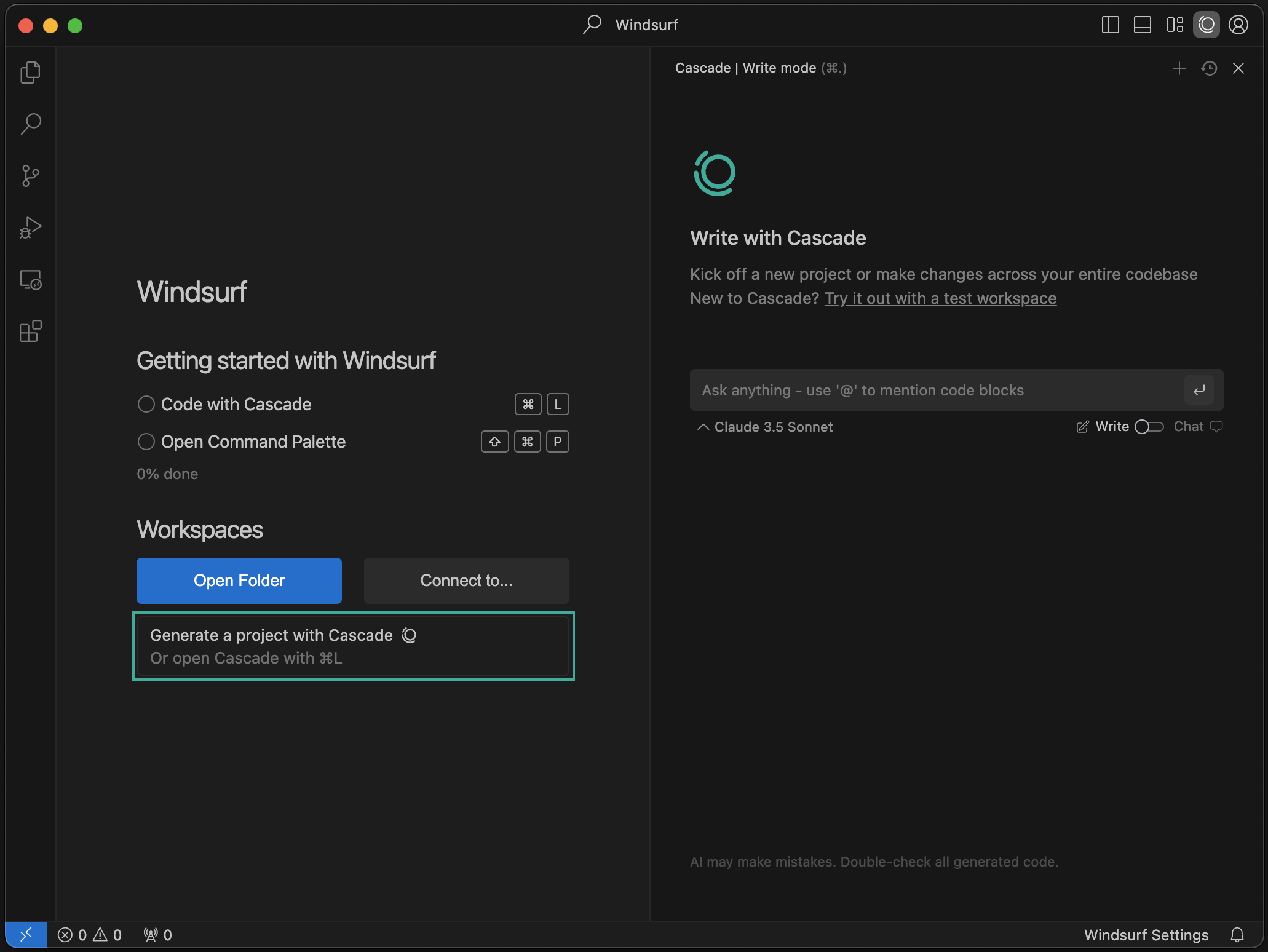
You can create brand new projects with Cascade! Click the "New Project" button to get started.
You can open a folder or connect to a remote server via SSH or a local dev container. Learn more [here](/windsurf/advanced).
Click on the "Windsurf - Settings" button on the bottom right to pop up the settings panel. To access Advanced Settings, click on the button in this panel or select "Windsurf Settings" in the top right profile dropdown.
You can open the command palette with the `⌘+⇧+P` (on Mac) or `Ctrl+Shift+P` (on Windows/Linux) shortcut. Explore the available commands!
## Forgot to Import VS Code Configurations?
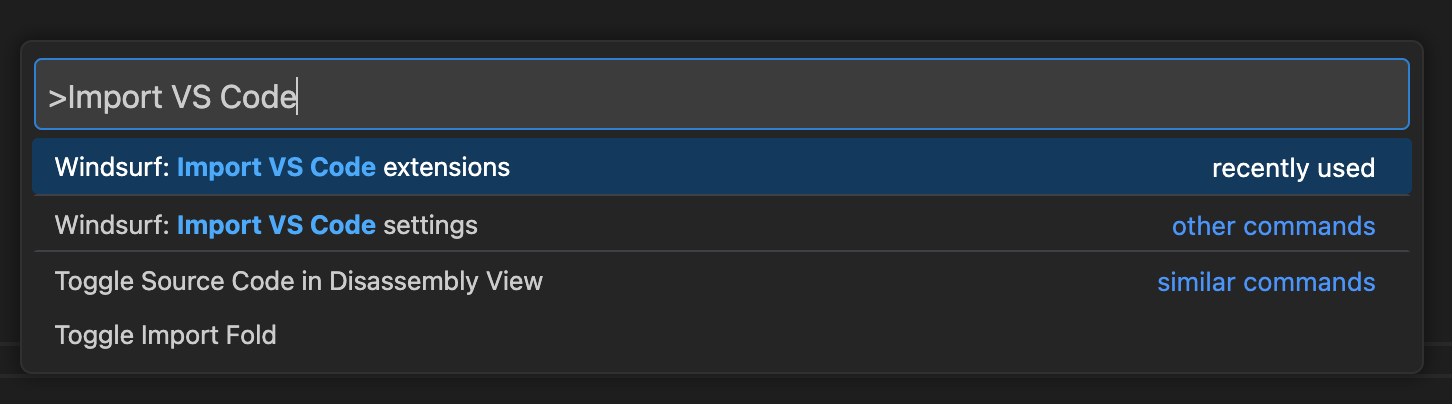
You can easily import your VS Code/Cursor configuration into Windsurf if you decide to do so after the onboarding process.
Open the command palette (Mac: `⌘+⇧+P`, Windows/Linux: `Ctrl+Shift+P`) and type in the following:
## Incompatible Extensions
There are a few extensions that are incompatible with Windsurf. These include other AI code complete extensions and proprietary extensions. You cannot install extensions through any marketplace on Windsurf.
## Custom App Icons (beta)
For paying users of Windsurf, you can choose between different Windsurf icons while it sits in your dock. Currently, this feature is only available for Mac OS, with other operating systems coming soon.
To change your app icon, simply click the profile/settings icon in the top right corner of the editor and select "Customize App Icon".
## Windsurf Next
Windsurf Next is prerelease version of Windsurf which users can choose to opt-in to access the newest features and capabilities as early as possible, even if the features are not fully polished. Features will typically be rolled out to Windsurf Next first, and then into the stable release shortly after.
You can opt-in to Windsurf Next simply by [downloading it here](https://windsurf.com/editor/download-next).
## Uninstall Windsurf
To uninstall Windsurf from your system, follow these steps:
Ensure that Windsurf is not currently running before proceeding with the uninstallation.
Drag the Windsurf application from the Applications folder to the Trash.
The application is usually located in one of these folders:
* `C:\Program Files\Windsurf`
* `C:\Users\[YourUsername]\AppData\Local\Programs\Windsurf`
Delete the Windsurf folder from the appropriate location.
Remove the Windsurf folder from the location where you installed it.
Delete the Windsurf configuration folder:
```bash theme={null}
rm -rf ~/.codeium/windsurf
```
Delete the Windsurf configuration folder:
```
C:\Users\[YourUsername]\.codeium\windsurf
```
If you installed Windsurf in PATH, remove it from your system's PATH environment variable.
If you installed Windsurf using your system's package manager or control panel, you can also use that to uninstall it.
Empty your Trash or Recycle Bin to complete the uninstallation.
 ### 1. Select setup flow
If you're coming from VS Code or Cursor, you can easily import your configurations. Otherwise, select "Start fresh". You can also optionally install `windsurf` in PATH such that you can run `windsurf` from your command line.
### 1. Select setup flow
If you're coming from VS Code or Cursor, you can easily import your configurations. Otherwise, select "Start fresh". You can also optionally install `windsurf` in PATH such that you can run `windsurf` from your command line.
 ### 3. Sign up / Log in
To use Windsurf, you need to use your Windsurf account or create one if you don't have one. Signing up is completely free!
### 3. Sign up / Log in
To use Windsurf, you need to use your Windsurf account or create one if you don't have one. Signing up is completely free!
 Once you've authenticated correctly, you should see this page. Hit "Open Windsurf" and you're good to go!
 #### Having Trouble?
If you're having trouble with this authentication flow, you can also log in and manually provide Windsurf with an authentication code.
#### Having Trouble?
If you're having trouble with this authentication flow, you can also log in and manually provide Windsurf with an authentication code.
 If you are not seeing this button, you can:
1. Click on your Profile icon dropdown > Check for Updates
2. In the Command Palette (`Cmd/Ctrl+Shift+P`) > "Check for Updates"
## Things to Try
Now that you've successfully opened Windsurf, let's try out some of the features! These are all conveniently accessible from the starting page. :)
If you are not seeing this button, you can:
1. Click on your Profile icon dropdown > Check for Updates
2. In the Command Palette (`Cmd/Ctrl+Shift+P`) > "Check for Updates"
## Things to Try
Now that you've successfully opened Windsurf, let's try out some of the features! These are all conveniently accessible from the starting page. :)
 On the right side of the IDE, you'll notice a new panel called "Cascade". This is your AI-powered code assistant! You can chat, write code, and run code with Cascade! Learn more about how it works [here](/windsurf/cascade).
 You can create brand new projects with Cascade! Click the "New Project" button to get started.
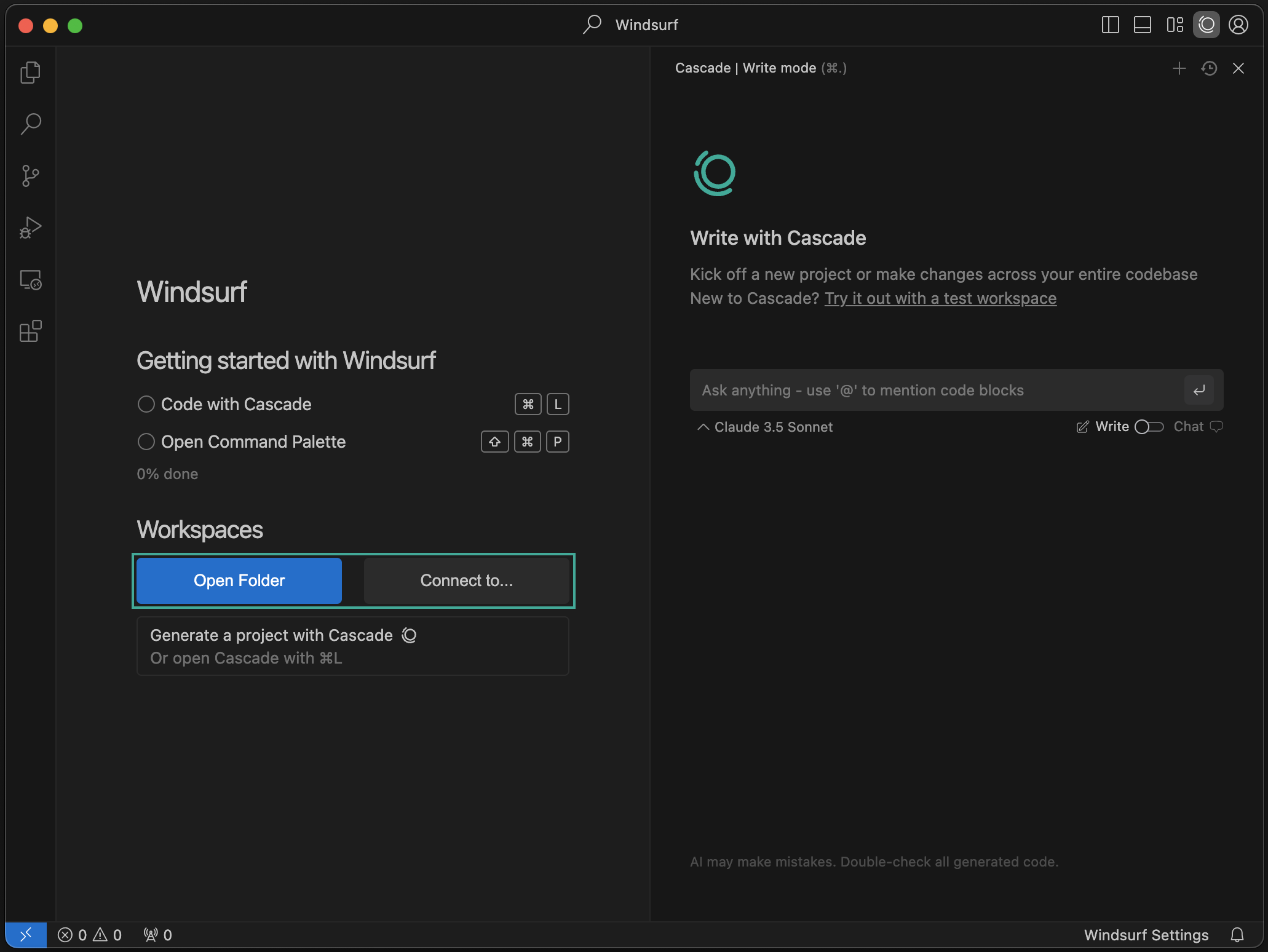 You can open a folder or connect to a remote server via SSH or a local dev container. Learn more [here](/windsurf/advanced).
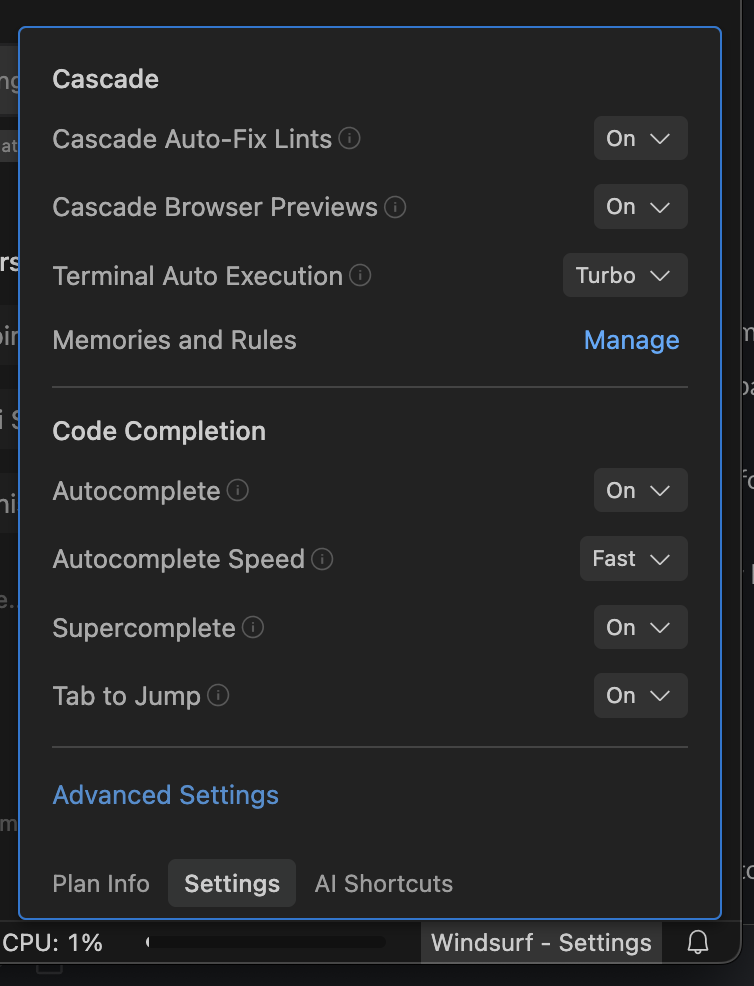 Click on the "Windsurf - Settings" button on the bottom right to pop up the settings panel. To access Advanced Settings, click on the button in this panel or select "Windsurf Settings" in the top right profile dropdown.
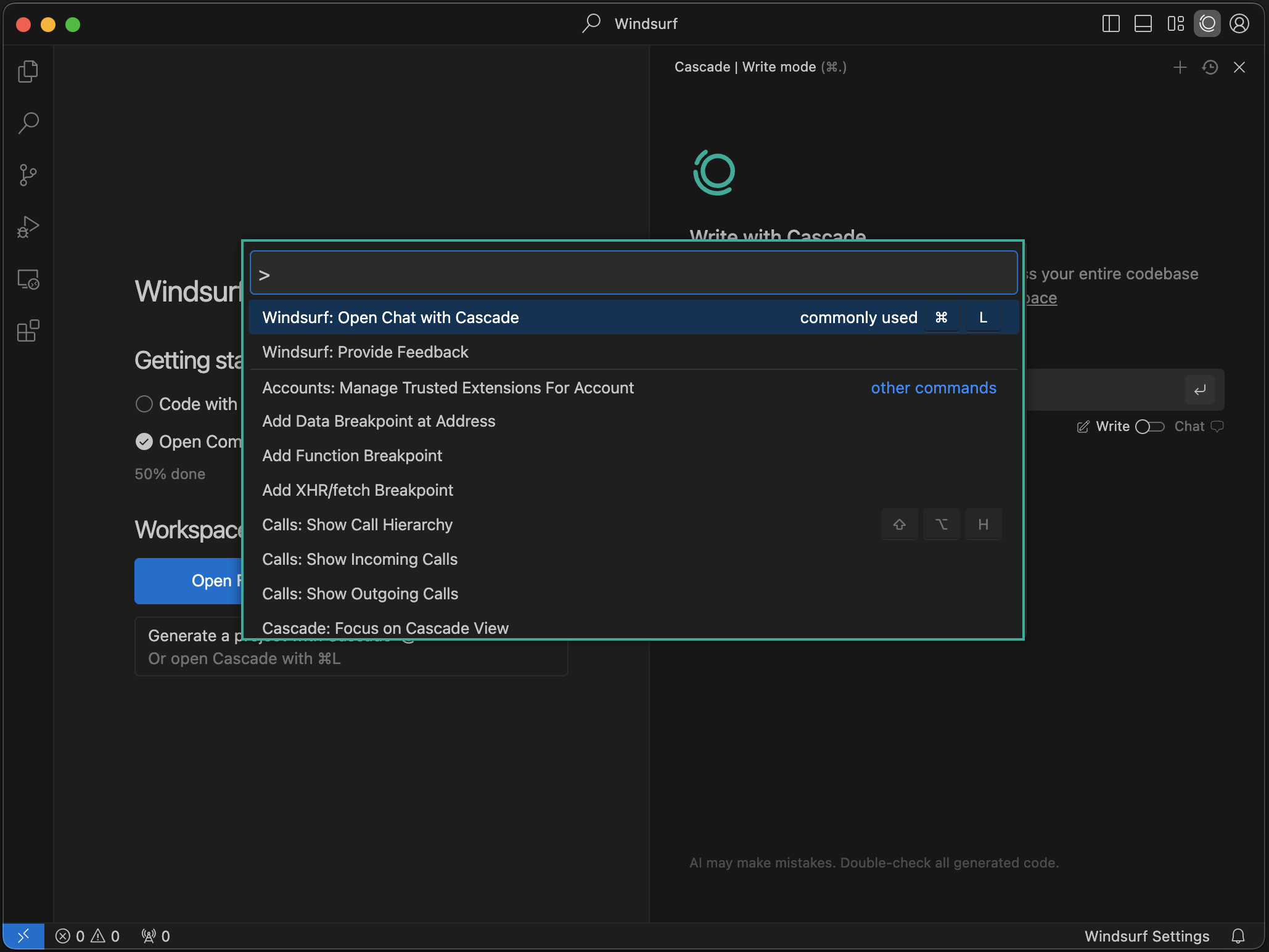 You can open the command palette with the `⌘+⇧+P` (on Mac) or `Ctrl+Shift+P` (on Windows/Linux) shortcut. Explore the available commands!