> ## Documentation Index
> Fetch the complete documentation index at: https://docs.windsurf.com/llms.txt
> Use this file to discover all available pages before exploring further.
# Model Context Protocol (MCP)
> Integrate MCP servers with Cascade to access custom tools like GitHub, databases, and APIs. Configure stdio, HTTP, and SSE transports with admin controls for Teams.
**MCP (Model Context Protocol)** is a protocol that enables LLMs to access custom tools and services.
An MCP client (Cascade, in this case) can make requests to MCP servers to access tools that they provide.
Cascade now natively integrates with MCP, allowing you to bring your own selection of MCP servers for Cascade to use.
See the [official MCP docs](https://modelcontextprotocol.io/) for more information.
Enterprise users must manually turn this on via settings
## Adding a new MCP
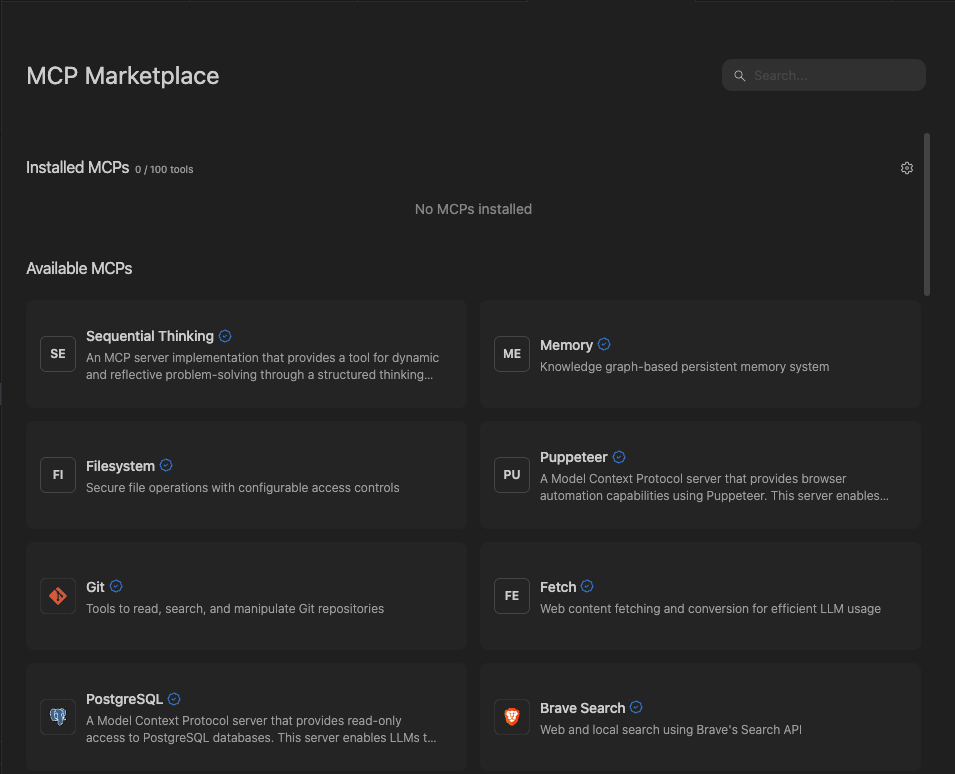
New MCPs can be added from the MCP Marketplace, which you access by
clicking on the `MCPs` icon in the top right menu in the Cascade panel, or from
the `Windsurf Settings` > `Cascade` > `MCP Servers` section.
If you cannot find your desired MCP, you can add it manually by editing the raw `mcp_config.json` file.
Official MCPs will show up with a blue checkmark, indicating that they are made by the parent service company.
When you click on a MCP, simply click `Install` to expose the server and its tools to Cascade.
### One-Click Install via Deeplink
Windsurf supports one-click MCP installation through deeplinks. You can use these links to open the MCP
registry page directly in Windsurf, which is useful for sharing MCP server recommendations or embedding
install buttons in documentation.
The deeplink format is:
```
windsurf://windsurf-mcp-registry?serverName=
```
* **With `serverName`**: Opens the MCP registry page for the specified server, where the user can review and install it.
* **Without `serverName`**: Opens the MCP Marketplace page.
For example, `windsurf://windsurf-mcp-registry?serverName=github-mcp-server` will open the GitHub MCP server's
registry page in Windsurf.
One-click install deeplinks require that the user's team has MCP access enabled. If MCP access is disabled by an admin, the deeplink will not open the registry page.
Windsurf supports three [transport types](https://modelcontextprotocol.io/docs/concepts/transports) for MCP
servers: `stdio`, `Streamable HTTP`, and `SSE`.
Windsurf also supports OAuth for each transport type.
For `http` servers, the URL should reflect that of the endpoint and resemble `https:///mcp`.
 ## Configuring MCP tools
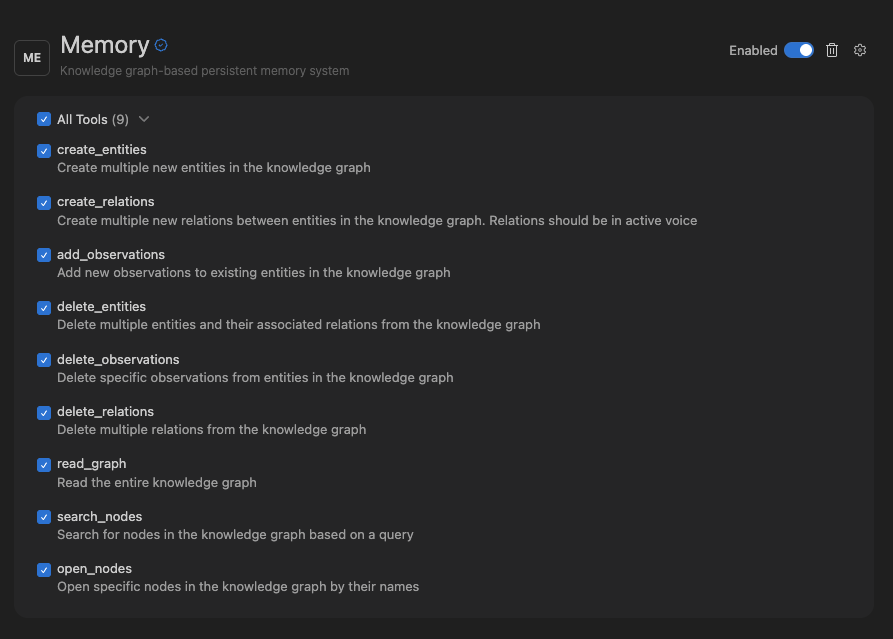
Each MCP has a certain number of tools it has access to. Cascade has a limit of 100 total tools that it has access to at any given time.
On each MCP settings page, you can toggle the tools that you wish to enable. To
open settings for a MCP, click on the `MCPs` icon in the top right menu in the
Cascade panel, and click on the desired MCP.
## Configuring MCP tools
Each MCP has a certain number of tools it has access to. Cascade has a limit of 100 total tools that it has access to at any given time.
On each MCP settings page, you can toggle the tools that you wish to enable. To
open settings for a MCP, click on the `MCPs` icon in the top right menu in the
Cascade panel, and click on the desired MCP.
 ## mcp\_config.json
The `~/.codeium/windsurf/mcp_config.json` file is a JSON file that contains a list of servers that Cascade can connect to.
Here’s an example configuration, which sets up a single server for GitHub:
```json theme={null}
{
"mcpServers": {
"github": {
"command": "npx",
"args": [
"-y",
"@modelcontextprotocol/server-github"
],
"env": {
"GITHUB_PERSONAL_ACCESS_TOKEN": ""
}
}
}
}
```
Be sure to provide the required arguments and environment variables for the servers that you want to use.
See the [official MCP server reference repository](https://github.com/modelcontextprotocol/servers) or [OpenTools](https://opentools.com/) for some example servers.
### Popular MCP Server Examples
Below are configuration examples for some commonly used MCP servers. These can be added to your `mcp_config.json` file.
The GitHub MCP server provides tools for repository management, file operations, issue tracking, and pull request management.
**Using npx:**
```json theme={null}
{
"mcpServers": {
"github": {
"command": "npx",
"args": ["-y", "@modelcontextprotocol/server-github"],
"env": {
"GITHUB_PERSONAL_ACCESS_TOKEN": ""
}
}
}
}
```
**Using Docker:**
```json theme={null}
{
"mcpServers": {
"github": {
"command": "docker",
"args": [
"run", "-i", "--rm",
"-e", "GITHUB_PERSONAL_ACCESS_TOKEN",
"ghcr.io/github/github-mcp-server"
],
"env": {
"GITHUB_PERSONAL_ACCESS_TOKEN": ""
}
}
}
}
```
To create a personal access token, visit [GitHub Settings > Developer settings > Personal access tokens](https://github.com/settings/tokens).
The Slack MCP server enables channel management, messaging, and workspace interactions.
```json theme={null}
{
"mcpServers": {
"slack": {
"command": "npx",
"args": ["-y", "@anthropic/mcp-server-slack"],
"env": {
"SLACK_BOT_TOKEN": "",
"SLACK_TEAM_ID": ""
}
}
}
}
```
To set up a Slack bot token:
1. Create a Slack App at [api.slack.com/apps](https://api.slack.com/apps)
2. Add the required OAuth scopes (e.g., `channels:read`, `chat:write`, `users:read`)
3. Install the app to your workspace and copy the Bot User OAuth Token
The PostgreSQL MCP server provides read-only access to PostgreSQL databases, including schema inspection and query execution.
```json theme={null}
{
"mcpServers": {
"postgres": {
"command": "npx",
"args": ["-y", "@modelcontextprotocol/server-postgres"],
"env": {
"POSTGRES_CONNECTION_STRING": "postgresql://user:password@localhost:5432/database"
}
}
}
}
```
The PostgreSQL server provides read-only access by default for safety. Ensure your connection string uses appropriate credentials with limited permissions.
The Filesystem MCP server provides secure access to local files and directories with configurable access controls.
```json theme={null}
{
"mcpServers": {
"filesystem": {
"command": "npx",
"args": [
"-y", "@modelcontextprotocol/server-filesystem",
"/path/to/allowed/directory"
]
}
}
}
```
You can specify multiple allowed directories by adding additional path arguments. Only files within these directories will be accessible.
The Brave Search MCP server enables web search capabilities using Brave's Search API.
```json theme={null}
{
"mcpServers": {
"brave-search": {
"command": "npx",
"args": ["-y", "@anthropic/mcp-server-brave-search"],
"env": {
"BRAVE_API_KEY": ""
}
}
}
}
```
To get a Brave API key, sign up at [brave.com/search/api](https://brave.com/search/api/).
The Memory MCP server provides a persistent memory system using a knowledge graph, allowing Cascade to remember information across sessions.
```json theme={null}
{
"mcpServers": {
"memory": {
"command": "npx",
"args": ["-y", "@modelcontextprotocol/server-memory"]
}
}
}
```
The memory server stores data locally and persists across sessions, making it useful for maintaining context about projects, preferences, and learned information.
### Remote HTTP MCPs
It's important to note that for remote HTTP MCPs, the configuration is slightly
different and requires a `serverUrl` or `url` field.
Here's an example configuration for an HTTP server:
```json theme={null}
{
"mcpServers": {
"remote-http-mcp": {
"serverUrl": "/mcp",
"headers": {
"API_KEY": "value"
}
}
}
}
```
### Config Interpolation
The `~/.codeium/windsurf/mcp_config.json` file supports variable interpolation
in the following fields: `command`, `args`, `env`, `serverUrl`, `url`, and
`headers`. This lets you avoid hardcoding secrets directly in the config file.
Two interpolation patterns are supported:
* **`${env:VAR_NAME}`** — replaced with the value of the environment variable `VAR_NAME`. If the variable is not set, it resolves to an empty string.
* **`${file:/path/to/file}`** — replaced with the trimmed contents of the file at the given path. Tilde paths (e.g. `~/secrets/key.txt`) are supported. If the file cannot be read, the pattern is left unchanged.
Here's an example using an environment variable in `headers`:
```json theme={null}
{
"mcpServers": {
"remote-http-mcp": {
"serverUrl": "/mcp",
"headers": {
"API_KEY": "Bearer ${env:AUTH_TOKEN}"
}
}
}
}
```
Here's an example reading an API key from a file:
```json theme={null}
{
"mcpServers": {
"my-server": {
"command": "node",
"args": ["server.js"],
"env": {
"API_KEY": "${file:~/.secrets/api_key.txt}"
}
}
}
}
```
## Admin Controls (Teams & Enterprises)
Team admins can toggle MCP access for their team, as well as whitelist approved MCP servers for their team to use:
### MCP Registry
Enterprise teams can configure custom MCP registries to replace the default Windsurf MCP marketplace. Teams can link their own registry URLs to control which MCPs are available to their users.
Registries are the preferred approach for managing MCP access, though whitelists will also work.
#### Configuring Custom Registries
1. Navigate to your team settings
2. Find the **MCP Registry URLs** setting
3. Add one or more registry URLs
When multiple registry URLs are configured, Windsurf takes the **union** of all registries—users will see MCPs from all configured sources combined. The team's MCP marketplace will then fetch from these internal registries rather than the default Windsurf registry.
Custom registries must follow the [official MCP registry schema](https://modelcontextprotocol.io/). This ensures compatibility and standardized server definitions.
### MCP Whitelist
Configurable MCP settings for your team.
The above link will only work if you have admin privileges for your team.
By default, users within a team will be able to configure their own MCP servers. However, once you whitelist even a single MCP server, **all non-whitelisted servers will be blocked** for your team.
The Server ID in the whitelist must match the key name case sensitive used in the user's `mcp_config.json`.
### How Server Matching Works
When you whitelist an MCP server, the system uses **regex pattern matching** with the following rules:
* **Full String Matching**: All patterns are automatically anchored (wrapped with `^(?:pattern)$`) to prevent partial matches
* **Command Field**: Must match exactly or according to your regex pattern
* **Arguments Array**: Each argument is matched individually against its corresponding pattern
* **Array Length**: The number of arguments must match exactly between whitelist and user config
* **Special Characters**: Characters like `$`, `.`, `[`, `]`, `(`, `)` have special regex meaning and should be escaped with `\` if you want literal matching
### Configuration Options
**Admin Whitelist Configuration:**
* **Server ID**: `github-mcp-server`
* **Server Config (JSON)**: *(leave empty)*
```json theme={null}
{}
```
**Matching User Config (`mcp_config.json`):**
```json theme={null}
{
"mcpServers": {
"github-mcp-server": {
"command": "docker",
"args": [
"run",
"-i",
"--rm",
"-e",
"GITHUB_PERSONAL_ACCESS_TOKEN",
"ghcr.io/github/github-mcp-server"
],
"env": {
"GITHUB_PERSONAL_ACCESS_TOKEN": "ghp_your_token_here"
}
}
}
}
```
This allows users to install the GitHub MCP server with any valid configuration, as long as the server ID matches the plugin store entry.
**Admin Whitelist Configuration:**
* **Server ID**: `github-mcp-server`
* **Server Config (JSON)**:
```json theme={null}
{
"command": "docker",
"args": [
"run",
"-i",
"--rm",
"-e",
"GITHUB_PERSONAL_ACCESS_TOKEN",
"ghcr.io/github/github-mcp-server"
],
"env": {
"GITHUB_PERSONAL_ACCESS_TOKEN": ""
}
}
```
**Matching User Config (`mcp_config.json`):**
```json theme={null}
{
"mcpServers": {
"github-mcp-server": {
"command": "docker",
"args": [
"run",
"-i",
"--rm",
"-e",
"GITHUB_PERSONAL_ACCESS_TOKEN",
"ghcr.io/github/github-mcp-server"
],
"env": {
"GITHUB_PERSONAL_ACCESS_TOKEN": "ghp_your_token_here"
}
}
}
}
```
Users must use this exact configuration - any deviation in command or args will be blocked. The `env` section can have different values.
**Admin Whitelist Configuration:**
* **Server ID**: `python-mcp-server`
* **Server Config (JSON)**:
```json theme={null}
{
"command": "python3",
"args": ["/.*\\.py", "--port", "[0-9]+"]
}
```
**Matching User Config (`mcp_config.json`):**
```json theme={null}
{
"mcpServers": {
"python-mcp-server": {
"command": "python3",
"args": ["/home/user/my_server.py", "--port", "8080"],
"env": {
"PYTHONPATH": "/home/user/mcp"
}
}
}
}
```
This example allows users flexibility while maintaining security:
* The regex `/.*\\.py` matches any Python file path like `/home/user/my_server.py`
* The regex `[0-9]+` matches any numeric port like `8080` or `3000`
* Users can customize file paths and ports while admins ensure only Python scripts are executed
### Common Regex Patterns
| Pattern | Matches | Example |
| --------------- | ------------------------- | ---------------------- |
| `.*` | Any string | `/home/user/script.py` |
| `[0-9]+` | Any number | `8080`, `3000` |
| `[a-zA-Z0-9_]+` | Alphanumeric + underscore | `api_key_123` |
| `\\$HOME` | Literal `$HOME` | `$HOME` (not expanded) |
| `\\.py` | Literal `.py` | `script.py` |
| `\\[cli\\]` | Literal `[cli]` | `mcp[cli]` |
## Notes
### Admin Configuration Guidelines
* **Environment Variables**: The `env` section is not regex-matched and can be configured freely by users
* **Disabled Tools**: The `disabledTools` array is handled separately and not part of whitelist matching
* **Case Sensitivity**: All matching is case-sensitive
* **Error Handling**: Invalid regex patterns will be logged and result in access denial
* **Testing**: Test your regex patterns carefully - overly restrictive patterns may block legitimate use cases
### Troubleshooting
If users report that their MCP servers aren't working after whitelisting:
1. **Check Exact Matching**: Ensure the whitelist pattern exactly matches the user's configuration
2. **Verify Regex Escaping**: Special characters may need escaping (e.g., `\.` for literal dots)
3. **Review Logs**: Invalid regex patterns are logged with warnings
4. **Test Patterns**: Use a regex tester to verify your patterns work as expected
Remember: Once you whitelist any server, **all other servers are automatically blocked** for your team members.
### General Information
* Since MCP tool calls can invoke code written by arbitrary server implementers, we do not assume liability
for MCP tool call failures. To reiterate:
* We currently support an MCP server's [tools](https://modelcontextprotocol.io/docs/concepts/tools), [resources](https://modelcontextprotocol.io/docs/concepts/resources), and [prompts](https://modelcontextprotocol.io/docs/concepts/prompts).
## mcp\_config.json
The `~/.codeium/windsurf/mcp_config.json` file is a JSON file that contains a list of servers that Cascade can connect to.
Here’s an example configuration, which sets up a single server for GitHub:
```json theme={null}
{
"mcpServers": {
"github": {
"command": "npx",
"args": [
"-y",
"@modelcontextprotocol/server-github"
],
"env": {
"GITHUB_PERSONAL_ACCESS_TOKEN": ""
}
}
}
}
```
Be sure to provide the required arguments and environment variables for the servers that you want to use.
See the [official MCP server reference repository](https://github.com/modelcontextprotocol/servers) or [OpenTools](https://opentools.com/) for some example servers.
### Popular MCP Server Examples
Below are configuration examples for some commonly used MCP servers. These can be added to your `mcp_config.json` file.
The GitHub MCP server provides tools for repository management, file operations, issue tracking, and pull request management.
**Using npx:**
```json theme={null}
{
"mcpServers": {
"github": {
"command": "npx",
"args": ["-y", "@modelcontextprotocol/server-github"],
"env": {
"GITHUB_PERSONAL_ACCESS_TOKEN": ""
}
}
}
}
```
**Using Docker:**
```json theme={null}
{
"mcpServers": {
"github": {
"command": "docker",
"args": [
"run", "-i", "--rm",
"-e", "GITHUB_PERSONAL_ACCESS_TOKEN",
"ghcr.io/github/github-mcp-server"
],
"env": {
"GITHUB_PERSONAL_ACCESS_TOKEN": ""
}
}
}
}
```
To create a personal access token, visit [GitHub Settings > Developer settings > Personal access tokens](https://github.com/settings/tokens).
The Slack MCP server enables channel management, messaging, and workspace interactions.
```json theme={null}
{
"mcpServers": {
"slack": {
"command": "npx",
"args": ["-y", "@anthropic/mcp-server-slack"],
"env": {
"SLACK_BOT_TOKEN": "",
"SLACK_TEAM_ID": ""
}
}
}
}
```
To set up a Slack bot token:
1. Create a Slack App at [api.slack.com/apps](https://api.slack.com/apps)
2. Add the required OAuth scopes (e.g., `channels:read`, `chat:write`, `users:read`)
3. Install the app to your workspace and copy the Bot User OAuth Token
The PostgreSQL MCP server provides read-only access to PostgreSQL databases, including schema inspection and query execution.
```json theme={null}
{
"mcpServers": {
"postgres": {
"command": "npx",
"args": ["-y", "@modelcontextprotocol/server-postgres"],
"env": {
"POSTGRES_CONNECTION_STRING": "postgresql://user:password@localhost:5432/database"
}
}
}
}
```
The PostgreSQL server provides read-only access by default for safety. Ensure your connection string uses appropriate credentials with limited permissions.
The Filesystem MCP server provides secure access to local files and directories with configurable access controls.
```json theme={null}
{
"mcpServers": {
"filesystem": {
"command": "npx",
"args": [
"-y", "@modelcontextprotocol/server-filesystem",
"/path/to/allowed/directory"
]
}
}
}
```
You can specify multiple allowed directories by adding additional path arguments. Only files within these directories will be accessible.
The Brave Search MCP server enables web search capabilities using Brave's Search API.
```json theme={null}
{
"mcpServers": {
"brave-search": {
"command": "npx",
"args": ["-y", "@anthropic/mcp-server-brave-search"],
"env": {
"BRAVE_API_KEY": ""
}
}
}
}
```
To get a Brave API key, sign up at [brave.com/search/api](https://brave.com/search/api/).
The Memory MCP server provides a persistent memory system using a knowledge graph, allowing Cascade to remember information across sessions.
```json theme={null}
{
"mcpServers": {
"memory": {
"command": "npx",
"args": ["-y", "@modelcontextprotocol/server-memory"]
}
}
}
```
The memory server stores data locally and persists across sessions, making it useful for maintaining context about projects, preferences, and learned information.
### Remote HTTP MCPs
It's important to note that for remote HTTP MCPs, the configuration is slightly
different and requires a `serverUrl` or `url` field.
Here's an example configuration for an HTTP server:
```json theme={null}
{
"mcpServers": {
"remote-http-mcp": {
"serverUrl": "/mcp",
"headers": {
"API_KEY": "value"
}
}
}
}
```
### Config Interpolation
The `~/.codeium/windsurf/mcp_config.json` file supports variable interpolation
in the following fields: `command`, `args`, `env`, `serverUrl`, `url`, and
`headers`. This lets you avoid hardcoding secrets directly in the config file.
Two interpolation patterns are supported:
* **`${env:VAR_NAME}`** — replaced with the value of the environment variable `VAR_NAME`. If the variable is not set, it resolves to an empty string.
* **`${file:/path/to/file}`** — replaced with the trimmed contents of the file at the given path. Tilde paths (e.g. `~/secrets/key.txt`) are supported. If the file cannot be read, the pattern is left unchanged.
Here's an example using an environment variable in `headers`:
```json theme={null}
{
"mcpServers": {
"remote-http-mcp": {
"serverUrl": "/mcp",
"headers": {
"API_KEY": "Bearer ${env:AUTH_TOKEN}"
}
}
}
}
```
Here's an example reading an API key from a file:
```json theme={null}
{
"mcpServers": {
"my-server": {
"command": "node",
"args": ["server.js"],
"env": {
"API_KEY": "${file:~/.secrets/api_key.txt}"
}
}
}
}
```
## Admin Controls (Teams & Enterprises)
Team admins can toggle MCP access for their team, as well as whitelist approved MCP servers for their team to use:
### MCP Registry
Enterprise teams can configure custom MCP registries to replace the default Windsurf MCP marketplace. Teams can link their own registry URLs to control which MCPs are available to their users.
Registries are the preferred approach for managing MCP access, though whitelists will also work.
#### Configuring Custom Registries
1. Navigate to your team settings
2. Find the **MCP Registry URLs** setting
3. Add one or more registry URLs
When multiple registry URLs are configured, Windsurf takes the **union** of all registries—users will see MCPs from all configured sources combined. The team's MCP marketplace will then fetch from these internal registries rather than the default Windsurf registry.
Custom registries must follow the [official MCP registry schema](https://modelcontextprotocol.io/). This ensures compatibility and standardized server definitions.
### MCP Whitelist
Configurable MCP settings for your team.
The above link will only work if you have admin privileges for your team.
By default, users within a team will be able to configure their own MCP servers. However, once you whitelist even a single MCP server, **all non-whitelisted servers will be blocked** for your team.
The Server ID in the whitelist must match the key name case sensitive used in the user's `mcp_config.json`.
### How Server Matching Works
When you whitelist an MCP server, the system uses **regex pattern matching** with the following rules:
* **Full String Matching**: All patterns are automatically anchored (wrapped with `^(?:pattern)$`) to prevent partial matches
* **Command Field**: Must match exactly or according to your regex pattern
* **Arguments Array**: Each argument is matched individually against its corresponding pattern
* **Array Length**: The number of arguments must match exactly between whitelist and user config
* **Special Characters**: Characters like `$`, `.`, `[`, `]`, `(`, `)` have special regex meaning and should be escaped with `\` if you want literal matching
### Configuration Options
**Admin Whitelist Configuration:**
* **Server ID**: `github-mcp-server`
* **Server Config (JSON)**: *(leave empty)*
```json theme={null}
{}
```
**Matching User Config (`mcp_config.json`):**
```json theme={null}
{
"mcpServers": {
"github-mcp-server": {
"command": "docker",
"args": [
"run",
"-i",
"--rm",
"-e",
"GITHUB_PERSONAL_ACCESS_TOKEN",
"ghcr.io/github/github-mcp-server"
],
"env": {
"GITHUB_PERSONAL_ACCESS_TOKEN": "ghp_your_token_here"
}
}
}
}
```
This allows users to install the GitHub MCP server with any valid configuration, as long as the server ID matches the plugin store entry.
**Admin Whitelist Configuration:**
* **Server ID**: `github-mcp-server`
* **Server Config (JSON)**:
```json theme={null}
{
"command": "docker",
"args": [
"run",
"-i",
"--rm",
"-e",
"GITHUB_PERSONAL_ACCESS_TOKEN",
"ghcr.io/github/github-mcp-server"
],
"env": {
"GITHUB_PERSONAL_ACCESS_TOKEN": ""
}
}
```
**Matching User Config (`mcp_config.json`):**
```json theme={null}
{
"mcpServers": {
"github-mcp-server": {
"command": "docker",
"args": [
"run",
"-i",
"--rm",
"-e",
"GITHUB_PERSONAL_ACCESS_TOKEN",
"ghcr.io/github/github-mcp-server"
],
"env": {
"GITHUB_PERSONAL_ACCESS_TOKEN": "ghp_your_token_here"
}
}
}
}
```
Users must use this exact configuration - any deviation in command or args will be blocked. The `env` section can have different values.
**Admin Whitelist Configuration:**
* **Server ID**: `python-mcp-server`
* **Server Config (JSON)**:
```json theme={null}
{
"command": "python3",
"args": ["/.*\\.py", "--port", "[0-9]+"]
}
```
**Matching User Config (`mcp_config.json`):**
```json theme={null}
{
"mcpServers": {
"python-mcp-server": {
"command": "python3",
"args": ["/home/user/my_server.py", "--port", "8080"],
"env": {
"PYTHONPATH": "/home/user/mcp"
}
}
}
}
```
This example allows users flexibility while maintaining security:
* The regex `/.*\\.py` matches any Python file path like `/home/user/my_server.py`
* The regex `[0-9]+` matches any numeric port like `8080` or `3000`
* Users can customize file paths and ports while admins ensure only Python scripts are executed
### Common Regex Patterns
| Pattern | Matches | Example |
| --------------- | ------------------------- | ---------------------- |
| `.*` | Any string | `/home/user/script.py` |
| `[0-9]+` | Any number | `8080`, `3000` |
| `[a-zA-Z0-9_]+` | Alphanumeric + underscore | `api_key_123` |
| `\\$HOME` | Literal `$HOME` | `$HOME` (not expanded) |
| `\\.py` | Literal `.py` | `script.py` |
| `\\[cli\\]` | Literal `[cli]` | `mcp[cli]` |
## Notes
### Admin Configuration Guidelines
* **Environment Variables**: The `env` section is not regex-matched and can be configured freely by users
* **Disabled Tools**: The `disabledTools` array is handled separately and not part of whitelist matching
* **Case Sensitivity**: All matching is case-sensitive
* **Error Handling**: Invalid regex patterns will be logged and result in access denial
* **Testing**: Test your regex patterns carefully - overly restrictive patterns may block legitimate use cases
### Troubleshooting
If users report that their MCP servers aren't working after whitelisting:
1. **Check Exact Matching**: Ensure the whitelist pattern exactly matches the user's configuration
2. **Verify Regex Escaping**: Special characters may need escaping (e.g., `\.` for literal dots)
3. **Review Logs**: Invalid regex patterns are logged with warnings
4. **Test Patterns**: Use a regex tester to verify your patterns work as expected
Remember: Once you whitelist any server, **all other servers are automatically blocked** for your team members.
### General Information
* Since MCP tool calls can invoke code written by arbitrary server implementers, we do not assume liability
for MCP tool call failures. To reiterate:
* We currently support an MCP server's [tools](https://modelcontextprotocol.io/docs/concepts/tools), [resources](https://modelcontextprotocol.io/docs/concepts/resources), and [prompts](https://modelcontextprotocol.io/docs/concepts/prompts).