> ## Documentation Index
> Fetch the complete documentation index at: https://docs.windsurf.com/llms.txt
> Use this file to discover all available pages before exploring further.

# Windsurf へようこそ

> Mac、Windows、Linux 向けに Windsurf IDE をダウンロードしてインストールします。VS Code または Cursor の設定をインポートし、テーマを設定して、AI による支援を受けながらコーディングを開始しましょう。

明日のエディタを、今日。

Windsurf は開発のフローを途切れさせないために設計された次世代の AI 搭載 IDE です。このページでは、Windsurf をコンピュータにインストールする手順、オンボーディングの進め方、そして最初の AI 活用プロジェクトの始め方を説明します。

<Card
  title="Cascade"
  icon={
<svg
width="25"
height="25"
viewBox="0 0 1292 1292"
fill="none"
xmlns="http://www.w3.org/2000/svg"
>
<path
  d="M1195 599C1195 848.08 993.08 1050 744 1050C494.92 1050 293 848.08 293 599C293 349.92 494.92 148 744 148C993.08 148 1195 349.92 1195 599ZM411.5 599C411.5 782.635 560.365 931.5 744 931.5C927.635 931.5 1076.5 782.635 1076.5 599C1076.5 415.365 927.635 266.5 744 266.5C560.365 266.5 411.5 415.365 411.5 599Z"
  fill="#34E8BB"
/>
<path
  d="M1096.19 1053.62C1116.8 1078.03 1113.86 1114.77 1087.65 1133.04C1002.41 1192.46 903.441 1229.92 799.584 1241.61C676.505 1255.46 552.082 1232.51 442.049 1175.65C332.016 1118.79 241.314 1030.58 181.415 922.172C130.87 830.693 104.172 728.301 103.33 624.396C103.071 592.449 131.338 568.79 163.173 571.479C195.007 574.168 218.29 602.208 219.218 634.143C221.573 715.175 243.206 794.78 282.679 866.22C331.512 954.6 405.457 1026.51 495.161 1072.87C584.866 1119.22 686.302 1137.94 786.643 1126.64C867.75 1117.51 945.198 1089.11 1012.66 1044.15C1039.24 1026.44 1075.58 1029.21 1096.19 1053.62Z"
  fill="#34E8BB"
/>
<path
  d="M177.334 450.08C146.261 442.514 126.947 411.072 137.349 380.829C160.687 312.983 195.56 249.512 240.566 193.267C285.571 137.023 339.851 89.0802 400.928 51.4326C428.153 34.6511 463.065 46.5999 477.261 75.2582C491.457 103.917 479.508 138.389 452.641 155.738C406.542 185.506 365.436 222.584 330.994 265.627C296.552 308.67 269.39 356.906 250.456 408.411C239.421 438.428 208.408 457.646 177.334 450.08Z"
  fill="#34E8BB"
/>
</svg>
}
  href="/ja/windsurf/cascade"
>
  かつてないコラボレーション体験を実現するエージェント型チャットボットです。
</Card>

<CardGroup cols={2}>
  <Card title="Usage" icon="bars-progress" href="/ja/windsurf/accounts/usage">
    クレジットと利用状況。
  </Card>

  <Card title="Terminal" icon="terminal" href="/ja/windsurf/terminal">
    強化された Terminal 体験。
  </Card>
</CardGroup>

<CardGroup cols={2}>
  <Card title="MCP" icon="hammer" href="/ja/windsurf/cascade/mcp">
    MCP サーバーでエージェントの機能を拡張できます。
  </Card>

  <Card title="Memories" icon="cloud-word" href="/ja/windsurf/cascade/memories">
    Memories とルールで動作をカスタマイズできます。
  </Card>

  <Card title="Context Awareness" icon="brain" href="/ja/context-awareness/overview">
    コードベースを即座に把握します。
  </Card>

  <Card title="Advanced" icon="gears" href="/ja/windsurf/advanced">
    高度な設定オプション。
  </Card>
</CardGroup>

<CardGroup cols={2}>
  <Card title="Workflows" icon="list" href="/ja/windsurf/cascade/workflows">
    繰り返しのワークフローを自動化します。
  </Card>

  <Card title="App Deploys" icon="rocket" href="/ja/windsurf/cascade/app-deploys">
    ワンクリックでアプリケーションをデプロイ。
  </Card>
</CardGroup>

<Tip> Windsurf の最新情報は[変更履歴](https://windsurf.com/changelog)をご覧ください！ </Tip>

<div id="set-up">
  ## セットアップ
</div>

開始するには、お使いのデバイスが要件を満たしていることを確認し、ダウンロードリンクをクリックして、手順に従って Windsurf をインストールして起動してください。

Windsurf の更新方法をお探しの場合は[こちら](#update-windsurf)をご覧ください。

<Tabs>
  <Tab title="Mac">
    最低 OS バージョン: OS X Yosemite

    <a href="https://windsurf.com/windsurf/download_mac" target="_blank" rel="noopener noreferrer">
      <button style={{width: '170px', backgroundColor: '#34E8BB', color: 'white', padding: '5px 10px', border: 'none', borderRadius: '5px', cursor: 'pointer', fontSize: '0.8rem', display: 'flex', justifyContent: 'center'}}>Mac 用にダウンロード</button>
    </a>
  </Tab>

  <Tab title="Windows">
    最低 OS バージョン: Windows 10

    <a href="https://windsurf.com/windsurf/download" target="_blank" rel="noopener noreferrer">
      <button style={{width: '170px', backgroundColor: '#34E8BB', color: 'white', padding: '5px 10px', border: 'none', borderRadius: '5px', cursor: 'pointer', fontSize: '0.8rem', display: 'flex', justifyContent: 'center'}}>Windows 用にダウンロード</button>
    </a>
  </Tab>

  <Tab title="Ubuntu">
    最低 OS バージョン: >= 20.04 (または glibc >= 2.31、glibcxx >= 3.4.26)

    <a href="https://windsurf.com/windsurf/download_linux" target="_blank" rel="noopener noreferrer">
      <button style={{width: '170px', backgroundColor: '#34E8BB', color: 'white', padding: '5px 10px', border: 'none', borderRadius: '5px', cursor: 'pointer', fontSize: '0.8rem', display: 'flex', justifyContent: 'center'}}>Ubuntu 用にダウンロード</button>
    </a>
  </Tab>

  <Tab title="Other Linux distributions">
    最低 OS バージョン: glibc >= 2.28、glibcxx >= 3.4.25

    <a href="https://windsurf.com/windsurf/download_linux" target="_blank" rel="noopener noreferrer">
      <button style={{width: '170px', backgroundColor: '#34E8BB', color: 'white', padding: '5px 10px', border: 'none', borderRadius: '5px', cursor: 'pointer', fontSize: '0.8rem', display: 'flex', justifyContent: 'center'}}>Linux 用にダウンロード</button>
    </a>
  </Tab>
</Tabs>

<div id="onboarding">
  ## オンボーディング
</div>

Windsurf を起動すると、次のページが表示されます。さあ始めましょう！このオンボーディングは、いつでも「Reset Onboarding」Command でリセットしてやり直せます。

<Frame>
  <img src="https://mintcdn.com/codeium/bVGscI7v3lPUsThV/assets/windsurf/onboarding/welcome.png?fit=max&auto=format&n=bVGscI7v3lPUsThV&q=85&s=f8eae97bf290f1badc7b21e0d9566f89" width="2344" height="1464" data-path="assets/windsurf/onboarding/welcome.png" />
</Frame>

<div id="1-select-setup-flow">
  ### 1. セットアップフローを選択
</div>

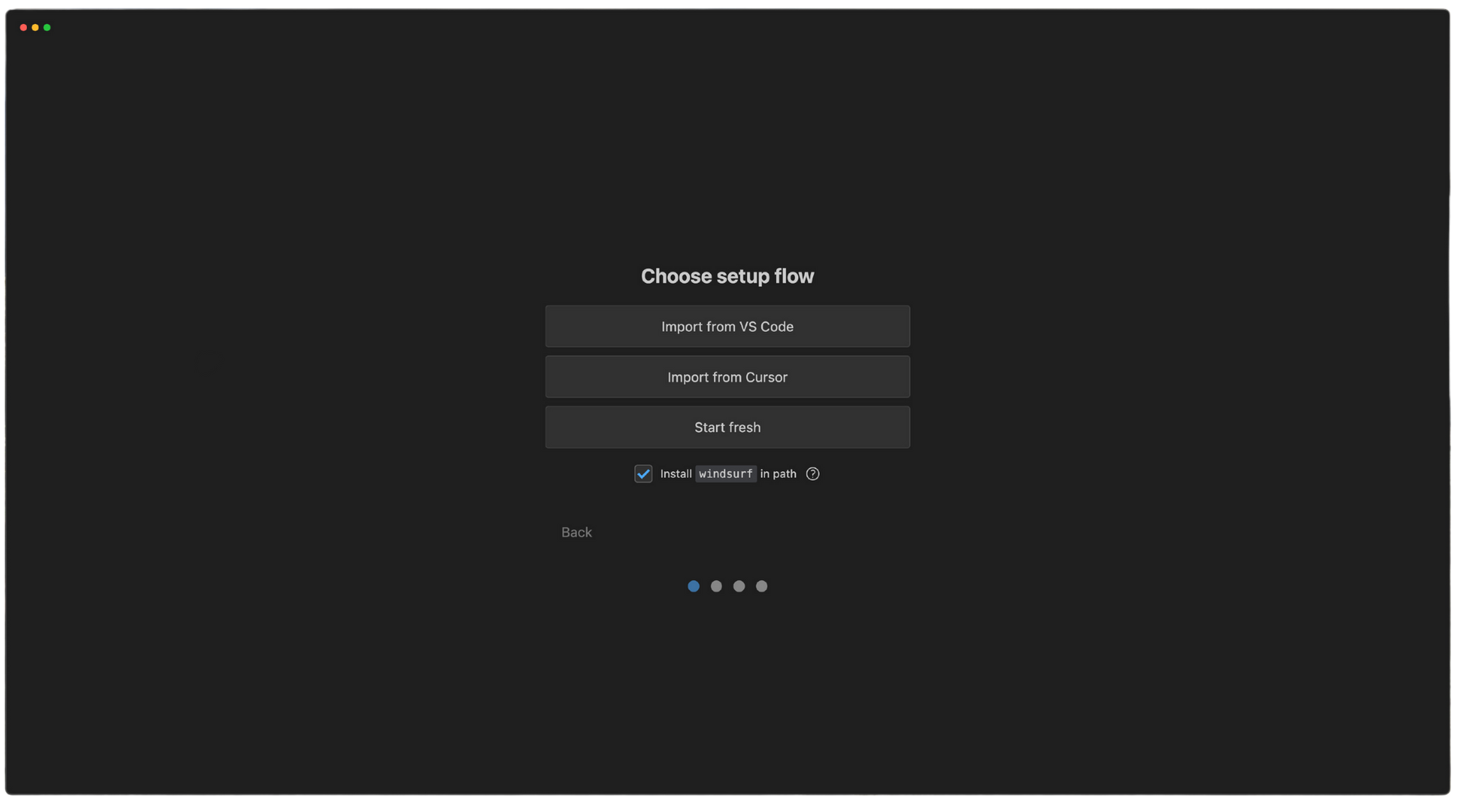
VS Code または Cursor をお使いの場合、設定を簡単にインポートできます。該当しない場合は「Start fresh」を選択してください。必要に応じて、PATH に `windsurf` を追加してコマンドラインから `windsurf` を実行できるようにすることも可能です。

<Frame>
  <img src="https://mintcdn.com/codeium/bVGscI7v3lPUsThV/assets/windsurf/onboarding/setup.png?fit=max&auto=format&n=bVGscI7v3lPUsThV&q=85&s=5696da6d3a63cd10ddcac4575dbf89fd" width="2064" height="1145" data-path="assets/windsurf/onboarding/setup.png" />
</Frame>

<Tabs>
  <Tab title="Start fresh">
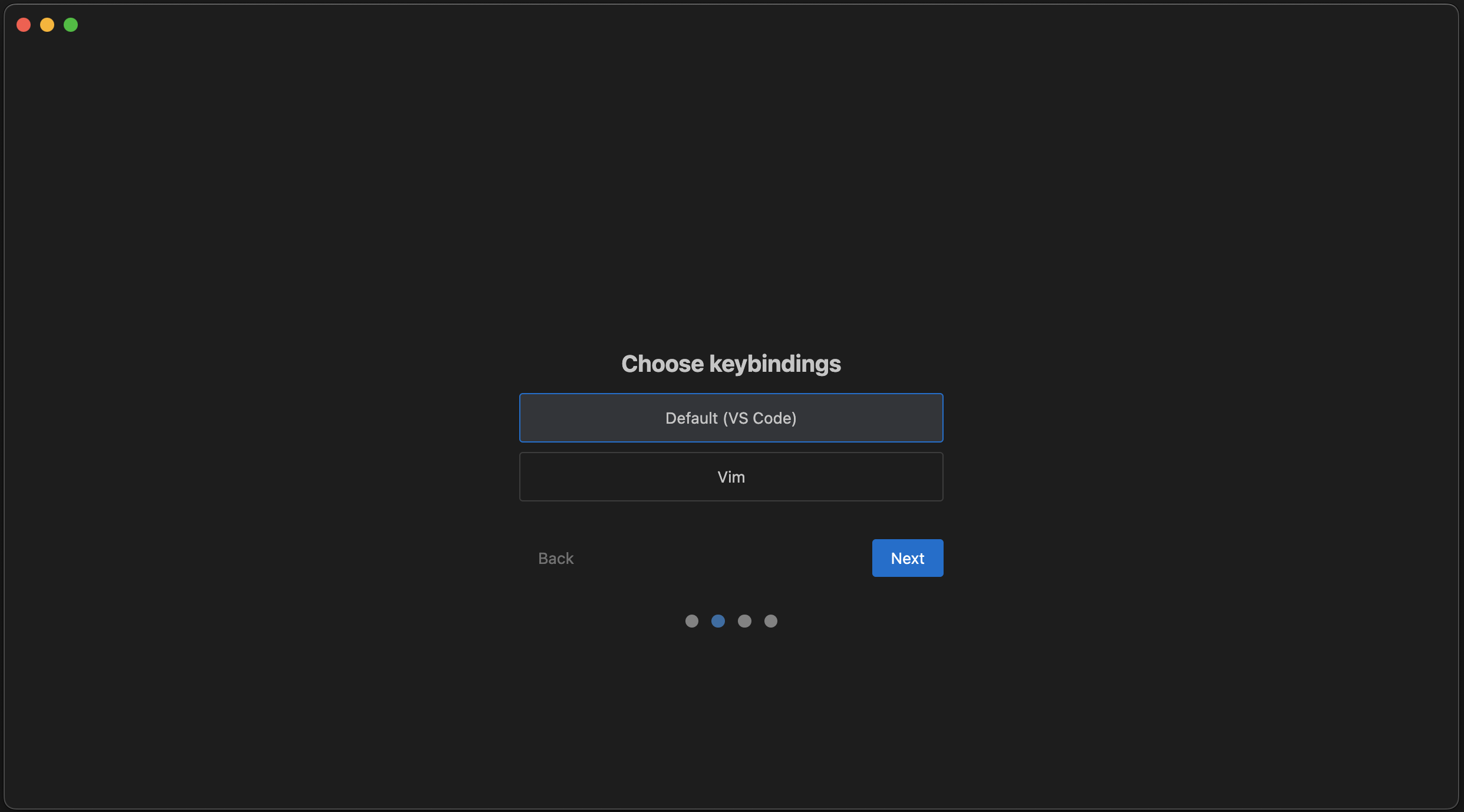
    ここでキーバインドを選択します。VS Code のデフォルトか、Vim のキーバインドを選べます。

    <Frame>
      <img src="https://mintcdn.com/codeium/bVGscI7v3lPUsThV/assets/windsurf/onboarding/keybind.png?fit=max&auto=format&n=bVGscI7v3lPUsThV&q=85&s=14c9adde7dd5bb1073108c510934f3cb" width="2484" height="1378" data-path="assets/windsurf/onboarding/keybind.png" />
    </Frame>
  </Tab>

  <Tab title="Import from VS Code">
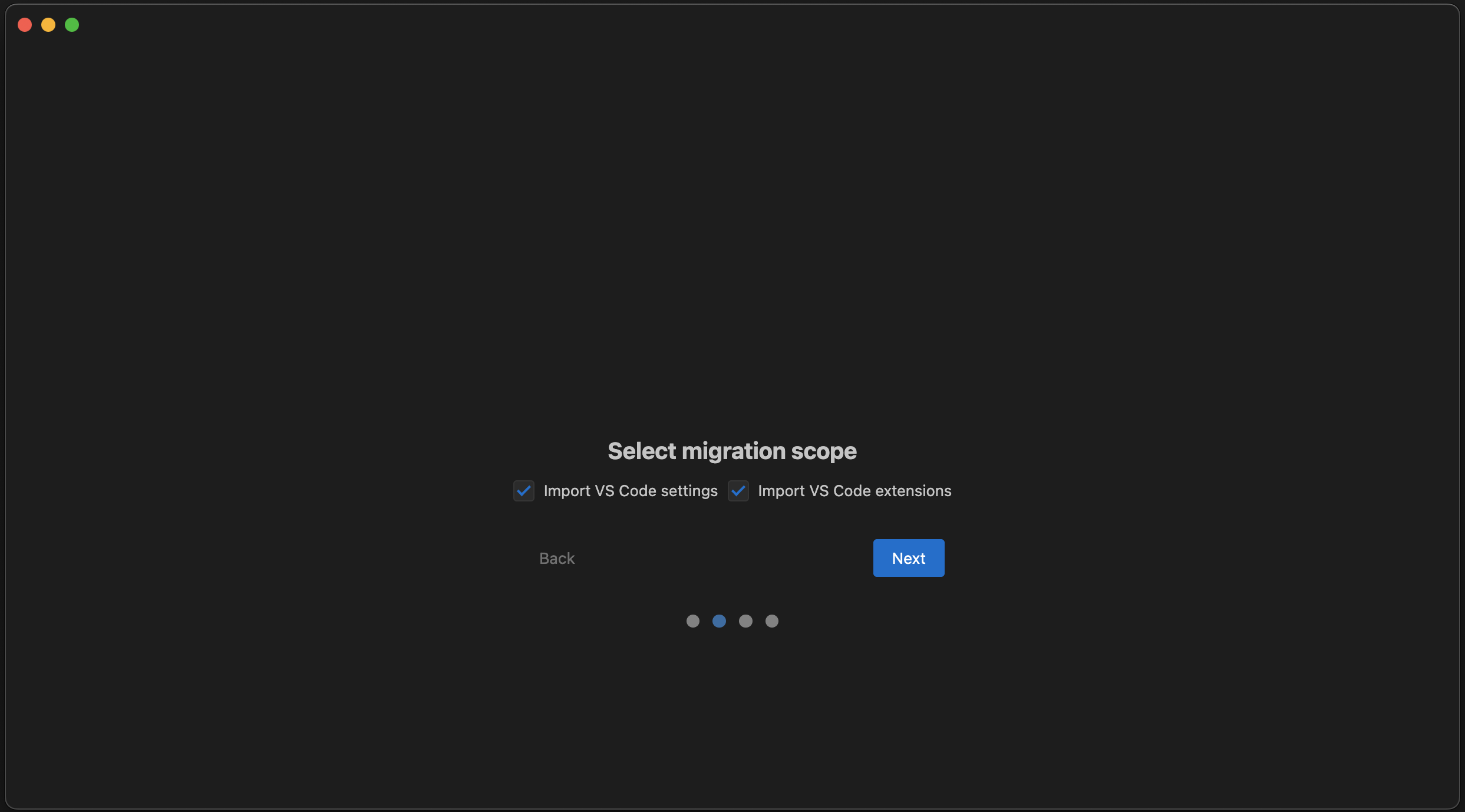
    ここで設定、拡張機能、またはその両方を移行できます。

    <Frame>
      <img src="https://mintcdn.com/codeium/bVGscI7v3lPUsThV/assets/windsurf/onboarding/vscode_migration.png?fit=max&auto=format&n=bVGscI7v3lPUsThV&q=85&s=cf14f085ccba168dd02c791f381507b7" width="2486" height="1378" data-path="assets/windsurf/onboarding/vscode_migration.png" />
    </Frame>
  </Tab>

  <Tab title="Import from Cursor">
    ここで設定、拡張機能、またはその両方を移行できます。

    <Frame>
      <img src="https://mintcdn.com/codeium/bVGscI7v3lPUsThV/assets/windsurf/onboarding/vscode_migration.png?fit=max&auto=format&n=bVGscI7v3lPUsThV&q=85&s=cf14f085ccba168dd02c791f381507b7" width="2486" height="1378" data-path="assets/windsurf/onboarding/vscode_migration.png" />
    </Frame>
  </Tab>
</Tabs>

<div id="2-choose-editor-theme">
  ### 2. エディターテーマを選択
</div>

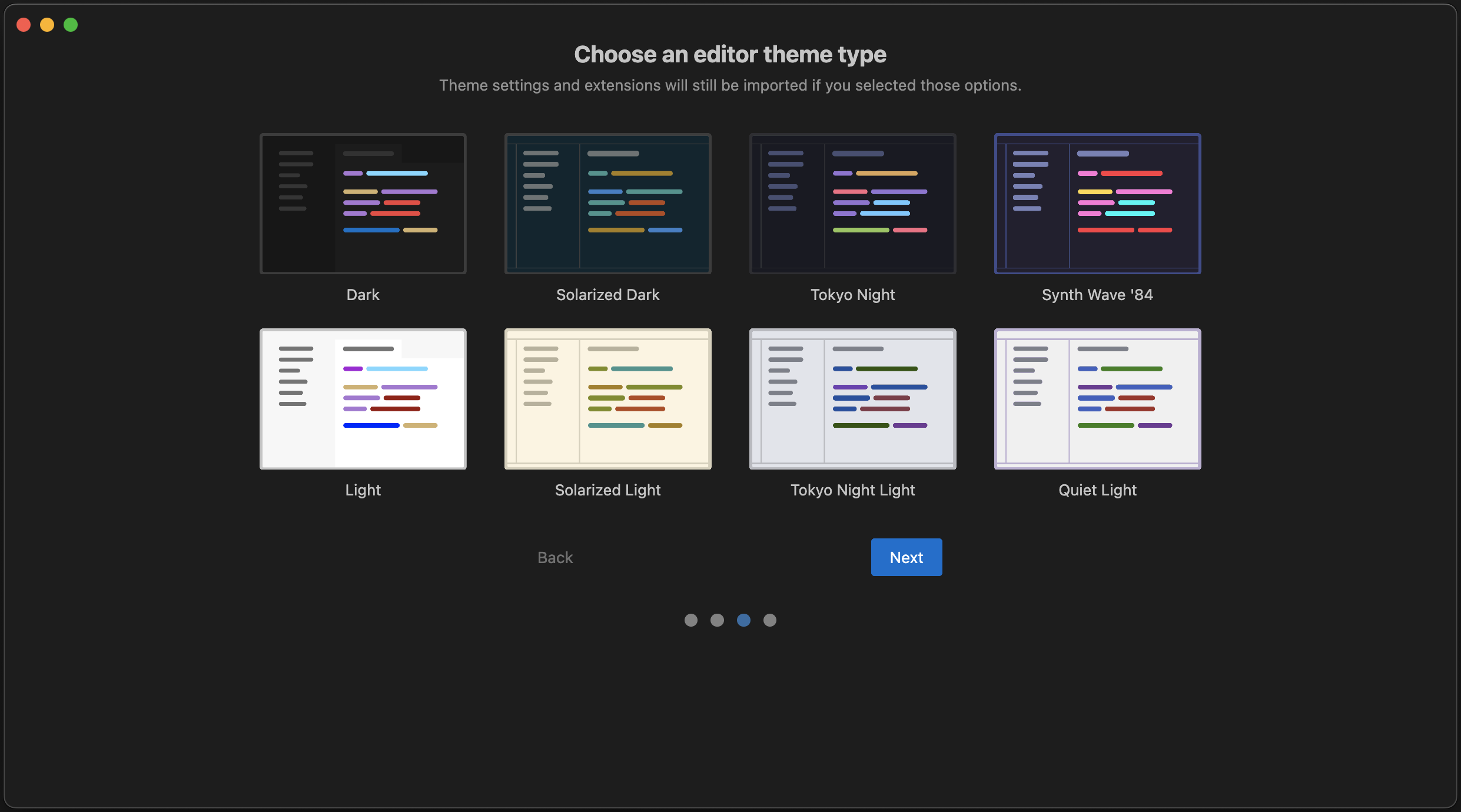
以下の標準テーマから好みのカラーテーマを選んでください。後からいつでも変更できます。なお、VS Code から設定をインポートした場合は、インポートされたテーマがここでの選択を上書きします。

<Frame>
  <img src="https://mintcdn.com/codeium/bVGscI7v3lPUsThV/assets/windsurf/onboarding/theme.png?fit=max&auto=format&n=bVGscI7v3lPUsThV&q=85&s=7bd1ce64f97063988605a7e6bcf3f734" width="2482" height="1380" data-path="assets/windsurf/onboarding/theme.png" />
</Frame>

<div id="3-sign-up-log-in">
  ### 3. サインアップ / ログイン
</div>

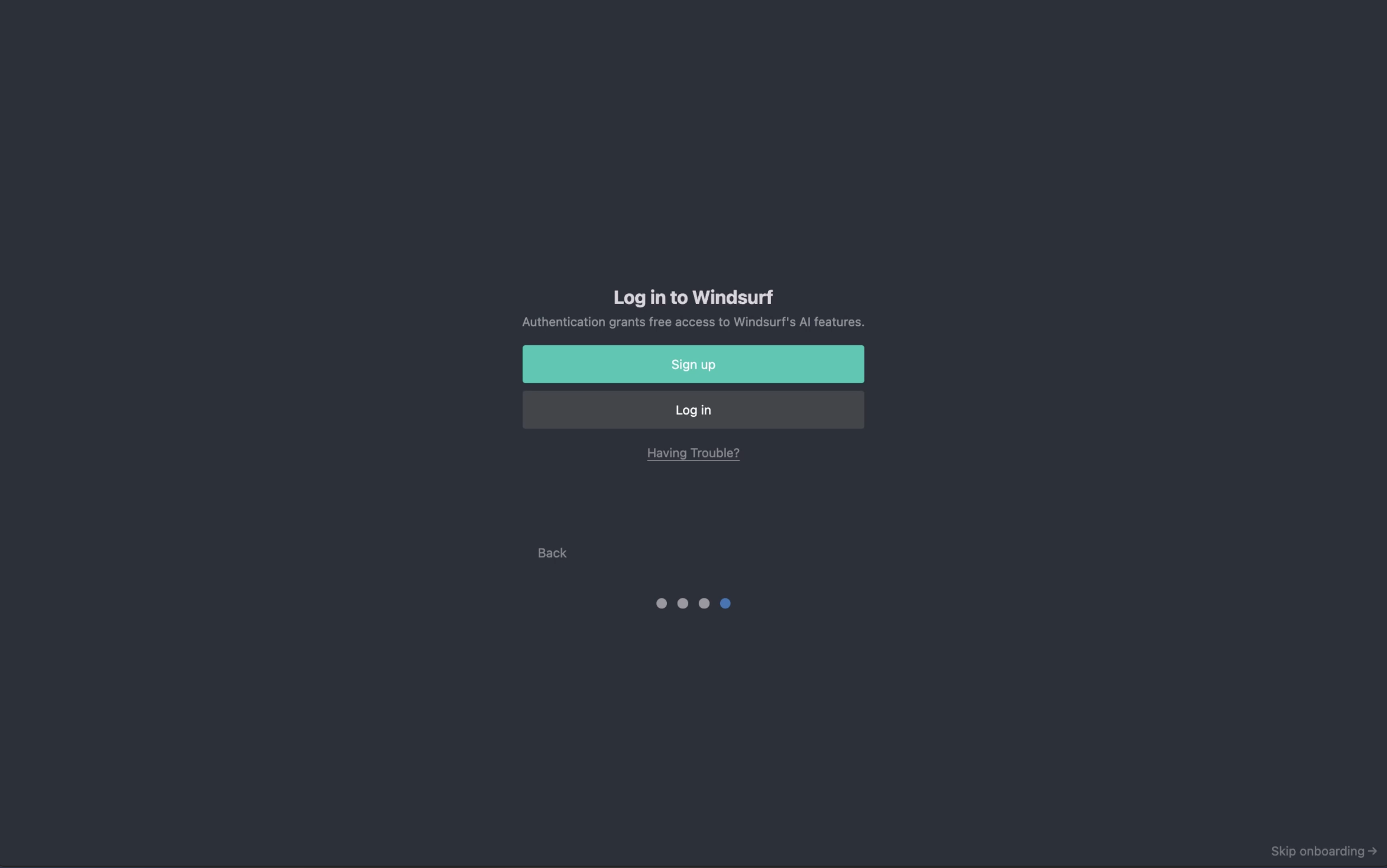
Windsurf を利用するには、既存の Windsurf アカウントでログインするか、未作成の場合は新規作成してください。サインアップは無料です。

<Frame>
  <img src="https://mintcdn.com/codeium/bVGscI7v3lPUsThV/assets/windsurf/onboarding/auth.png?fit=max&auto=format&n=bVGscI7v3lPUsThV&q=85&s=e92373636e9415e67b79e5eaeff399be" width="2346" height="1468" data-path="assets/windsurf/onboarding/auth.png" />
</Frame>

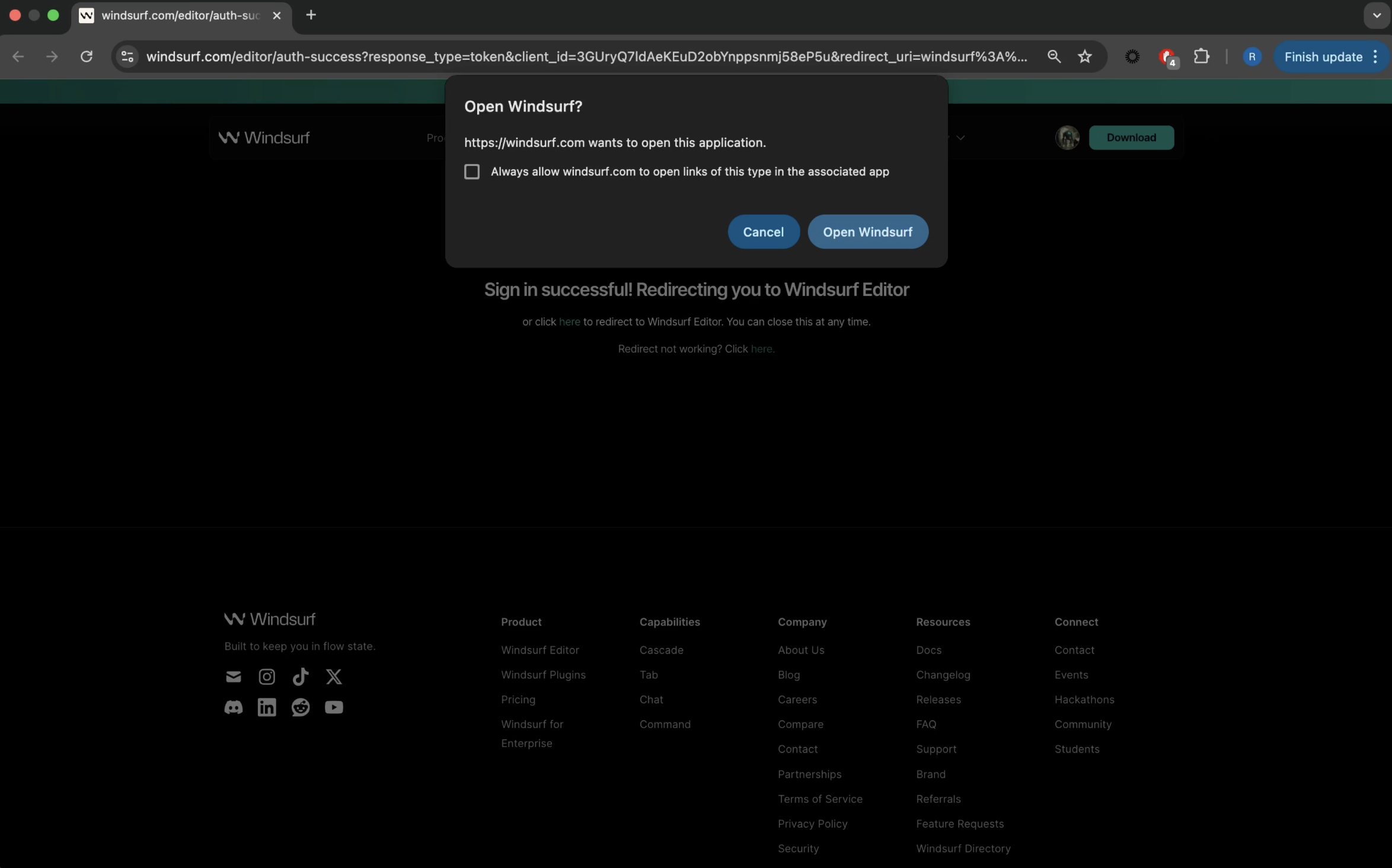
認証が完了すると、このページが表示されます。「Open Windsurf」をクリックすれば準備完了です。

<Frame>
  <img src="https://mintcdn.com/codeium/bVGscI7v3lPUsThV/assets/windsurf/onboarding/authenticated.png?fit=max&auto=format&n=bVGscI7v3lPUsThV&q=85&s=8d8091bca31c571afe1ef5caf9b03459" width="2348" height="1464" data-path="assets/windsurf/onboarding/authenticated.png" />
</Frame>

<div id="having-trouble">
  #### お困りですか？
</div>

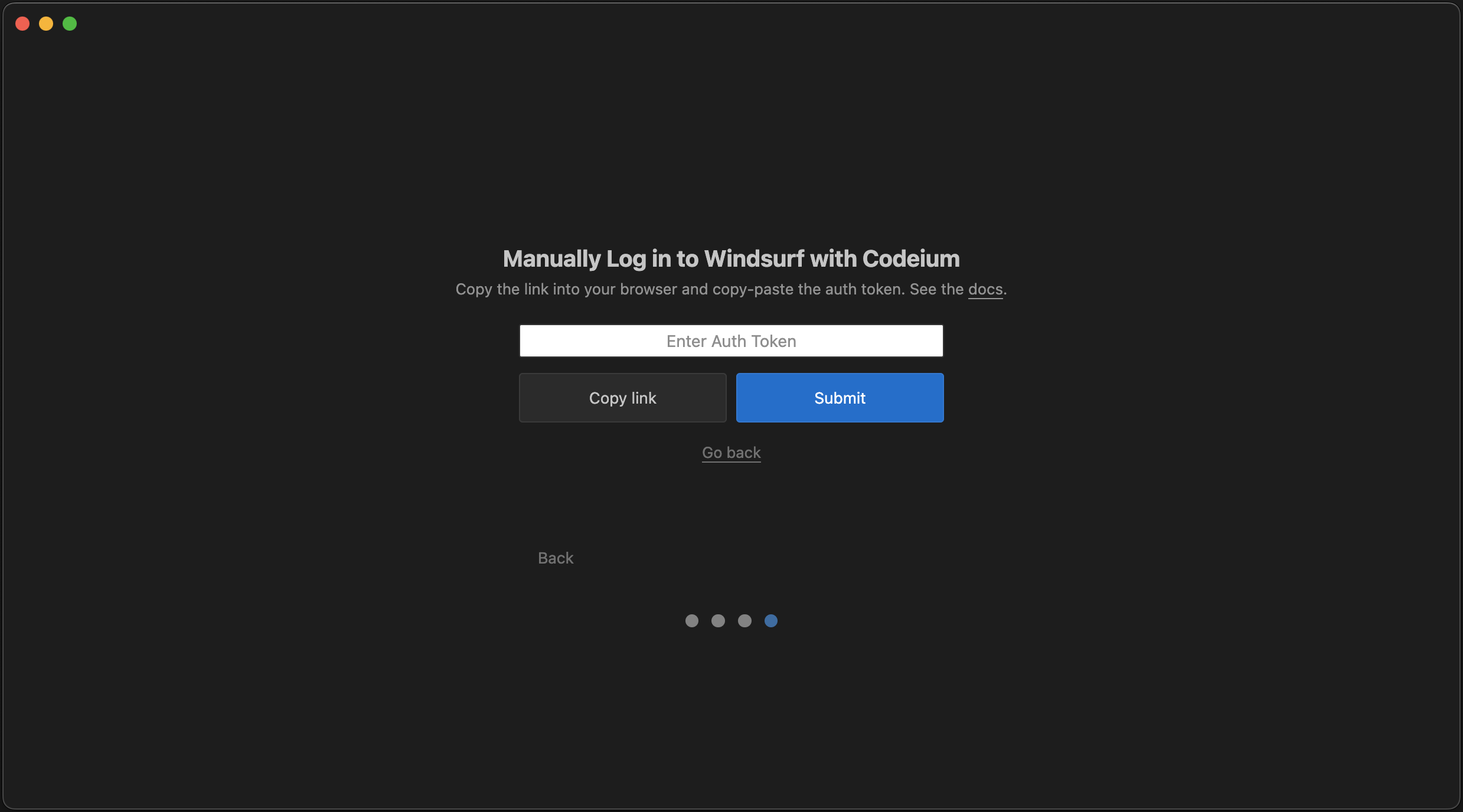
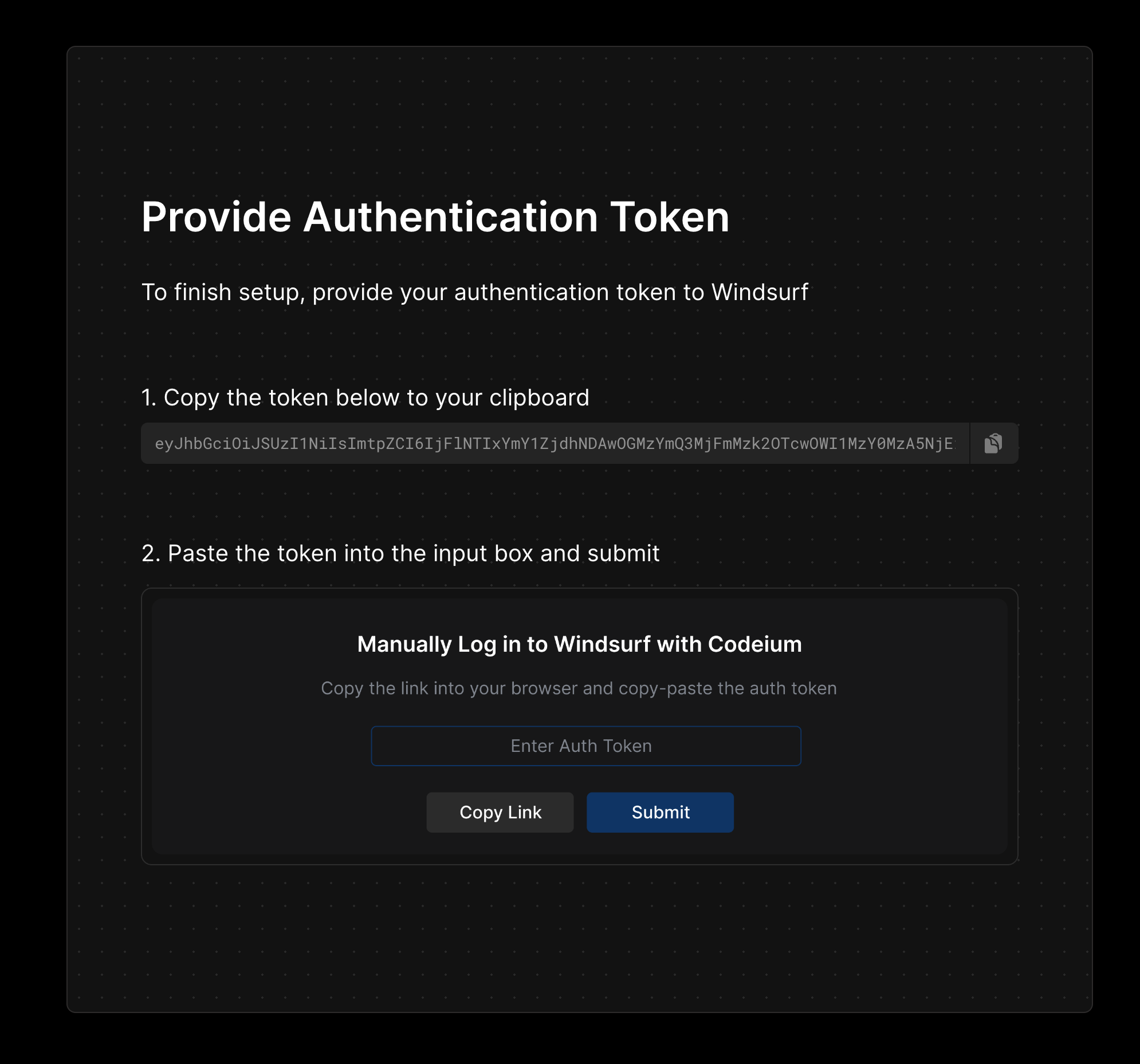
この認証フローで問題が発生している場合は、ログインして認証コードを手動で Windsurf に入力することもできます。

<Tabs>
  <Tab title="1. 「お困りですか？」を選択">
    「Copy link」ボタンをクリックして認証リンクをクリップボードにコピーし、そのリンクをブラウザに貼り付けて開いてください。

    <Frame>
      <img src="https://mintcdn.com/codeium/bVGscI7v3lPUsThV/assets/windsurf/onboarding/manual_auth.png?fit=max&auto=format&n=bVGscI7v3lPUsThV&q=85&s=c4aabe6e213b964e315fbc6940f0c5b0" width="2478" height="1376" data-path="assets/windsurf/onboarding/manual_auth.png" />
    </Frame>
  </Tab>

  <Tab title="2. 認証コードを入力">
    リンクに表示される認証コードをコピーし、Windsurf に入力してください。

    <Frame>
      <img src="https://mintcdn.com/codeium/bVGscI7v3lPUsThV/assets/windsurf/onboarding/manual_auth_onboarding.png?fit=max&auto=format&n=bVGscI7v3lPUsThV&q=85&s=5911333c632d5ded717d685c3ff77cac" width="1990" height="1858" data-path="assets/windsurf/onboarding/manual_auth_onboarding.png" />
    </Frame>
  </Tab>
</Tabs>

<div id="4-lets-surf">
  ### 4. さあ、サーフしよう！
</div>

<Frame>
  <video autoPlay muted loop playsInline src="https://mintcdn.com/codeium/bVGscI7v3lPUsThV/assets/windsurf/onboarding/lets_surf.mp4?fit=max&auto=format&n=bVGscI7v3lPUsThV&q=85&s=8f26c1a8770b94a299752d7401149cff" data-path="assets/windsurf/onboarding/lets_surf.mp4" />
</Frame>

<Card title="おすすめのプラグイン" icon="puzzle-piece" href="/ja/windsurf/recommended-plugins">
  Windsurfを最大限に活用するために、おすすめのプラグインをチェックしましょう。
</Card>

<div id="update-windsurf">
  ## Windsurf を更新する
</div>

Windsurf を更新するには、メニューバー右上の「Restart to Update ->」ボタンをクリックします。

<Frame>
  <img src="https://mintcdn.com/codeium/bVGscI7v3lPUsThV/assets/windsurf/update-windsurf.png?fit=max&auto=format&n=bVGscI7v3lPUsThV&q=85&s=254e39b2e81a7746d82b36387dae2504" width="600" height="66" data-path="assets/windsurf/update-windsurf.png" />
</Frame>

このボタンが表示されない場合は、次のいずれかを実行してください:

1. プロフィールアイコンのドロップダウン > Check for Updates をクリック

2. コマンドパレット (`Cmd/Ctrl+Shift+P`) > 「Check for Updates」

<div id="things-to-try">
  ## 試してみよう
</div>

Windsurf を無事に起動できたら、さっそく機能を試してみましょう！どれもスタートページからかんたんにアクセスできます。 :)

<AccordionGroup>
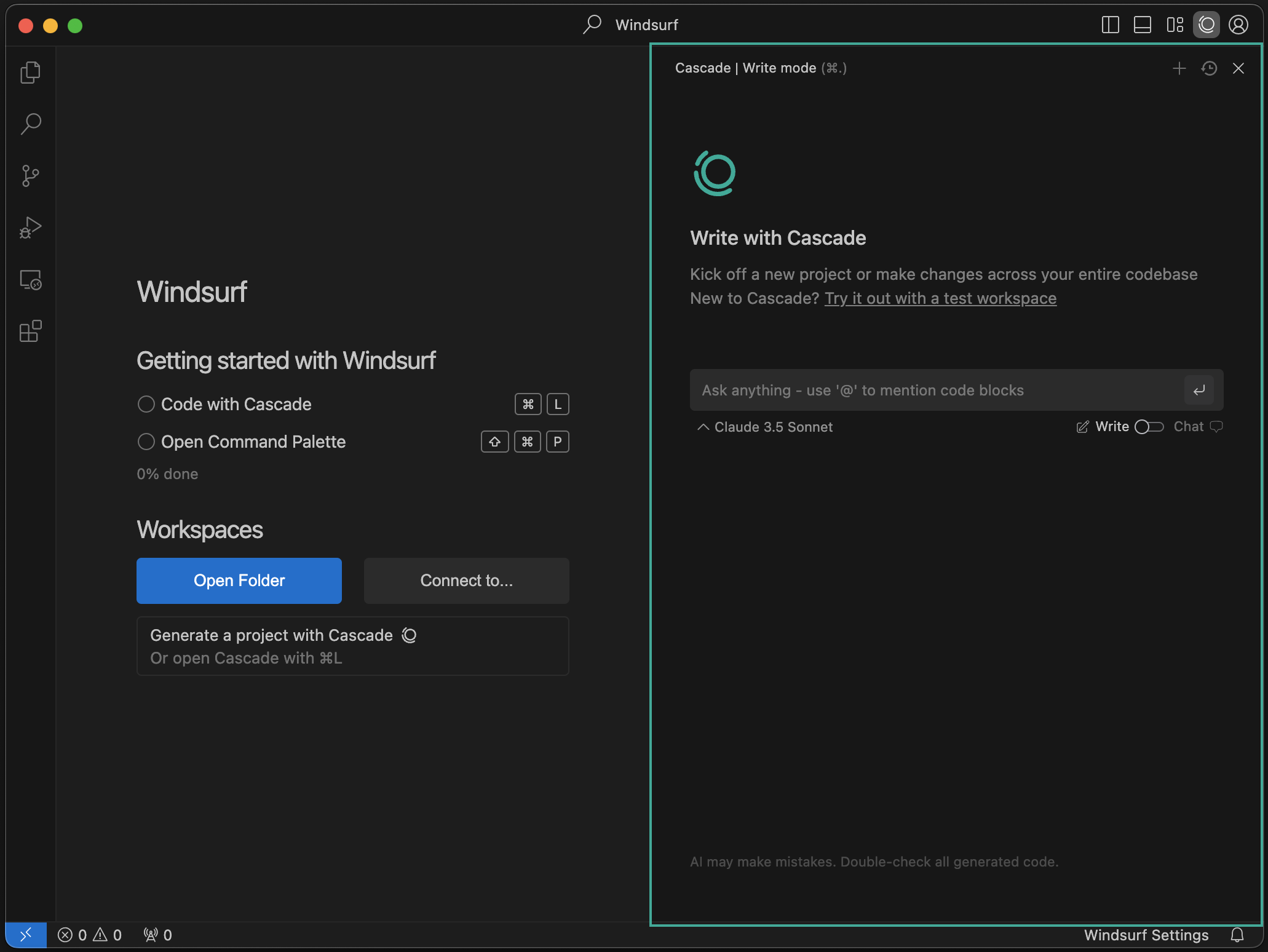
  <Accordion title="Cascade で書く">
    <Frame>
      <img src="https://mintcdn.com/codeium/qJj_RRojefb93yIg/assets/windsurf/cascade.png?fit=max&auto=format&n=qJj_RRojefb93yIg&q=85&s=1e48173bc3499c03f11be933a6b45596" width="2062" height="1548" data-path="assets/windsurf/cascade.png" />
    </Frame>

    IDE の右側に「Cascade」という新しいパネルが表示されています。これは AI 搭載のコードアシスタントです。Cascade では Chat、コードの作成、実行が行えます。仕組みの詳細は[こちら](/ja/windsurf/cascade)をご覧ください。
  </Accordion>

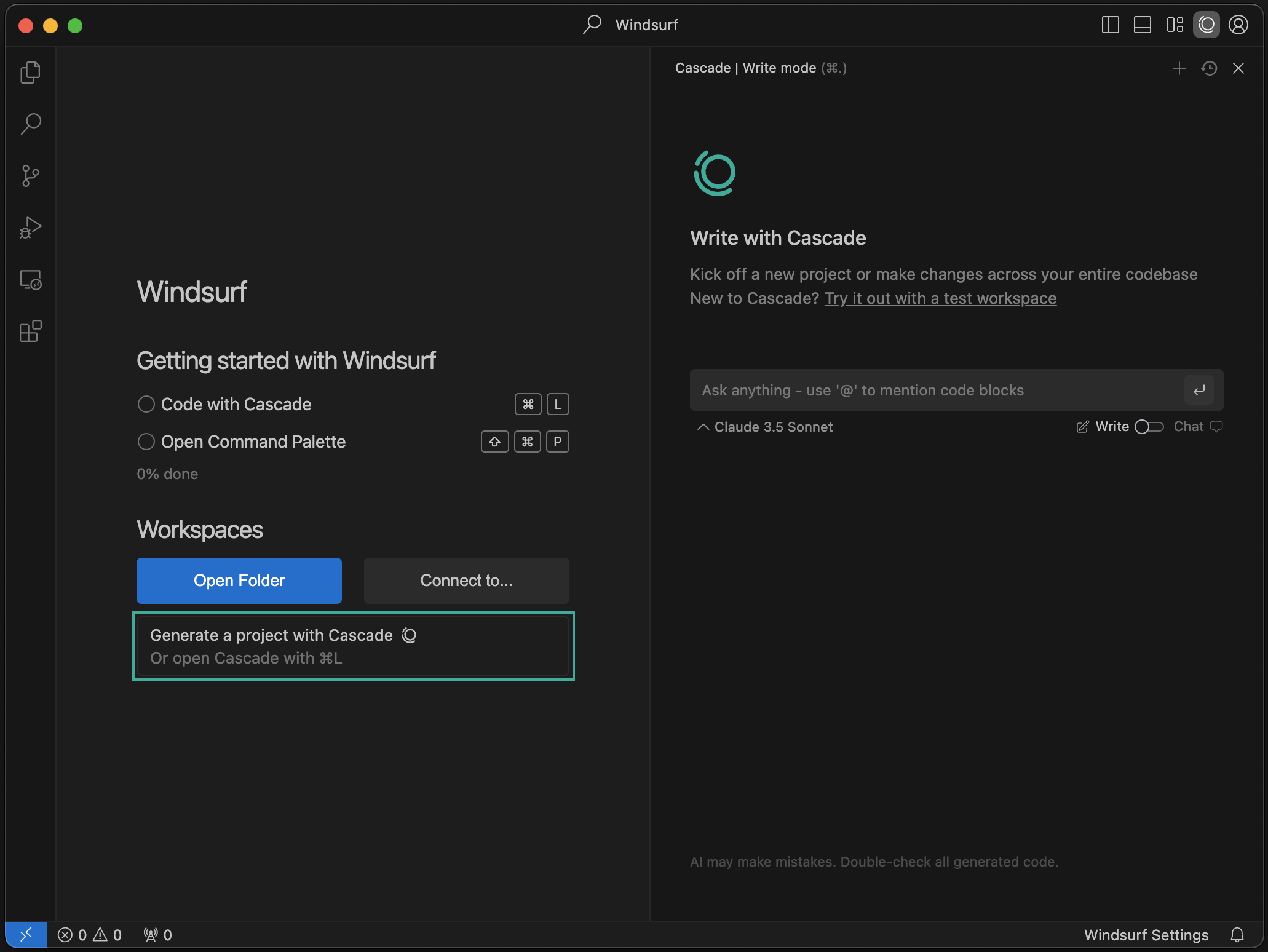
  <Accordion title="Cascade でプロジェクトを生成する">
    <Frame>
      <img src="https://mintcdn.com/codeium/qJj_RRojefb93yIg/assets/windsurf/cascade_generate.png?fit=max&auto=format&n=qJj_RRojefb93yIg&q=85&s=876d94d833f7156fb19ced5da29ac3f9" width="2062" height="1548" data-path="assets/windsurf/cascade_generate.png" />
    </Frame>

    Cascade を使って新しいプロジェクトを作成できます。「New Project」ボタンをクリックして始めましょう。
  </Accordion>

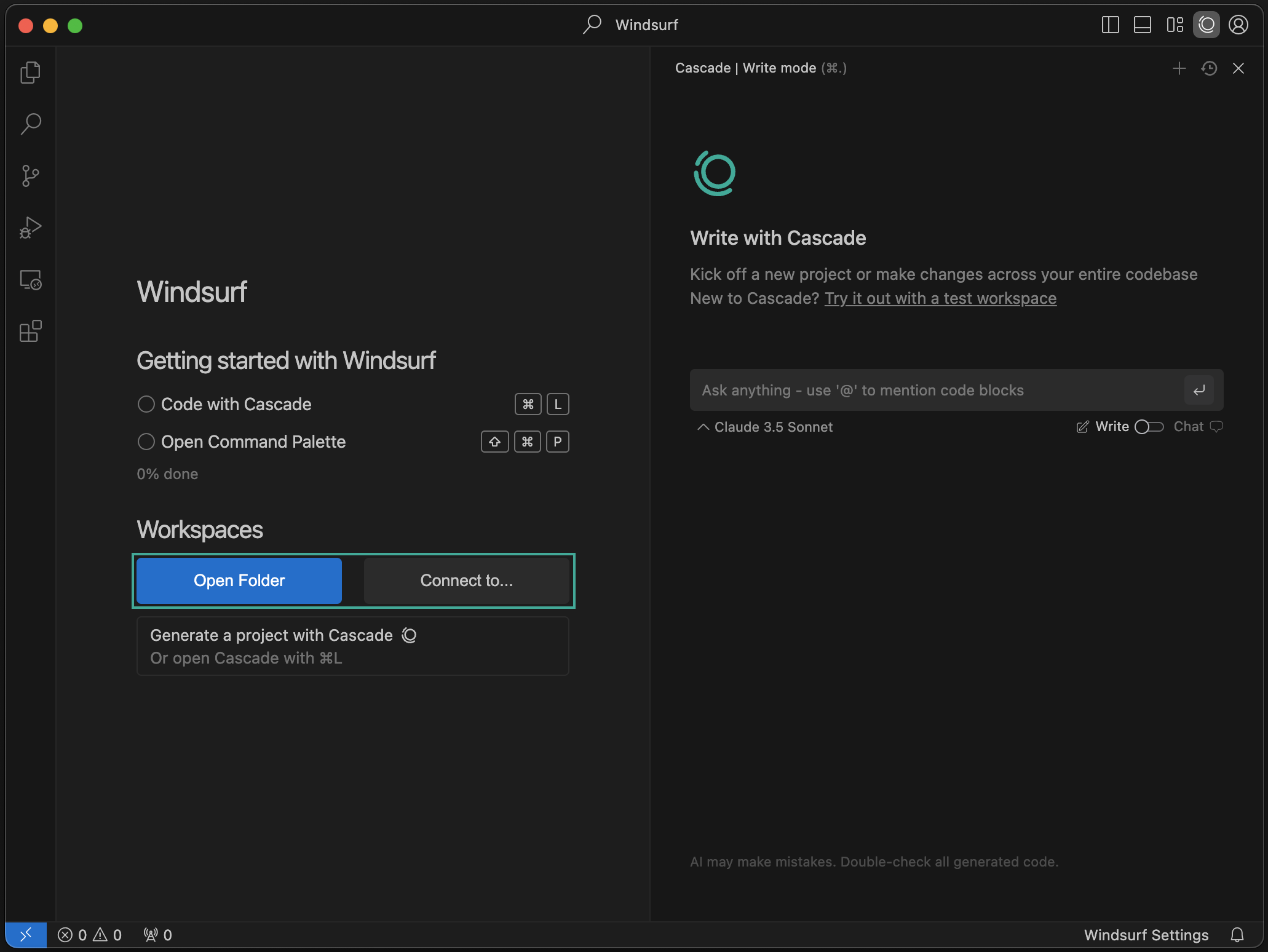
  <Accordion title="フォルダを開く / リモートサーバーに接続する">
    <Frame>
      <img src="https://mintcdn.com/codeium/bVGscI7v3lPUsThV/assets/windsurf/open_workspace.png?fit=max&auto=format&n=bVGscI7v3lPUsThV&q=85&s=23af27c11317a2d69cb04f092e1da13f" width="2062" height="1548" data-path="assets/windsurf/open_workspace.png" />
    </Frame>

    フォルダを開くか、SSH やローカルの開発コンテナ経由でリモートサーバーに接続できます。詳細は[こちら](/ja/windsurf/advanced)をご覧ください。
  </Accordion>

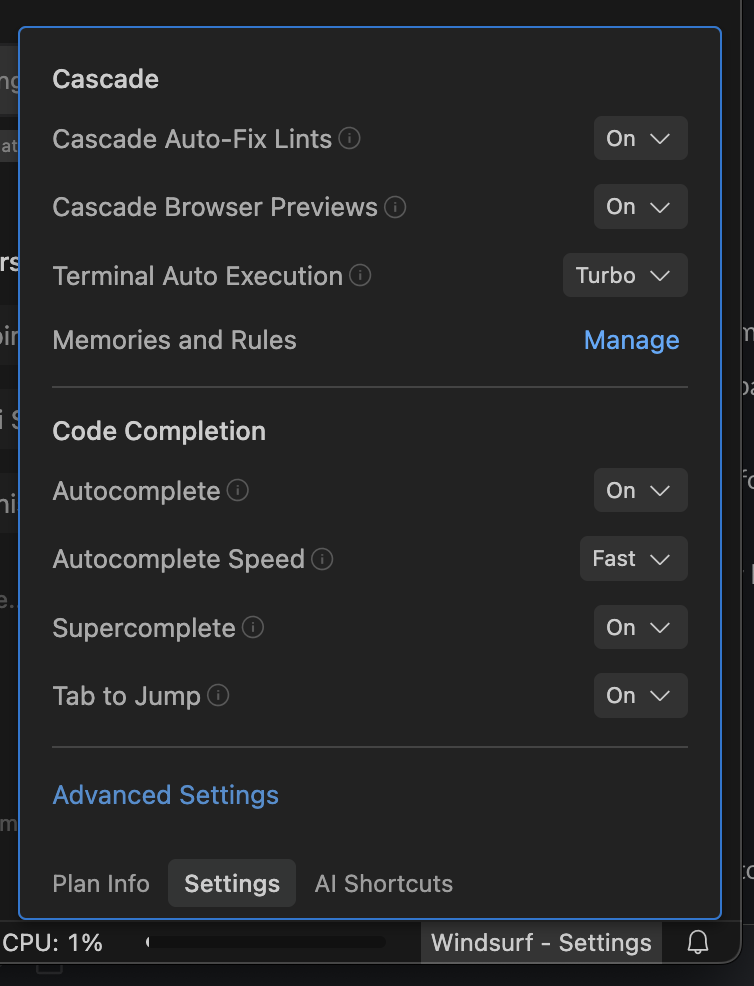
  <Accordion title="Windsurf の設定を変更する">
    <Frame>
      <img style={{width: '50%', display: 'block', margin: 'auto'}} src="https://mintcdn.com/codeium/bVGscI7v3lPUsThV/assets/windsurf/windsurf-settings-panel.png?fit=max&auto=format&n=bVGscI7v3lPUsThV&q=85&s=4f123cb41fe4557a31249af717324652" width="754" height="986" data-path="assets/windsurf/windsurf-settings-panel.png" />
    </Frame>

    右下の「Windsurf - Settings」ボタンをクリックすると設定パネルが表示されます。高度な設定にアクセスするには、このパネル内のボタンをクリックするか、右上のプロフィールのドロップダウンで「Windsurf Settings」を選択します。
  </Accordion>

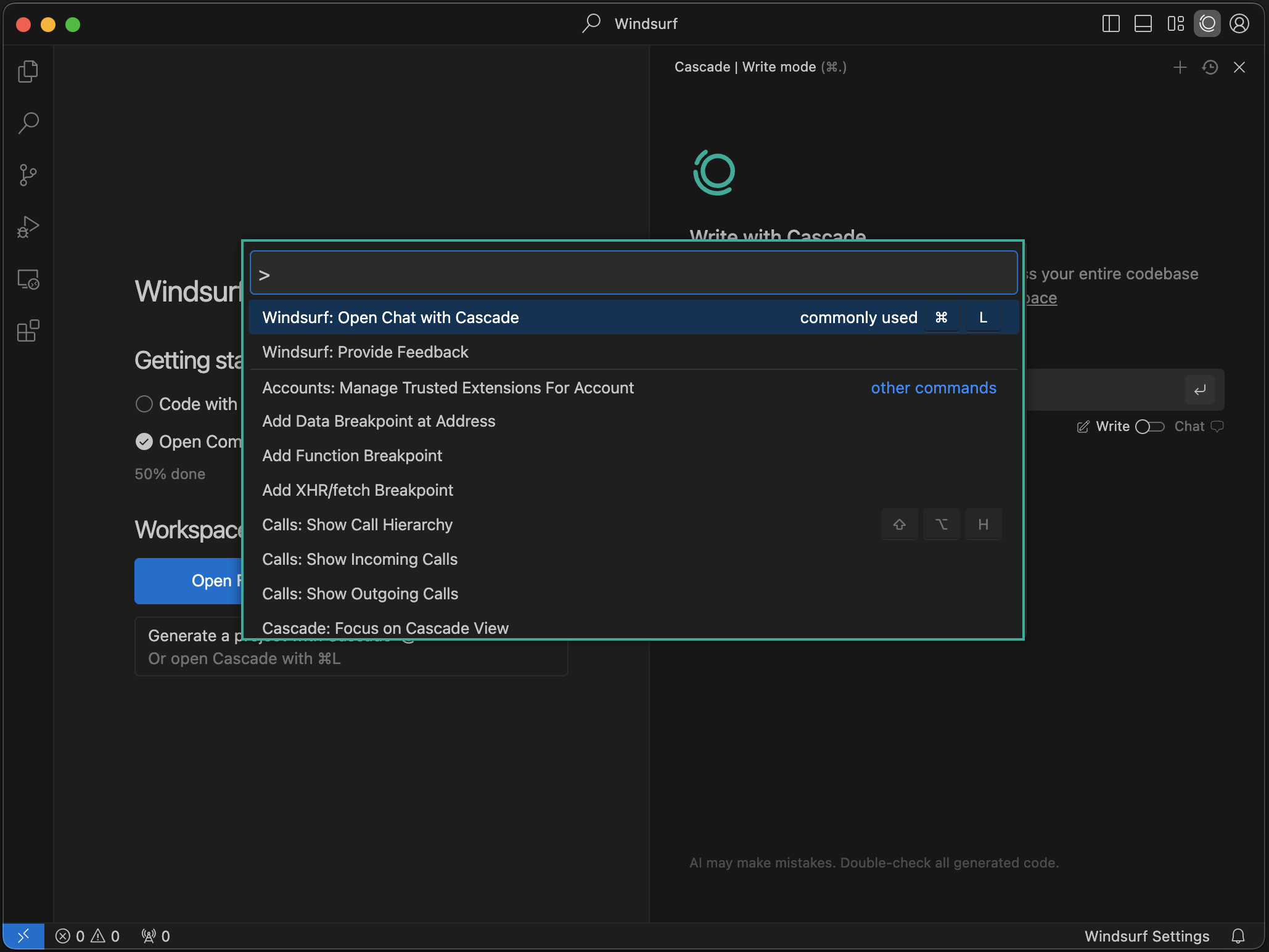
  <Accordion title="コマンドパレットを開く">
    <Frame>
      <img src="https://mintcdn.com/codeium/qJj_RRojefb93yIg/assets/windsurf/command_palette.png?fit=max&auto=format&n=qJj_RRojefb93yIg&q=85&s=8fb19cd757b7daa72bf441aa71d30a7f" width="2058" height="1544" data-path="assets/windsurf/command_palette.png" />
    </Frame>

    コマンドパレットは `⌘+⇧+P` (Mac) または `Ctrl+Shift+P` (Windows/Linux) のショートカットで開けます。利用可能なコマンドを試してみましょう。
  </Accordion>
</AccordionGroup>

<div id="forgot-to-import-vs-code-configurations">
  ## VS Code の設定のインポートを忘れましたか？
</div>

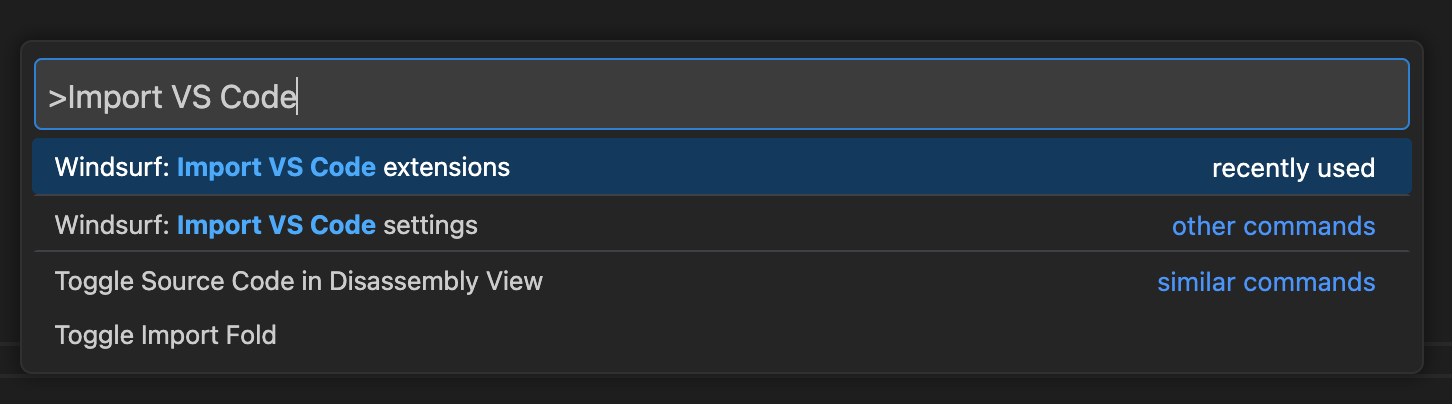
オンボーディング後でも、VS Code/Cursor の設定を Windsurf に簡単にインポートできます。

コマンドパレット (Mac: `⌘+⇧+P`, Windows/Linux: `Ctrl+Shift+P`) を開き、次を入力します:

<Tabs>
  <Tab title="VS Code">
    <Frame>
      <img src="https://mintcdn.com/codeium/d8O4q6w3H2CjrirL/assets/import-vscode.png?fit=max&auto=format&n=d8O4q6w3H2CjrirL&q=85&s=ad0b864c3db087628f26d86241d23616" width="1452" height="404" data-path="assets/import-vscode.png" />
    </Frame>
  </Tab>

  <Tab title="Cursor">
    <Frame>
      <img src="https://mintcdn.com/codeium/bVGscI7v3lPUsThV/assets/windsurf/import-cursor.png?fit=max&auto=format&n=bVGscI7v3lPUsThV&q=85&s=a96df0b3235675e3713d0bf306170130" width="1454" height="272" data-path="assets/windsurf/import-cursor.png" />
    </Frame>
  </Tab>
</Tabs>

<div id="incompatible-extensions">
  ## 非互換の拡張機能
</div>

Windsurf と互換性のない拡張機能がいくつかあります。これには、他の AI コード補完拡張機能や独自仕様の拡張機能が含まれます。Windsurf では、いかなるマーケットプレイスからも拡張機能をインストールできません。

<div id="custom-app-icons-beta">
  ## カスタムアプリアイコン (ベータ)
</div>

Windsurf の有料ユーザーは、ドックに表示される Windsurf のアイコンを複数のデザインから選べます。現在、この機能は macOS のみで利用可能で、他のオペレーティングシステムにも今後対応予定です。

アプリアイコンを変更するには、エディタ右上のプロフィール／設定アイコンをクリックし、「Customize App Icon」を選択してください。

<div id="windsurf-next">
  ## Windsurf Next
</div>

Windsurf Next は Windsurf のプレリリース版で、機能がまだ十分に練り上げられていない段階でも、最新の機能や特長にいち早くアクセスするためにユーザーが参加 (オプトイン) できます。新機能は通常、まず Windsurf Next に展開され、その後まもなく安定版に反映されます。

[こちらからダウンロード](https://windsurf.com/editor/download-next)するだけで、Windsurf Next に参加 (オプトイン) できます。
<div id="uninstall-windsurf">
  ## Windsurf のアンインストール
</div>

お使いのシステムから Windsurf をアンインストールするには、次の手順に従ってください。

<Steps>
  <Step title="Windsurf を終了する">
    アンインストールを進める前に、Windsurf が起動していないことを確認してください。
  </Step>

  <Step title="Windsurf アプリケーションを削除する">
    <Tabs>
      <Tab title="Mac">
        Applications フォルダから Windsurf アプリケーションをゴミ箱にドラッグします。
      </Tab>

      <Tab title="Windows">
        アプリケーションは通常、次のいずれかのフォルダにあります：

        * `C:\Program Files\Windsurf`
        * `C:\Users\[YourUsername]\AppData\Local\Programs\Windsurf`

        該当する場所から Windsurf フォルダを削除します。
      </Tab>

      <Tab title="Linux">
        インストールした場所から Windsurf フォルダを削除します。
      </Tab>
    </Tabs>
  </Step>

  <Step title="設定ファイルを削除する">
    <Tabs>
      <Tab title="Mac/Linux">
        Windsurf の設定フォルダを削除します：

        ```bash theme={null}
        rm -rf ~/.codeium/windsurf
        ```
      </Tab>

      <Tab title="Windows">
        Windsurf の設定フォルダを削除します：

        ```
        C:\Users\[YourUsername]\.codeium\windsurf
        ```
      </Tab>
    </Tabs>
  </Step>

  <Step title="追加のクリーンアップ">
    <ul>
      <li>Windsurf を PATH に追加している場合は、システムの PATH 環境変数から削除してください。</li>
      <li>システムのパッケージマネージャーやコントロールパネル経由でインストールした場合は、それらを使ってアンインストールすることもできます。</li>
      <li>アンインストールを完了するために、ゴミ箱または Recycle Bin を空にしてください。</li>
    </ul>
  </Step>
</Steps>